> For the complete documentation index, see [llms.txt](https://docs.archisketch.com/llms.txt). Markdown versions of documentation pages are available by appending `.md` to page URLs; this page is available as [Markdown](https://docs.archisketch.com/guide/user/archisketch-ai/ai-finishing-swap/ai.md).
# AI 마감 등록 가이드
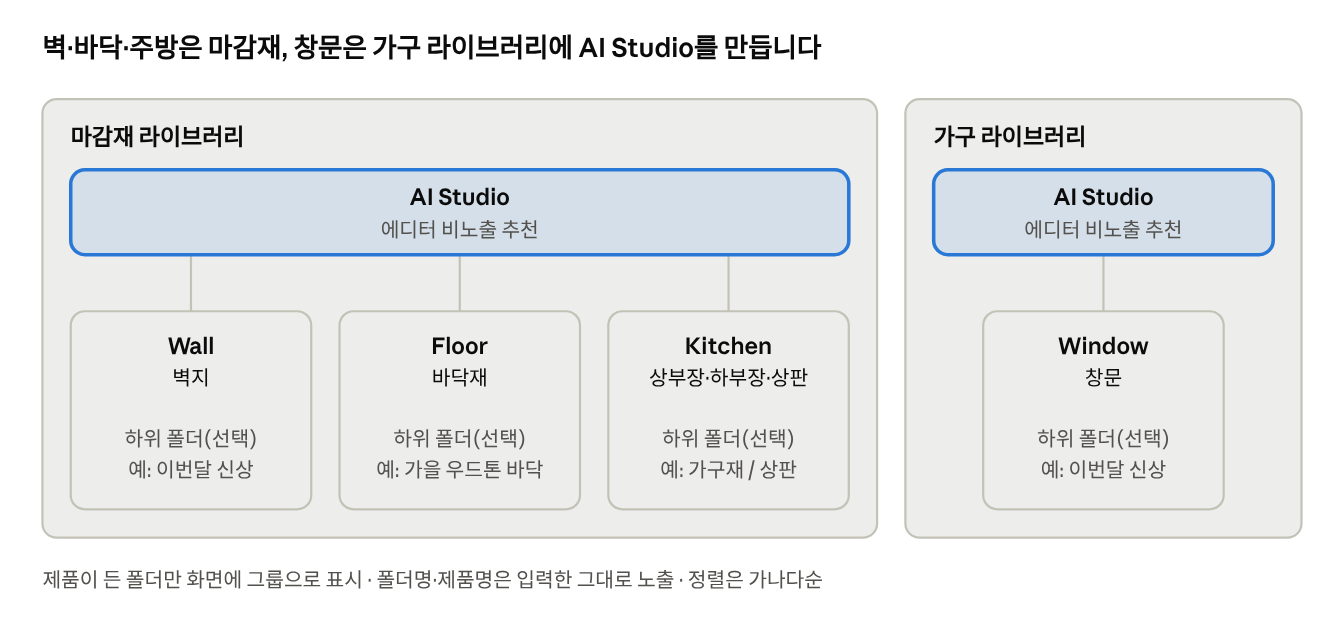
벽지·바닥재·주방재·창문 제품을 AI 마감 바꾸기에 노출하려면, 기업 라이브러리에 **AI Studio** 폴더를 만들고 제품을 영역 폴더에 넣어 주시면 됩니다. 벽지·바닥재·주방재는 **마감재 라이브러리**에, 창문은 **가구 라이브러리**에 만듭니다.
설정이 끝나면 사용자가 AI 마감 바꾸기에서 바닥·벽·주방·창 영역을 선택했을 때, 해당 폴더에 넣은 제품이 오른쪽 목록에 바로 표시됩니다. 폴더명과 제품명도 입력하신 그대로 화면에 보이니, 사용자에게 보여줄 이름으로 정해 주세요.
시작하기 전에 두 가지를 확인해 주세요.
* 이 가이드는 **라이브러리에 이미 등록된 제품**을 AI Studio 폴더로 옮기는 방법입니다. 아직 등록되지 않은 제품은 먼저 등록해 주세요.
* 폴더를 만들거나 제품 카테고리를 바꾸려면 **별도 권한**이 필요합니다.
***
### 1. 전체 폴더 구조
두 라이브러리 모두 최상위(기업명) 폴더 아래에 AI Studio를 만들고, 영역 폴더 안에 제품을 바로 넣거나 하위 폴더로 한 번 더 묶습니다.
### 2. 설정 절차
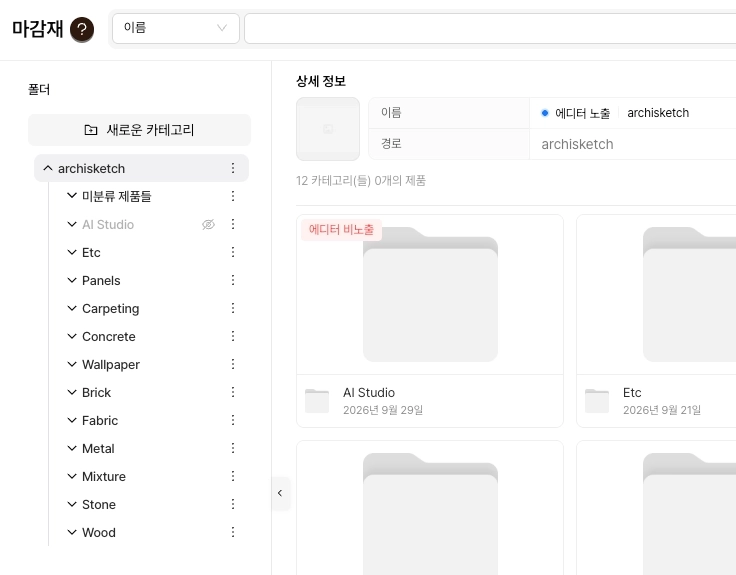
아래 화면은 샘플 계정 예시이며, 실제 폴더명은 기업명으로 표시됩니다.
{% stepper %}
{% step %}
### **마감재 라이브러리 열기**
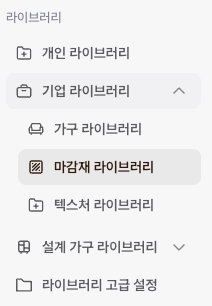
대시보드에서 라이브러리 > 기업 라이브러리 > 마감재 라이브러리로 이동합니다.
{% endstep %}
{% step %}
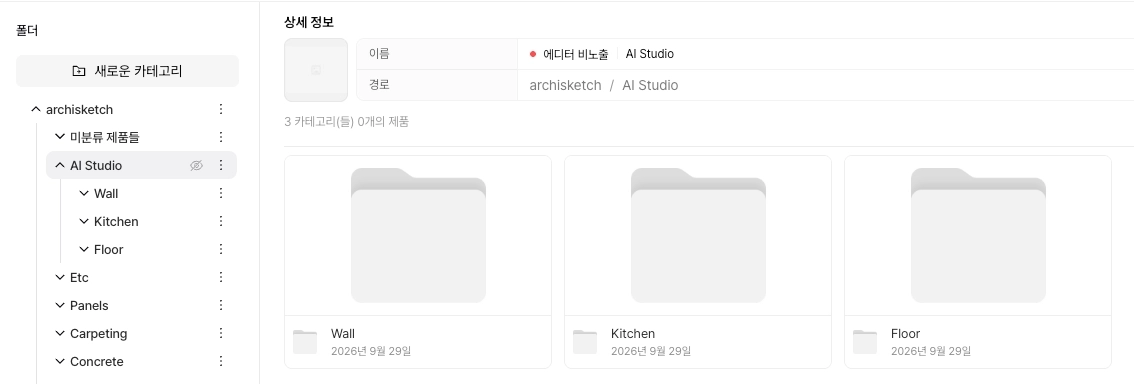
### **AI Studio 폴더 만들고 에디터 비노출(추천)**
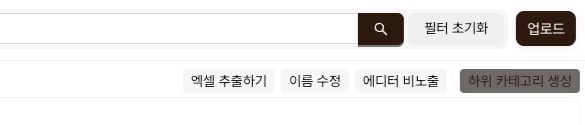
기업명으로 된 최상위 폴더를 선택하고 「하위 카테고리 생성」으로 `AI Studio`를 만듭니다. 이어서 「에디터 비노출」을 누르면 폴더에 빨간 「에디터 비노출」 표시와 트리의 눈 아이콘이 붙습니다. 일반 3D 에디터 라이브러리에 AI Studio용 제품이 섞여 보이지 않게 하는 설정입니다.
앞으로 폴더를 만들 때는 항상 **폴더를 만들 위치(상위 폴더)를 먼저 선택한 뒤** 오른쪽 위 「하위 카테고리 생성」을 누르시면 됩니다.
{% endstep %}
{% step %}
### **영역 폴더 만들기**
AI Studio 폴더를 선택하고 「하위 카테고리 생성」으로 `Wall`, `Floor`, `Kitchen` 폴더를 만듭니다. `AI Studio`와 영역 폴더 이름은 **철자·대소문자·띄어쓰기까지 똑같이** 입력해야 인식됩니다. 그 아래 하위 폴더 이름은 자유롭게 정하셔도 됩니다.
| AI 마감 바꾸기 영역 | 라이브러리 | 폴더 이름 | 넣을 제품 |
| ------------ | --------- | --------- | ---------- |
| 벽 | 마감재 라이브러리 | `Wall` | 벽지 |
| 바닥 | 마감재 라이브러리 | `Floor` | 바닥재 |
| 주방 | 마감재 라이브러리 | `Kitchen` | 상부장·하부장·상판 |
| 창 | 가구 라이브러리 | `Window` | 창문 |
{% endstep %}
{% step %}
### **제품 넣기(필요하면 하위 폴더로 묶기)**
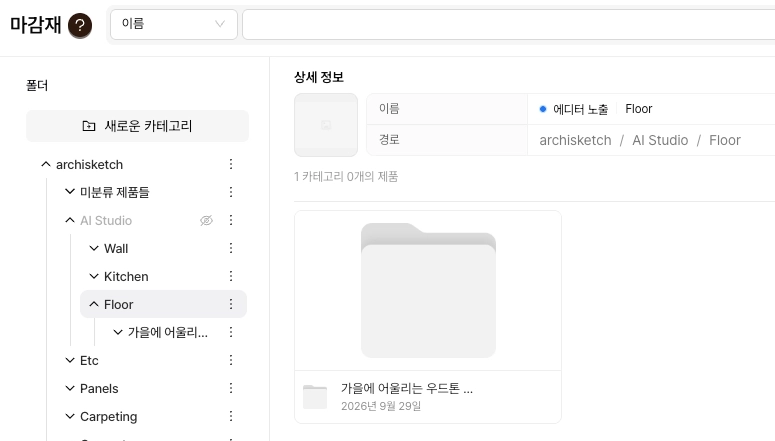
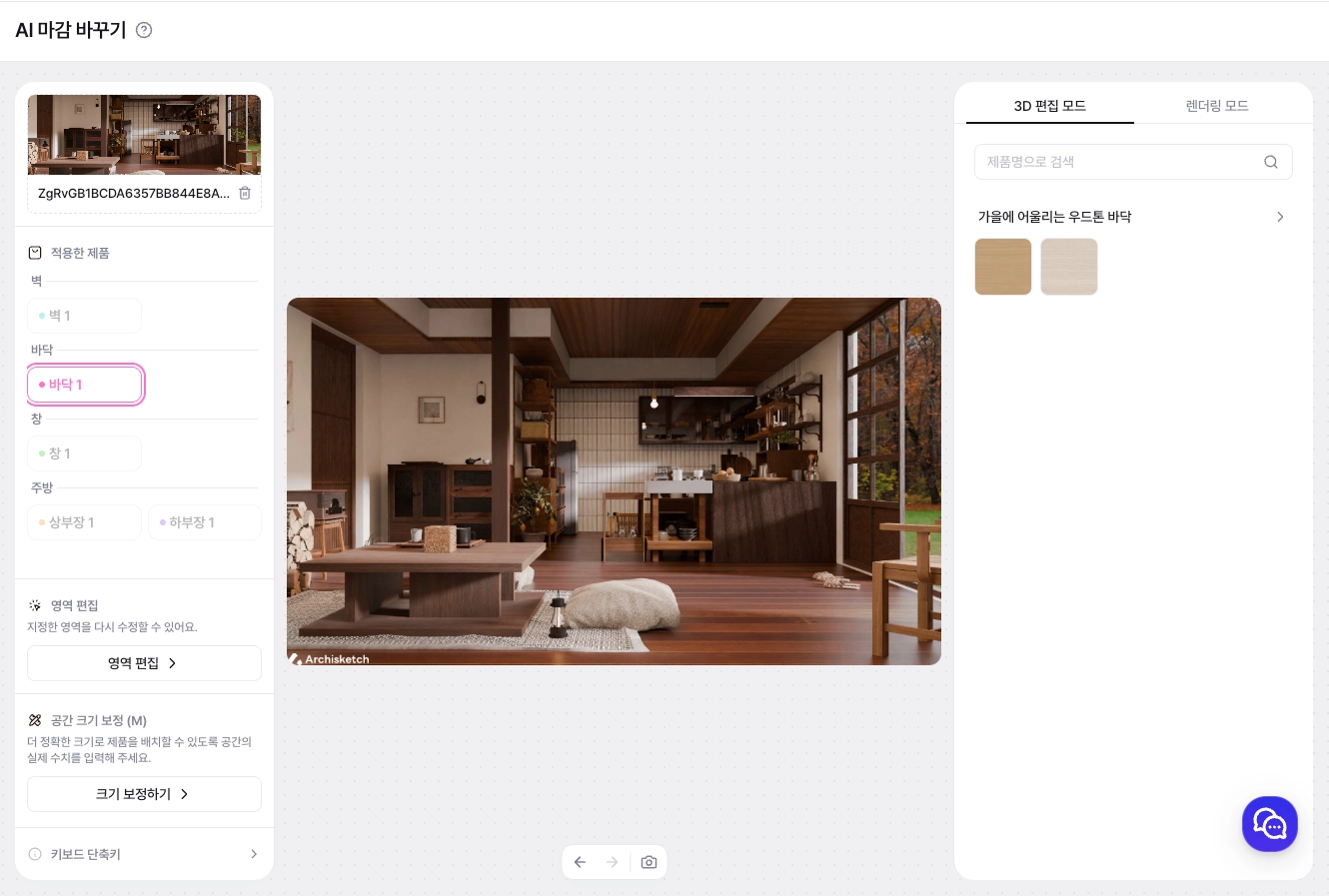
영역 폴더에 제품을 바로 넣거나, 한 단계 더 하위 폴더를 만들어 넣습니다. 아래는 Floor > 「가을에 어울리는 우드톤 바닥」 > 바닥재 1, 바닥재 2 예시입니다.
**제품을 폴더에 넣는 방법** — 이미 등록된 제품의 카테고리를 바꿔 AI Studio 폴더로 옮깁니다.
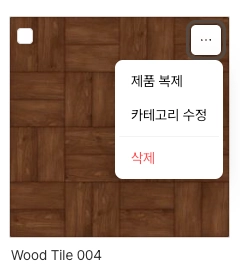
* 제품 하나: 마감재 목록에서 제품 썸네일 오른쪽 위 「⋯」 → 「카테고리 수정」
* 여러 개: 제품 왼쪽 위 체크박스로 선택 → 오른쪽 위 「단체 수정」 → 「카테고리 수정」
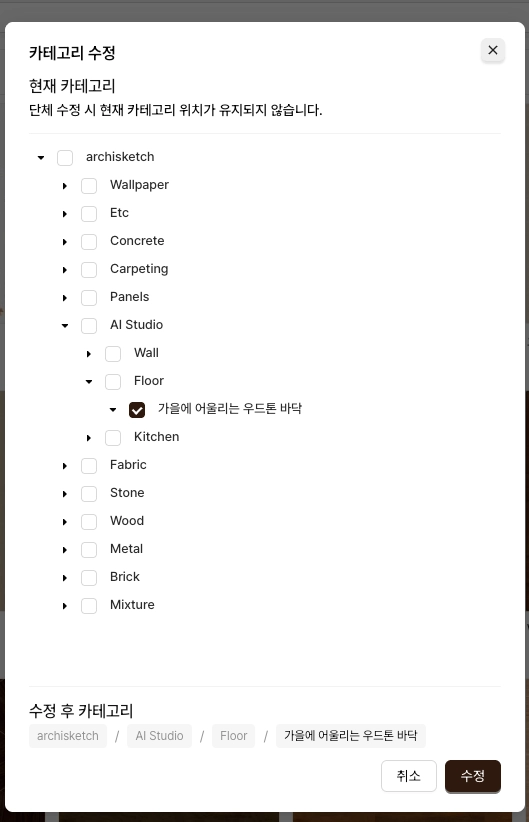
* 「카테고리 수정」 창에서 넣을 폴더(예: AI Studio > Floor > 가을에 어울리는 우드톤 바닥)에 체크하고, 아래 「수정 후 카테고리」 경로를 확인한 뒤 「수정」을 누릅니다.
* 단체 수정으로 옮기면 원래 폴더에서는 빠지고 선택한 폴더에만 남습니다.
{% endstep %}
{% step %}
### **창문은 가구 라이브러리에서 반복**
기업 라이브러리 > 가구 라이브러리에서 2번과 같이 AI Studio 폴더를 만들고, 그 아래 `Window` 폴더에 창문 제품을 넣습니다. 폴더를 만들고 제품을 옮기는 방법은 마감재 라이브러리와 같습니다.
{% endstep %}
{% step %}
### **AI 마감 바꾸기에서 확인**
설정을 마치면 **AI 마감 바꾸기 화면을 꼭 새로고침**해 주세요. 좌측 메뉴 AI 제품 바꾸기 > AI 마감 바꾸기에서 공간 사진을 올리고 왼쪽 「적용한 제품」에서 영역(바닥 1 등)을 선택합니다. 오른쪽 3D 편집 모드에 하위 폴더명이 그룹 제목으로, 제품이 썸네일로 표시되면 완료입니다. 사진 업로드, 영역 편집, 크레딧 등 기능 사용법은 [AI 마감 바꾸기 사용 가이드](https://docs.archisketch.com/guide/user/archisketch-ai/ai-finishing-swap)를 참고해 주세요.
하위 폴더를 여러 개 만들면 아래처럼 폴더마다 그룹이 한 줄씩 쌓이고, 4개를 넘는 제품은 +N으로 묶입니다.
{% endstep %}
{% endstepper %}
### 3. 하위 폴더와 화면 노출 규칙
제품이 들어 있는 폴더만 화면에 그룹으로 나타나고, 빈 폴더는 표시되지 않습니다. 하위 폴더는 영역 폴더 아래에 자유롭게 만들 수 있습니다(예: Floor > 「가을에 어울리는 우드톤 바닥」 > 바닥재 1, 바닥재 2).
| 폴더 상태 | AI 마감 바꾸기 화면 |
| ------------------------------------ | ------------------------------------- |
| 영역 폴더(Wall·Floor…)에 제품이 하나도 없음 | 「적용할 제품이 없다」는 안내가 표시됩니다 |
| 하위 폴더에 제품이 없음 | 그 하위 폴더 자체가 보이지 않습니다 |
| 하위 폴더 A에 직속 제품 없이, 제품이 든 하위 폴더 B만 있음 | A는 무시되고 B만 그룹으로 표시됩니다 |
| 제품이 든 하위 폴더가 여러 개 | 폴더마다 그룹 한 줄씩 표시되며 4개 초과 제품은 +N으로 묶입니다 |
* **정렬**: 폴더와 제품은 모두 가나다순으로만 정렬됩니다.
* **Kitchen**: Kitchen 폴더에 넣은 제품은 상부장·하부장 중 어느 영역을 선택해도 모두 함께 표시됩니다. 사용자가 구분해서 볼 수 있도록 「가구재」「상판」처럼 하위 폴더로 나눠 주세요.
* **언어**: 폴더명·제품명은 입력하신 언어 그대로 표시됩니다.
### 4. 주의사항
* `AI Studio`, `Wall`, `Floor`, `Kitchen`, `Window` 폴더 이름은 철자·대소문자·띄어쓰기까지 정확히 입력해 주세요. 그 아래 하위 폴더 이름은 자유입니다.
* 폴더나 제품을 바꾼 뒤에는 AI 마감 바꾸기 화면을 새로고침해야 반영됩니다.
* 창문 제품은 마감재가 아닌 **가구 라이브러리**의 AI Studio 폴더에 넣어 주세요.
### 5. 설정 후 확인 Q\&A
AI 마감 바꾸기에 제품이 보이지 않아요.
먼저 AI 마감 바꾸기 화면을 새로고침해 주세요. 그래도 보이지 않으면 `AI Studio`와 영역 폴더(`Wall`, `Floor`, `Kitchen`, `Window`) 이름이 철자·대소문자·띄어쓰기까지 정확한지 확인해 주세요.
「적용할 제품이 없다」는 안내가 떠요.
해당 영역 폴더에 제품이 하나도 없는 경우입니다. 영역 폴더나 그 아래 하위 폴더에 제품을 1개 이상 넣어 주세요.
만든 하위 폴더가 화면에 보이지 않아요.
제품이 들어 있지 않은 하위 폴더는 표시되지 않습니다. 하위 폴더 안에 제품이 있는지 확인해 주세요.
창문 제품이 목록에 나오지 않아요.
창문은 마감재 라이브러리가 아닌 가구 라이브러리의 AI Studio > Window 폴더에 넣어야 합니다.
3D 에디터 라이브러리에도 AI Studio 제품이 보여요.
AI Studio 폴더에 에디터 비노출이 설정되어 있는지 확인해 주세요. 폴더 트리에서 AI Studio 옆에 눈 아이콘이 보이면 비노출 상태입니다.
폴더나 제품 순서를 바꾸고 싶어요.
폴더와 제품은 가나다순으로만 정렬됩니다. 이름이 사용자 화면에 그대로 보이니, 보여줄 이름과 순서를 함께 고려해 정해 주세요.
제품을 옮겼더니 원래 폴더에서 사라졌어요.
단체 수정으로 카테고리를 바꾸면 원래 폴더에서는 빠지고 선택한 폴더에만 남습니다. 제품을 복제 후 옮겨 주세요.
「하위 카테고리 생성」이나 「카테고리 수정」을 할 수 없어요.
폴더와 제품 카테고리는 매니저 이상 권한에서만 바꿀 수 있습니다. 계정 권한을 확인해 주세요.
올리려는 제품이 라이브러리에 없어요.
AI Studio 폴더로는 이미 등록된 제품만 옮길 수 있습니다. 제품을 먼저 등록한 뒤 카테고리를 바꿔 주세요.
상부장을 선택했는데 상판 제품도 같이 보여요.
Kitchen 폴더의 제품은 주방 영역 어디를 선택해도 모두 표시됩니다. 「가구재」「상판」처럼 하위 폴더로 나누면 그룹별로 구분되어 보입니다.
---
# Agent Instructions
This documentation is published with GitBook. GitBook is the documentation platform designed so that both humans and AI agents can read, navigate, and reason over technical content effectively. Learn more at gitbook.com.
## Querying This Documentation
If you need additional information that is not directly available in this page, you can query the documentation by asking a question.
Perform an HTTP GET request on the following URL with the `ask` and `goal` query parameters:
```
GET https://docs.archisketch.com/guide/user/archisketch-ai/ai-finishing-swap/ai.md?ask=&goal=
```
`ask` is the immediate question: it should be specific, self-contained, and written in natural language.
`goal` is what the user is ultimately trying to achieve, the reason they need the answer. Sharing it helps GitBook give you a better, more relevant answer. A goal is most helpful when it describes the outcome the user wants rather than restating the question. For example, with `ask=how do I create an API token`, a goal like `automate deployments from our CI pipeline` lets GitBook tailor the answer to that use case.
The response will contain a direct answer to the question and relevant excerpts and sources from the documentation.
Use this mechanism when the answer is not explicitly present in the current page, you need clarification or additional context, or you want to retrieve related documentation sections.