> For the complete documentation index, see [llms.txt](https://docs.archisketch.com/llms.txt). Markdown versions of documentation pages are available by appending `.md` to page URLs; this page is available as [Markdown](https://docs.archisketch.com/guide/user-jp/manage-project/project-share.md).
# プロジェクトを共有する
Archisketchでは、プロジェクトを他の人と簡単に共有できる2つの方法があります!\
プロジェクトはArchisketchに登録したユーザーには編集者または閲覧専用モードで共有でき、非会員にはプロジェクトリンクを通じてインテリア空間やレンダーショットなどのコンテンツを共有できます。\
この機能を使えば、他の人とプロジェクトを手軽に協業したり見せたりできます。
## プロジェクトの共有方法
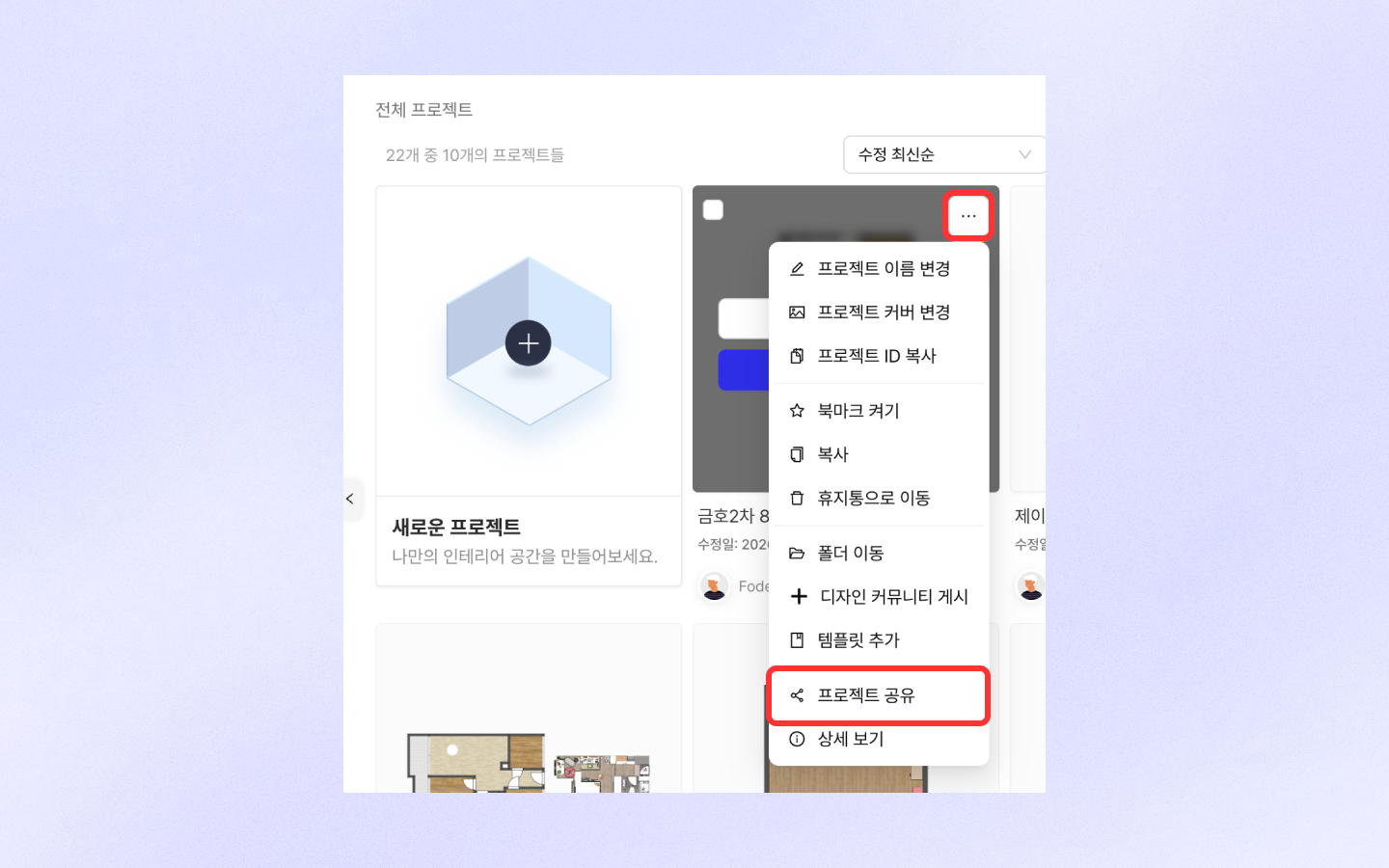
* プロジェクトで「もっと見る」をクリック
* 「プロジェクトを共有」をクリック
### プロジェクトの共有
プロジェクトの共有はArchisketchに登録したユーザーのみ可能です。
* 閲覧専用:プロジェクトを編集できず、閲覧のみ可能です。
* 編集者:プロジェクトを編集し、共同作業ができます。
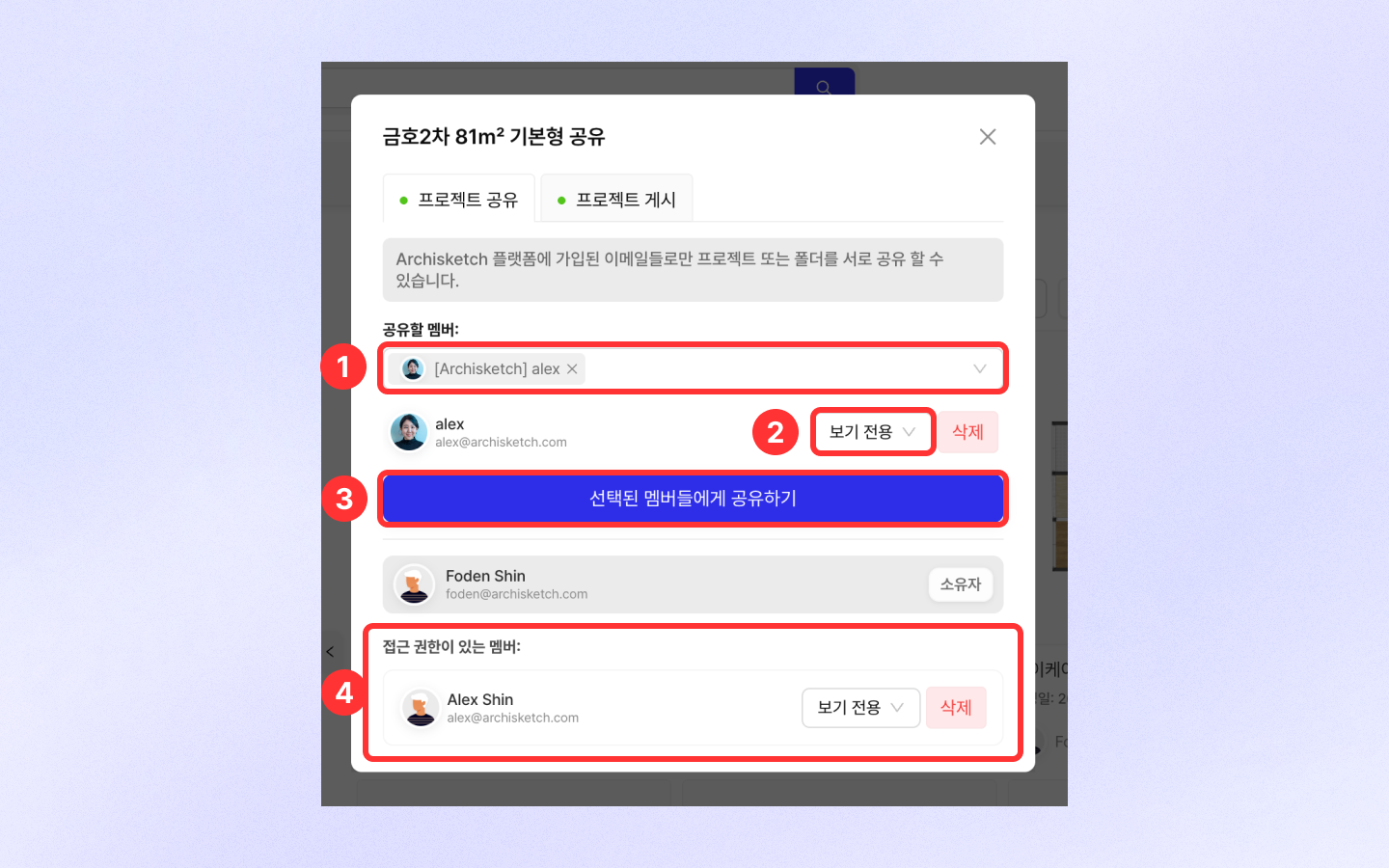
1. メンバー検索:ユーザーIDは全文を入力しないと検索できません。
2. IDを選択し、\[閲覧専用] または \[編集者] を選択します。
3. 選択したメンバーに「共有する」ボタンをクリックして共有完了!
4. アクセス権限のあるメンバーに追加されたことを確認します。
#### 共有されたプロジェクトを確認する
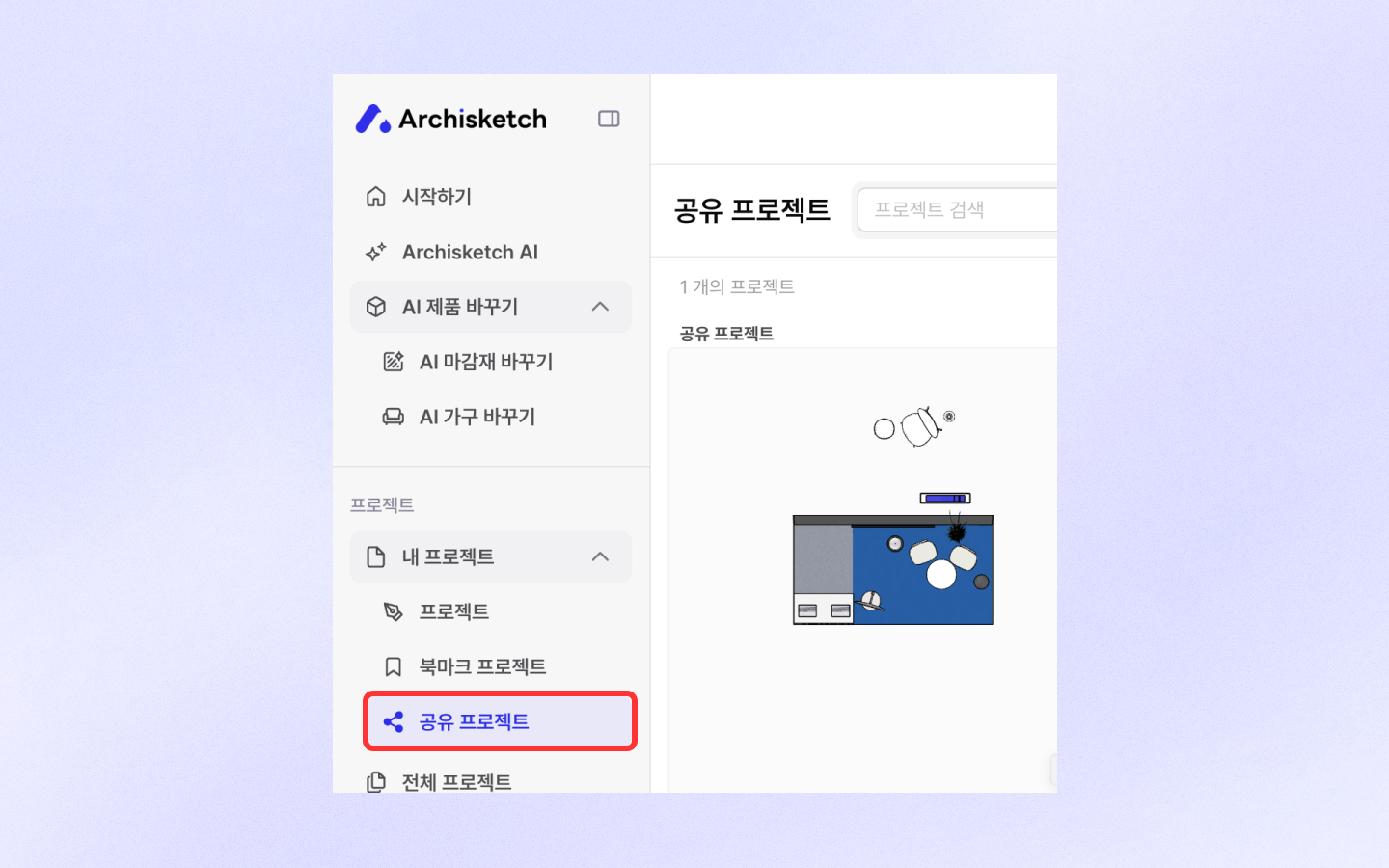
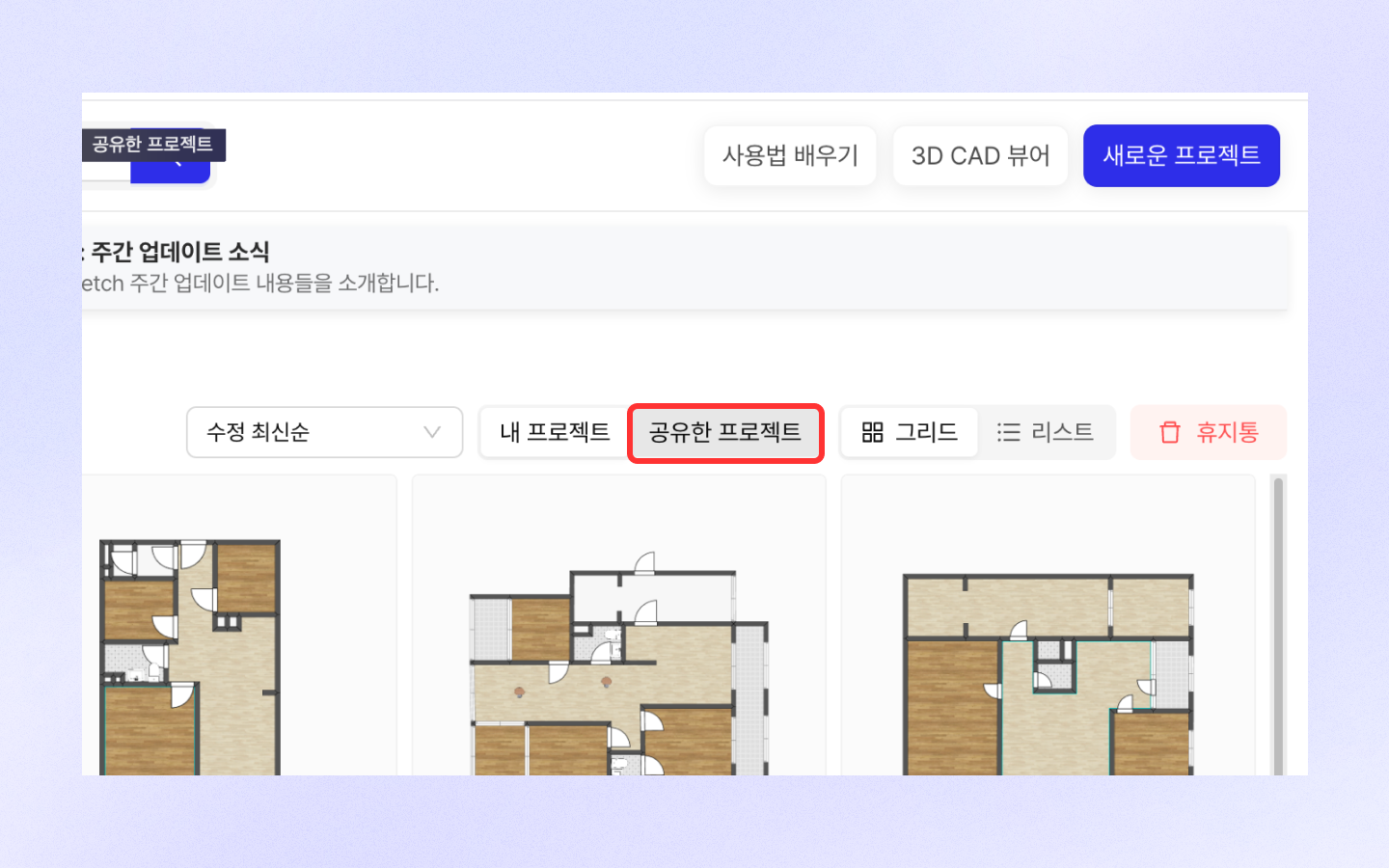
共有されたユーザーは、ログイン後に \[マイプロジェクト > 共有プロジェクト] で確認できます!
### プロジェクトの公開
プロジェクトの公開を通じてArchisketchの非会員にもプロジェクトを共有できます。\
この機能では、図面、レンダーショット、720ツアーなどのすべてのコンテンツを共有できます。\
ただし、レンダーショットは最新の20枚のみ共有可能です。
**プロジェクトを公開する**
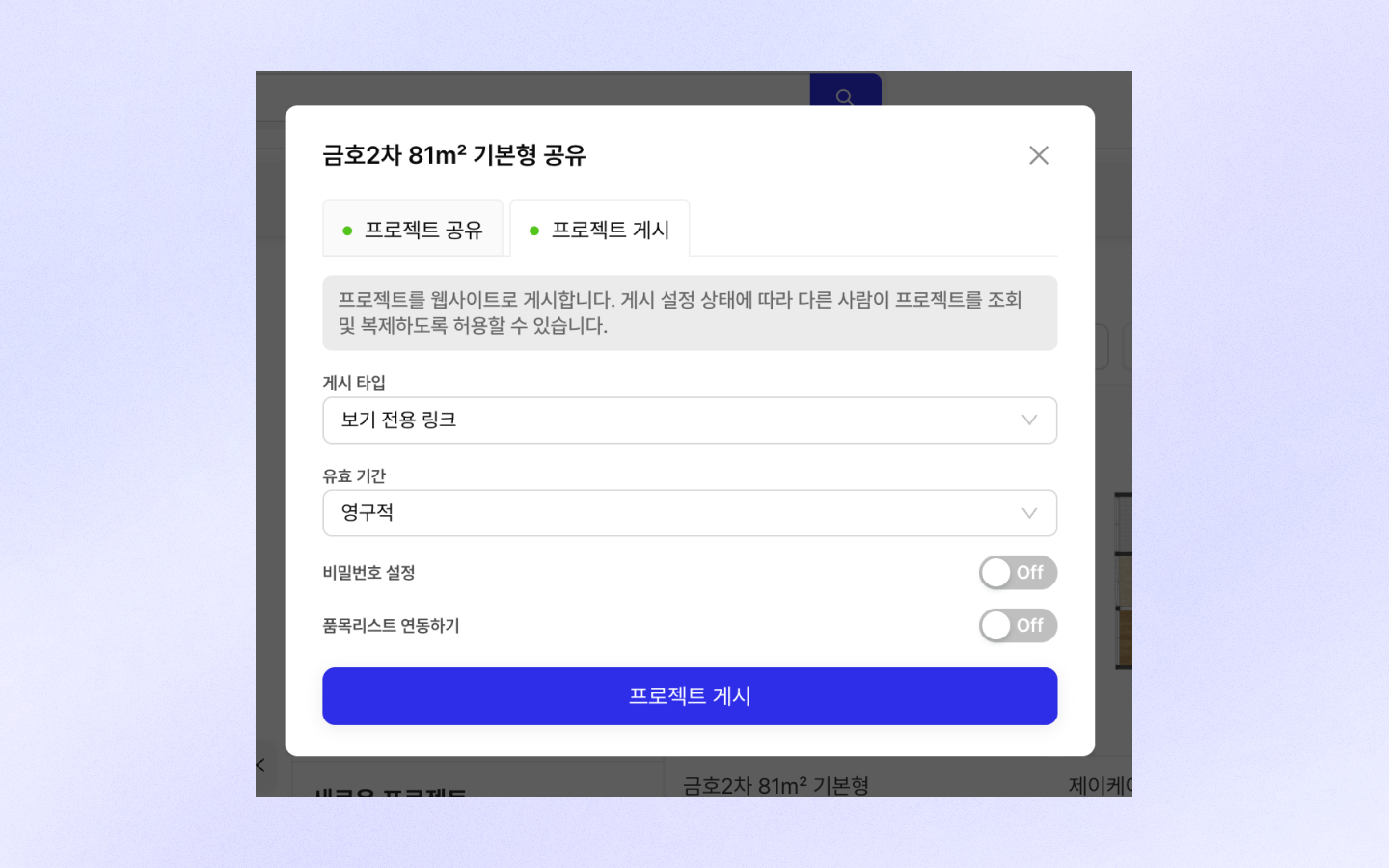
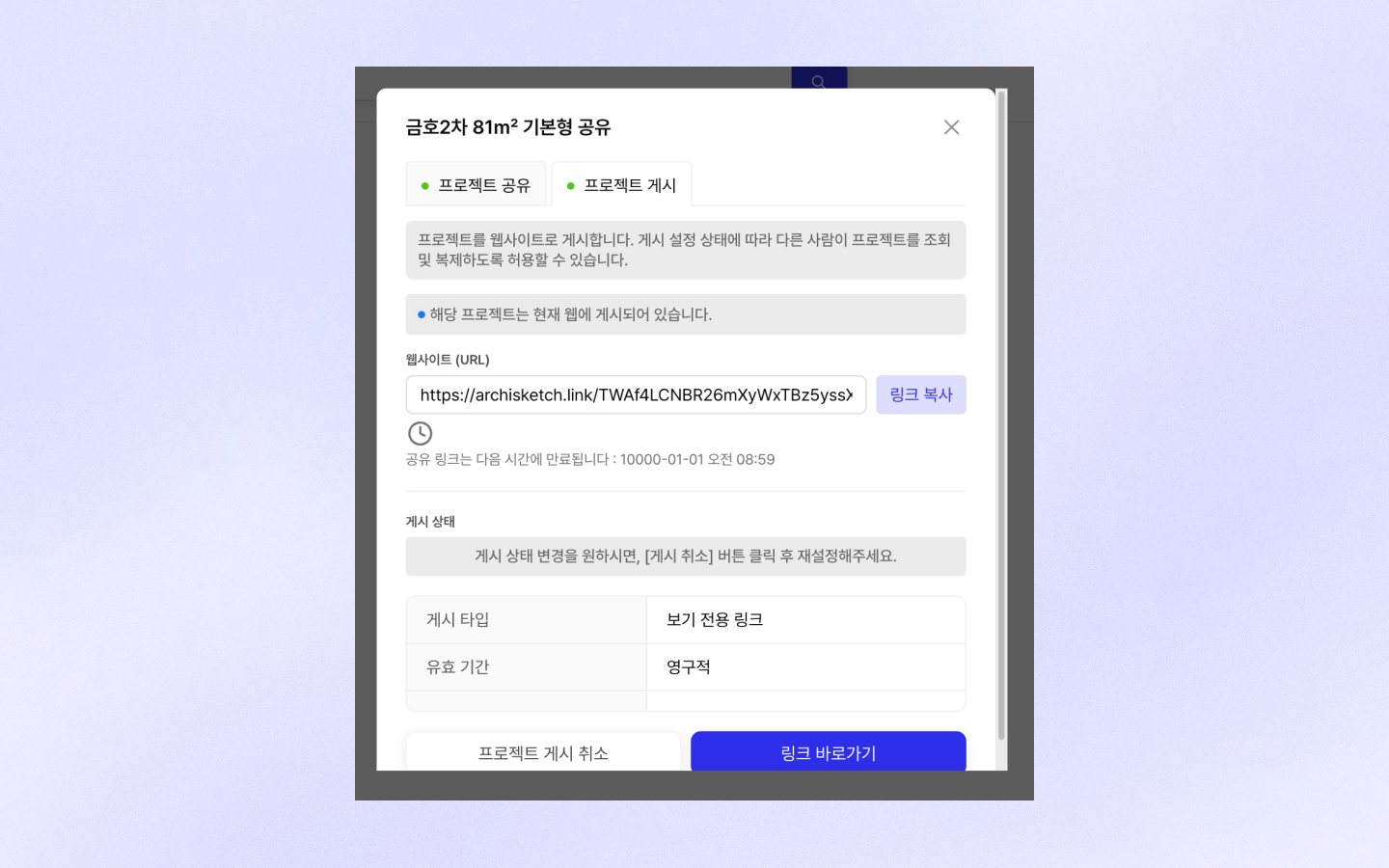
* プロジェクト共有 > 公開する タブをクリック
* 公開タイプを選択:
* 閲覧専用リンク:Archisketchユーザーでなくても、リンクからプロジェクトを閲覧できます。
* プロジェクトのコピー可能リンク:Archisketchユーザーはこのリンクでプロジェクトをコピーできます。
* 有効期限を選択します。(設定した期間を過ぎるとリンクは無効になります。)
* 永久
* 24時間
* 14日
* \[プロジェクトを公開] ボタンをクリック
* ウェブサイトリンクが作成されたら、リンクをコピーするボタンをクリックして、好きな場所に貼り付けてみてください。
* リンクへ移動ボタンをクリックすると、そのままウェブサイトに移動できます!
プロジェクトの公開を取り消す
* プロジェクト共有 > 公開する タブへ移動
* プロジェクト公開取り消しボタンをクリックすると、リンクは無効になります。
{% hint style="danger" %}
プロジェクトを公開すると、追加で作成したレンダーショット、720ツアーなどがリアルタイムで表示され、図面を修正した場合もリアルタイムで反映されます。\
顧客や他の人に見せたい場合は、プロジェクトを複製して名前を区別し、作業用と共有用を分けて運用することをおすすめします!
{% endhint %}
## 共有プロジェクトを確認する
* 私が共有したプロジェクトは、私のプロフィールの横に共有された相手のプロフィールも一緒に表示されます。\
また、マイプロジェクトで \[共有したプロジェクト] 表示をオンにすると、私が共有したプロジェクトだけをまとめて見ることができます。
## 共有を解除する
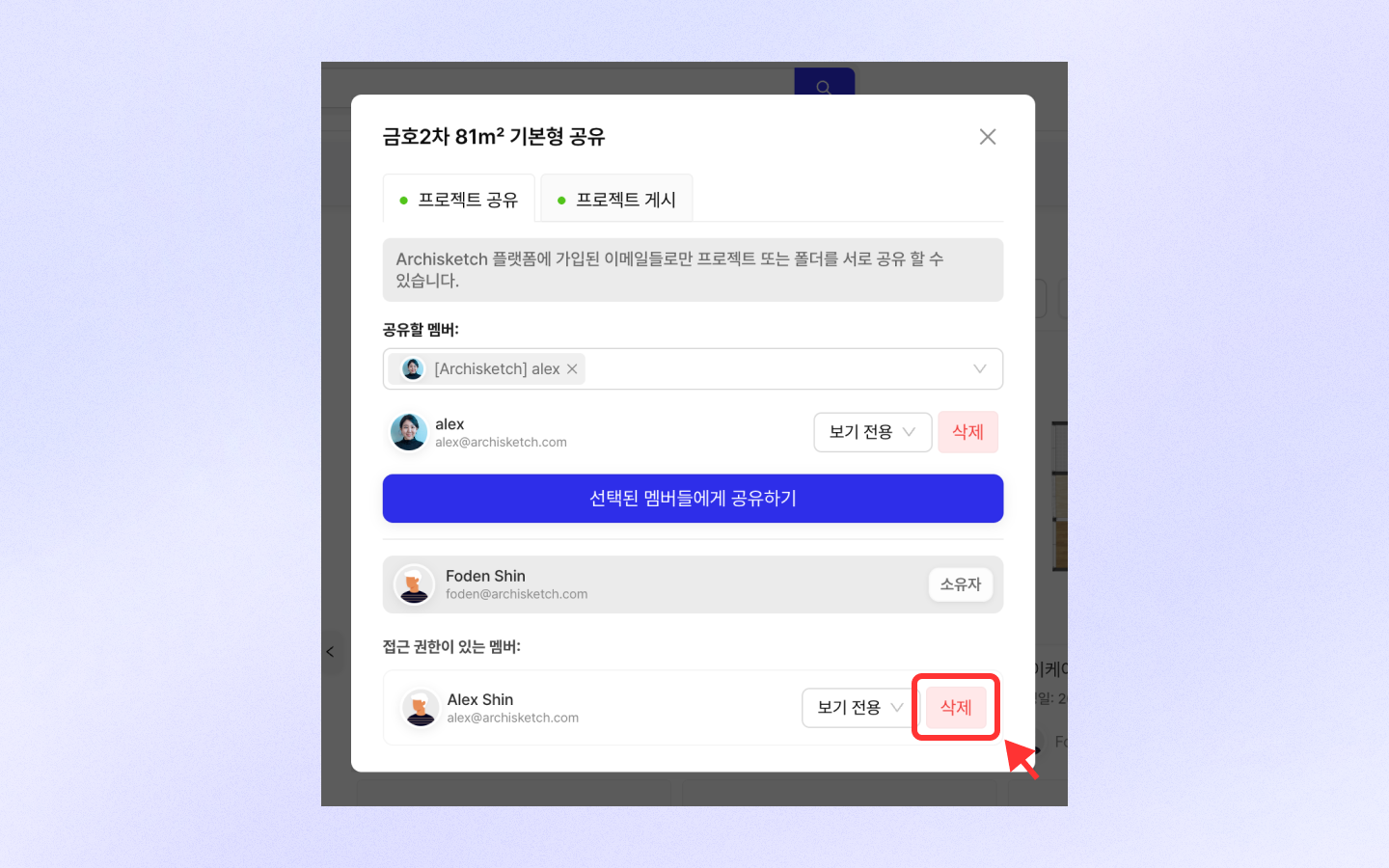
プロジェクトの共有を解除するには、プロジェクトで \[もっと見る] をクリックした後、プロジェクト共有を選択します。\
その後、アクセス権限のあるメンバー一覧で共有を解除するメンバーの横にある \[削除] ボタンをクリックすればOKです。
## よくある質問
#### プロジェクトを共有しようとしているのにID検索ができません。
IDが検索されない場合は、まずArchisketchに登録したユーザーか確認してください。\
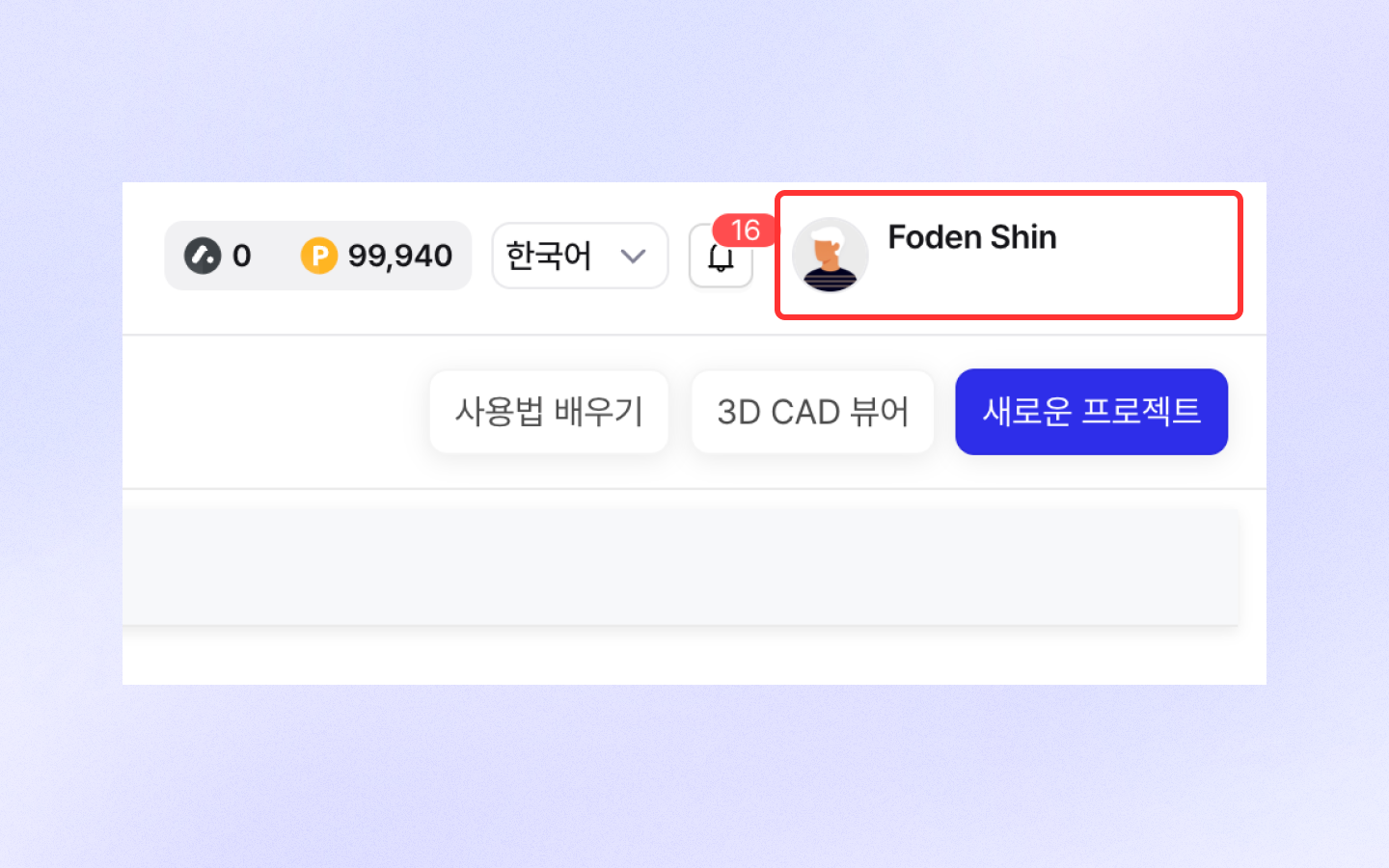
ID(メールアドレス)の確認は、ページ右上のアカウントプロフィールで確認できます。\
もし登録ユーザーでない場合は、プロジェクトの共有はできないため、まず登録をお願いします!
---
# Agent Instructions
This documentation is published with GitBook. GitBook is the documentation platform designed so that both humans and AI agents can read, navigate, and reason over technical content effectively. Learn more at gitbook.com.
## Querying This Documentation
If you need additional information that is not directly available in this page, you can query the documentation by asking a question.
Perform an HTTP GET request on the following URL with the `ask` and `goal` query parameters:
```
GET https://docs.archisketch.com/guide/user-jp/manage-project/project-share.md?ask=&goal=
```
`ask` is the immediate question: it should be specific, self-contained, and written in natural language.
`goal` is what the user is ultimately trying to achieve, the reason they need the answer. Sharing it helps GitBook give you a better, more relevant answer. A goal is most helpful when it describes the outcome the user wants rather than restating the question. For example, with `ask=how do I create an API token`, a goal like `automate deployments from our CI pipeline` lets GitBook tailor the answer to that use case.
The response will contain a direct answer to the question and relevant excerpts and sources from the documentation.
Use this mechanism when the answer is not explicitly present in the current page, you need clarification or additional context, or you want to retrieve related documentation sections.