> For the complete documentation index, see [llms.txt](https://docs.archisketch.com/llms.txt). Markdown versions of documentation pages are available by appending `.md` to page URLs; this page is available as [Markdown](https://docs.archisketch.com/guide/user-jp/archisketch-ai/create-ai-modeling.md).
# AIモデリングを生成する
画像1枚でモデリングを生成してみてください。
> 有料機能のご案内:『AI家具を生成する』は有料機能です。ご利用前に料金プランと利用条件をご確認ください。
### 1. AI家具を生成する
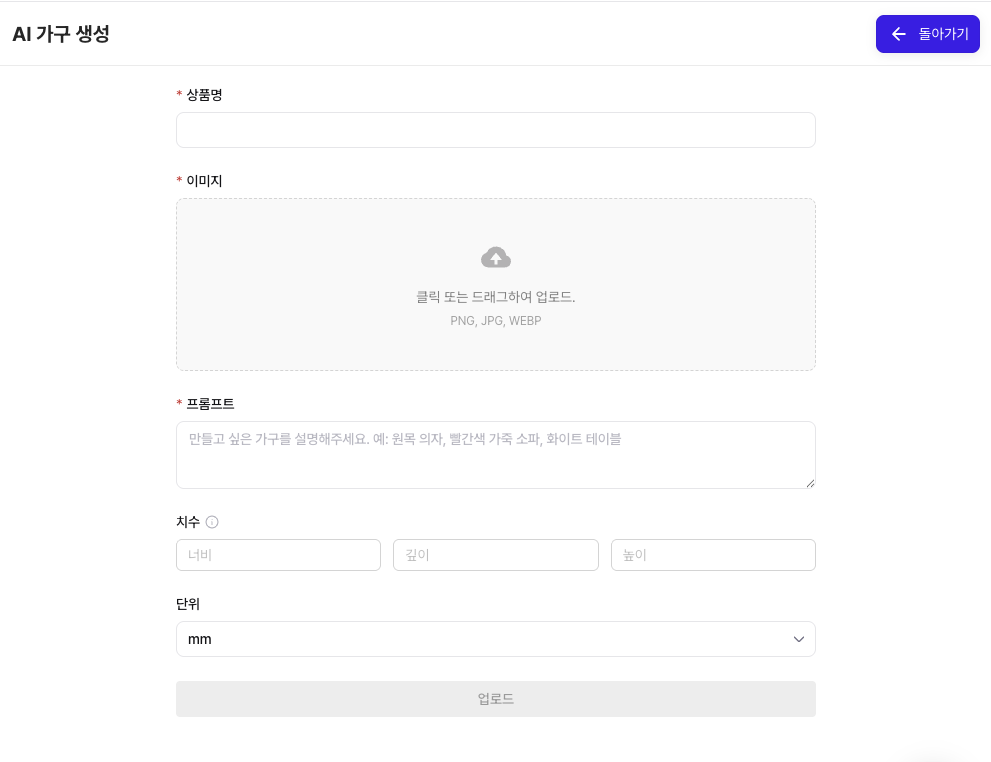
個人ライブラリ画面右側の『**AI家具を生成する**』ボタンをクリックします。
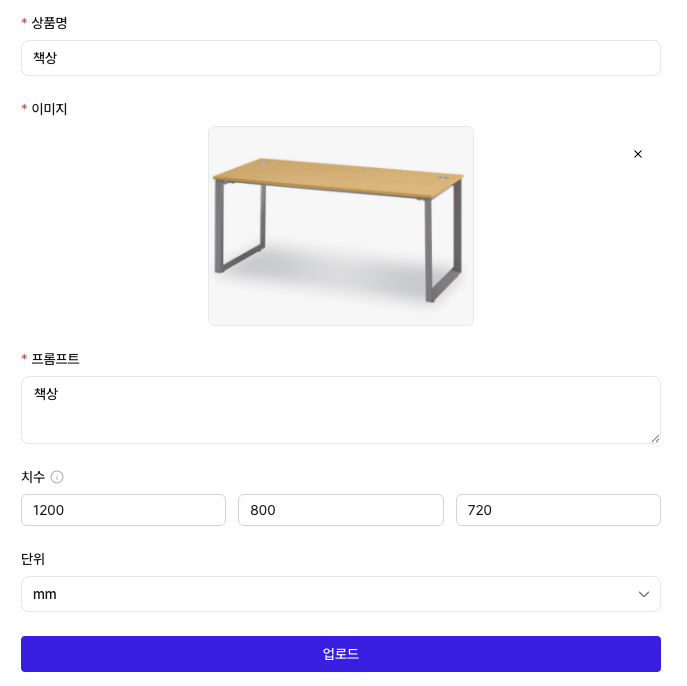
続くウィンドウで **商品名、画像、プロンプト、寸法、単位**を設定します。
* **商品名:** モデリングが登録される名前です。生成後でも修正できます。
* **画像:** PNG、JPG、WEBPファイルをアップロードできます。画像の品質はモデリング結果に影響するため、高品質な画像をアップロードするほど、仕上がりが良くなります。
* **プロンプト:** 生成する家具のカテゴリを入力します。『ソファ』『デスク』のような簡単な家具名を入力すると、そのカテゴリを基準に家具が生成されます。
* **寸法:** 家具の幅、奥行き、高さを入力します。入力した寸法を基準に実際のサイズが算定されるため、正確な値を入力することが重要です。
* **単位:** mmとinchのどちらかを選択します。寸法ごとに単位を個別に設定できます。
すべての値を入力すると **『アップロード』** ボタンが有効になります。
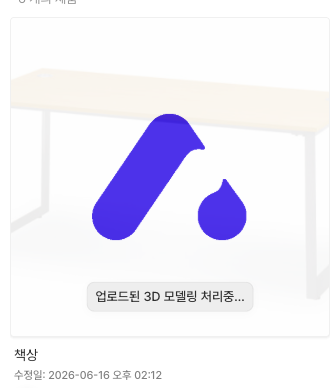
アップロードボタンを押すと、『アップロードされた3Dモデリングを処理中...』という案内とともに家具が生成されます。
### 2. 生成した家具の管理
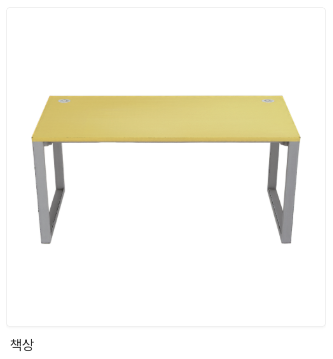
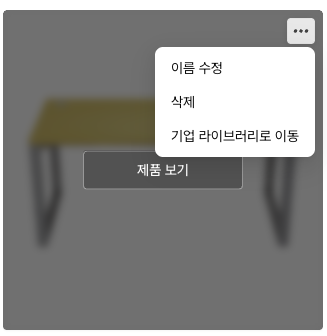
生成された家具は一覧でそのまま確認できます。項目にマウスを重ねるか、詳細ボタンを押すと次の操作ができます。
* **名前を変更:** 商品の名前を変更します。
* **削除:** 商品を削除します。
* **企業ライブラリへ移動:** 個人ライブラリのAIモデリング商品を企業ライブラリに移します。
* **商品を見る:** 商品の詳細情報を確認します。
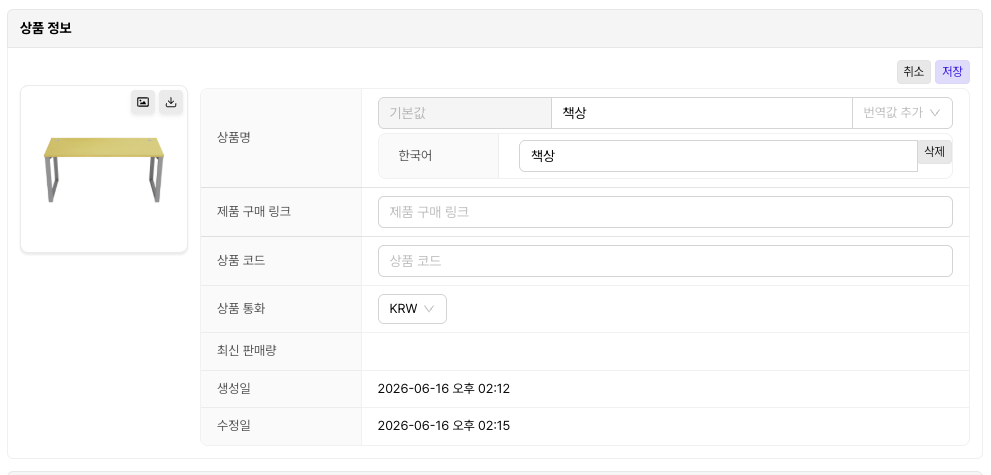
### 3. 商品情報の修正
'**修正**』ボタンを押すと、商品名、製品購入リンク、商品コードなどを変更できます。
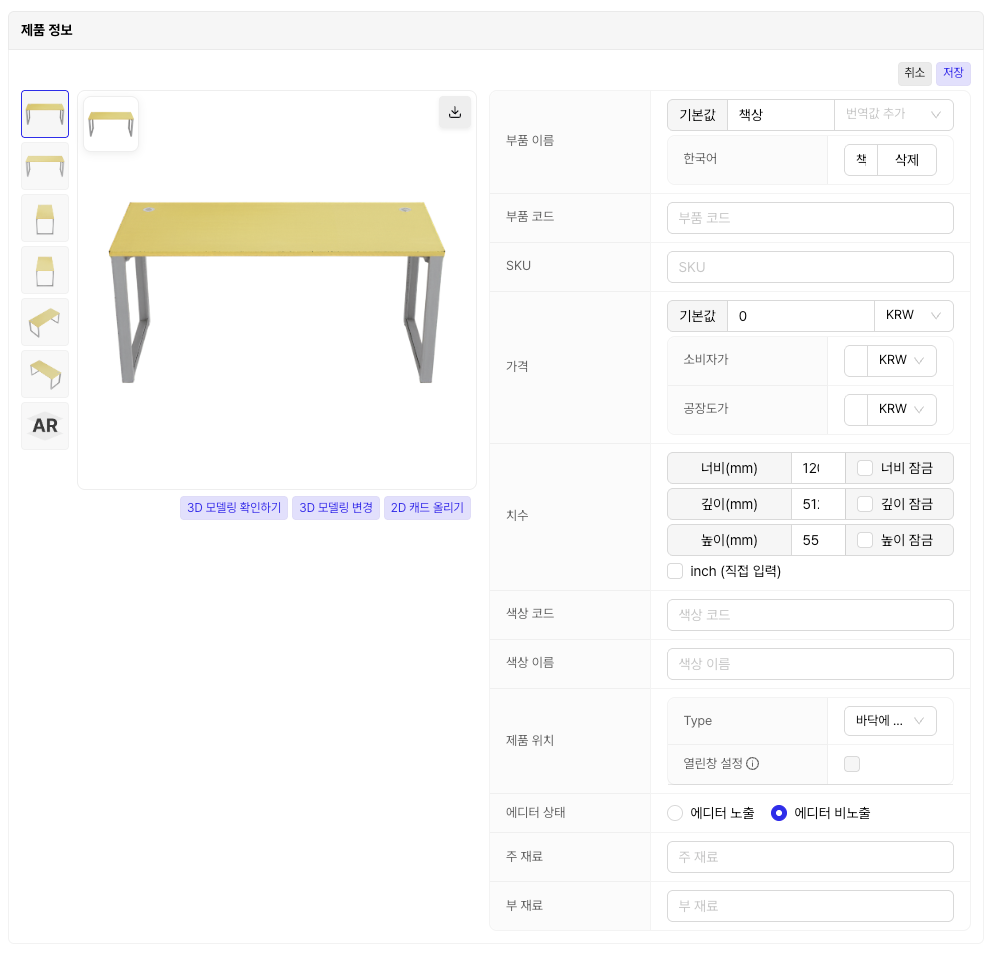
### 4. 製品(部品)情報の修正
'**修正**』ボタンを押すと、部品名とコード、SKU、価格、寸法、色コード、色名、製品位置とエディター状態、主材料と副材料を変更できます。
***
**AI家具生成機能**を通じて、画像1枚だけで家具を素早く生成できます。
生成された家具を管理し、商品・部品情報を修正する順番で進めれば、複雑な手作業を最小限に抑えながら、より簡単かつ迅速に高品質な成果物を完成できます。
---
# Agent Instructions
This documentation is published with GitBook. GitBook is the documentation platform designed so that both humans and AI agents can read, navigate, and reason over technical content effectively. Learn more at gitbook.com.
## Querying This Documentation
If you need additional information that is not directly available in this page, you can query the documentation by asking a question.
Perform an HTTP GET request on the following URL with the `ask` and `goal` query parameters:
```
GET https://docs.archisketch.com/guide/user-jp/archisketch-ai/create-ai-modeling.md?ask=&goal=
```
`ask` is the immediate question: it should be specific, self-contained, and written in natural language.
`goal` is what the user is ultimately trying to achieve, the reason they need the answer. Sharing it helps GitBook give you a better, more relevant answer. A goal is most helpful when it describes the outcome the user wants rather than restating the question. For example, with `ask=how do I create an API token`, a goal like `automate deployments from our CI pipeline` lets GitBook tailor the answer to that use case.
The response will contain a direct answer to the question and relevant excerpts and sources from the documentation.
Use this mechanism when the answer is not explicitly present in the current page, you need clarification or additional context, or you want to retrieve related documentation sections.