> For the complete documentation index, see [llms.txt](https://docs.archisketch.com/llms.txt). Markdown versions of documentation pages are available by appending `.md` to page URLs; this page is available as [Markdown](https://docs.archisketch.com/guide/user-jp/archisketch-ai/ai-finishing-swap.md).

# AI仕上げ材を変更

> **AI仕上げ材を変更**写真1枚で、当社の空間の壁・床・主壁の仕上げ材を希望の素材に変えてみて、完成イメージまでレンダリングできる機能です。以下の手順に従ってください。
>
> 有料機能のご案内: 「AI家具変更」は有料機能です。ご利用前に料金プランおよび利用条件をご確認ください

### 始める前に

* **用意するもの** — 仕上げ材を変更したい空間の写真1枚（壁・床がよく見える室内写真をおすすめします）
* **クレジット** — 画面右上で保有クレジットと言語を確認できます。
* **アクセス方法** — 左側メニューから **AIスタジオ → AI仕上げ材を変更**を選択してください。

### 画面の概要

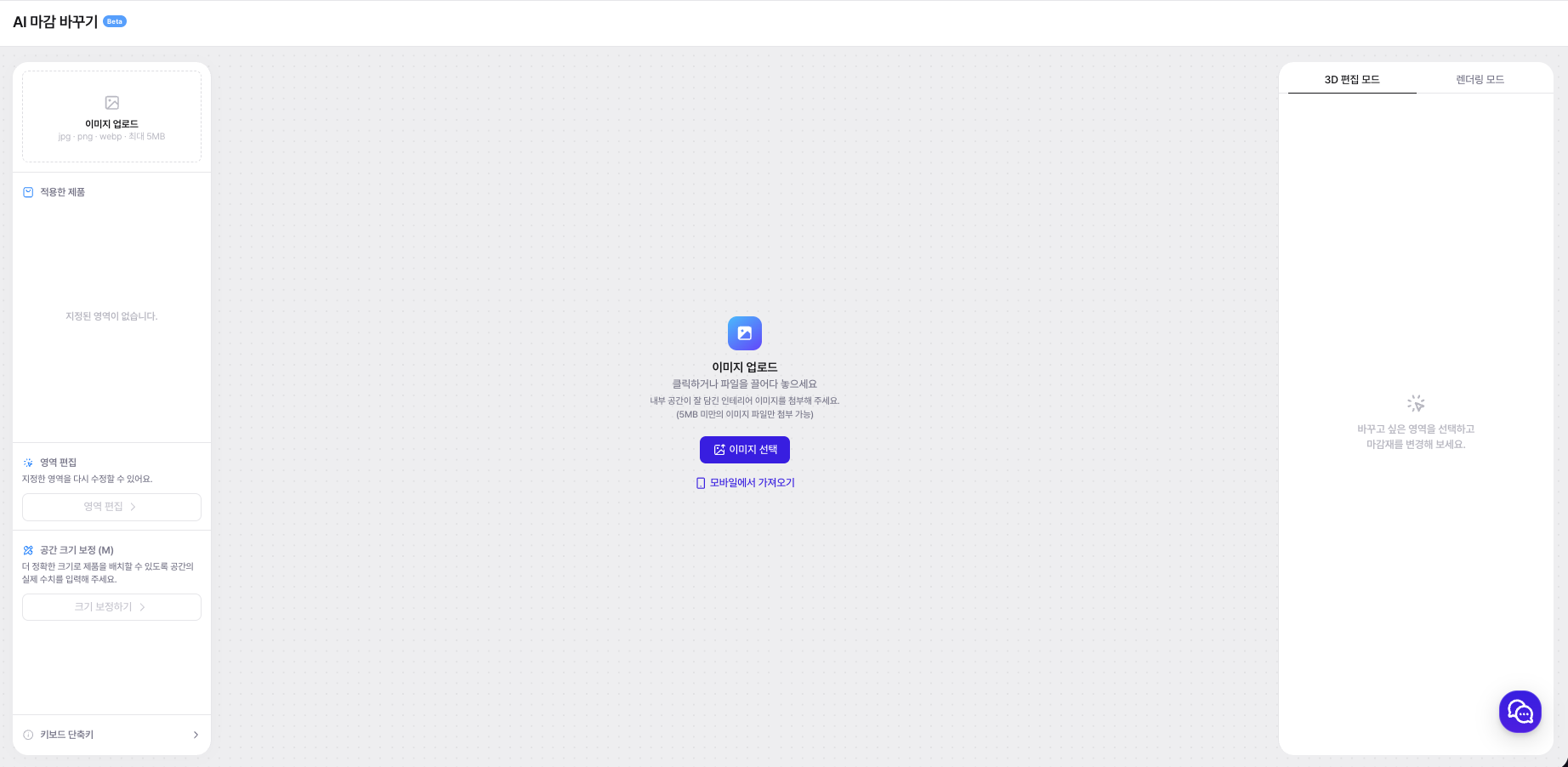
AI仕上げ材を変更の画面は、大きく3つの領域で構成されています。

<figure><img src="/files/02f912cd3d083c797e0e50380b5b5c6f2a3143b0" alt=""><figcaption></figcaption></figure>

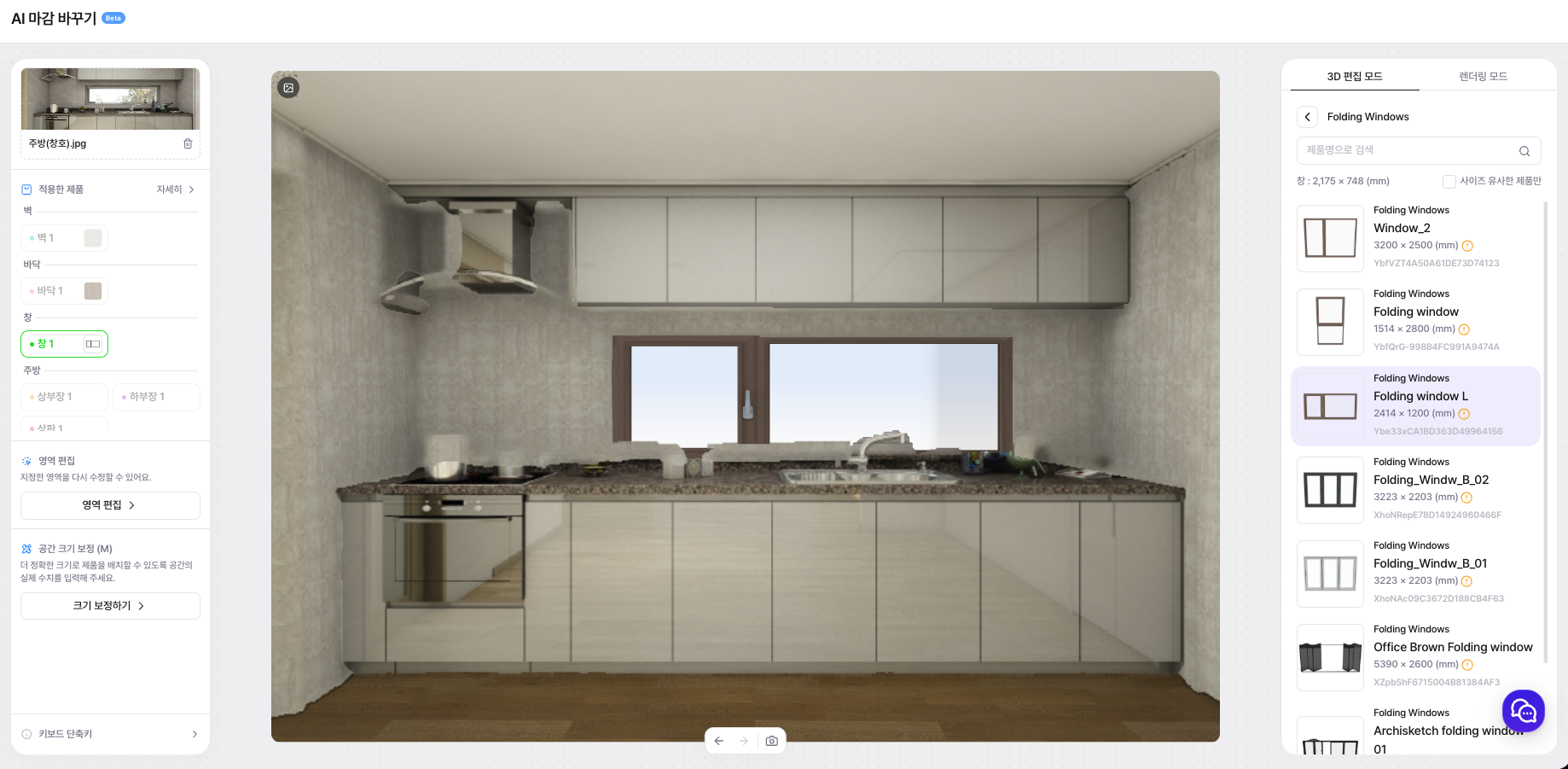
* **① 左パネル** — 画像、指定領域（壁・床・主壁）、適用済み製品、空間スケール設定
* **② 中央キャンバス** — 素材が適用された結果をリアルタイムで確認するプレビューエリア
* **③ 右パネル** — 3D編集モード / レンダリングモード切替、素材製品リスト（製品名検索）

### STEP 1. 空間画像をアップロード

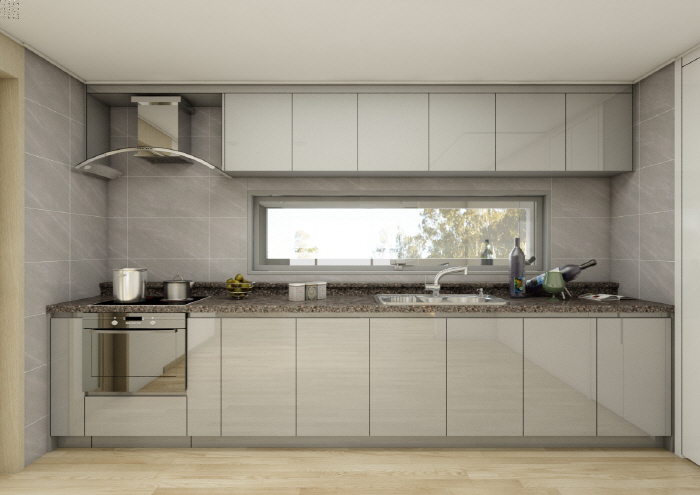
仕上げ材を変更したい空間の写真をアップロードしてください。

<figure><img src="/files/1a1bb80473e1c4ade56dd74d662116e2b299bf27" alt=""><figcaption></figcaption></figure>

💡 壁と床の境界がはっきり写っている写真ほど、領域認識の精度が高くなります。

### STEP 2. 領域を自動認識

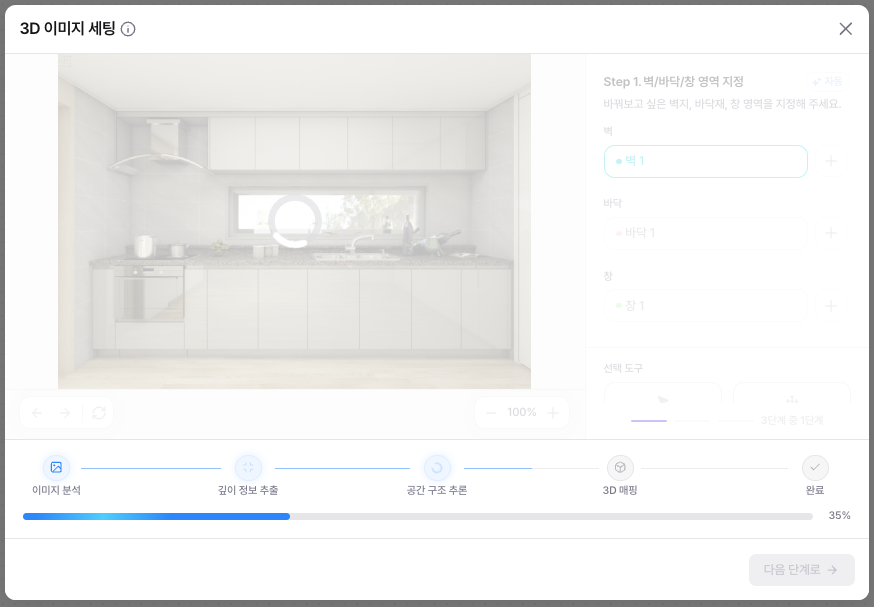
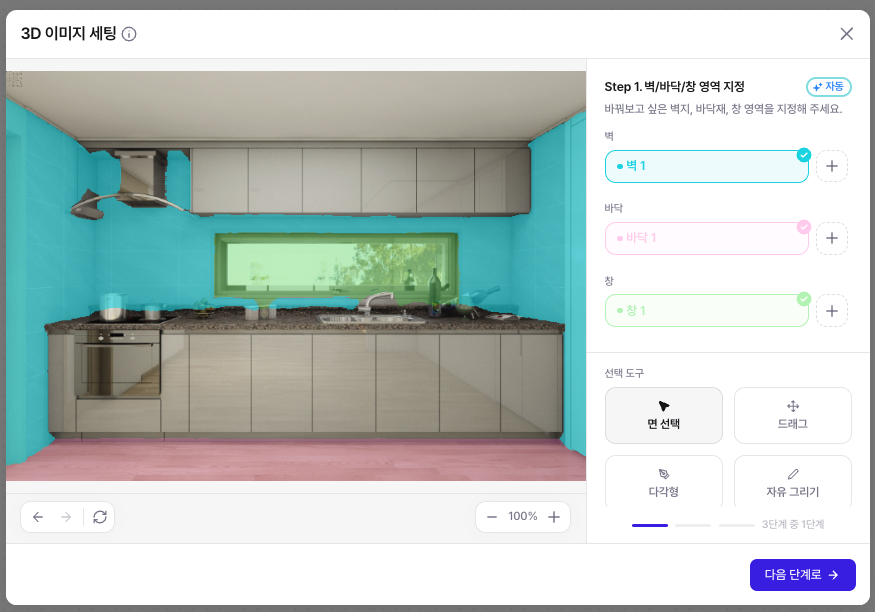
アップロードすると、AIが壁・床など空間の面（領域）を自動で認識します。

<figure><img src="/files/5f69d63d945f733e8446feca7efe11014435cb25" alt=""><figcaption></figcaption></figure>

### STEP 3. 領域を選択・編集

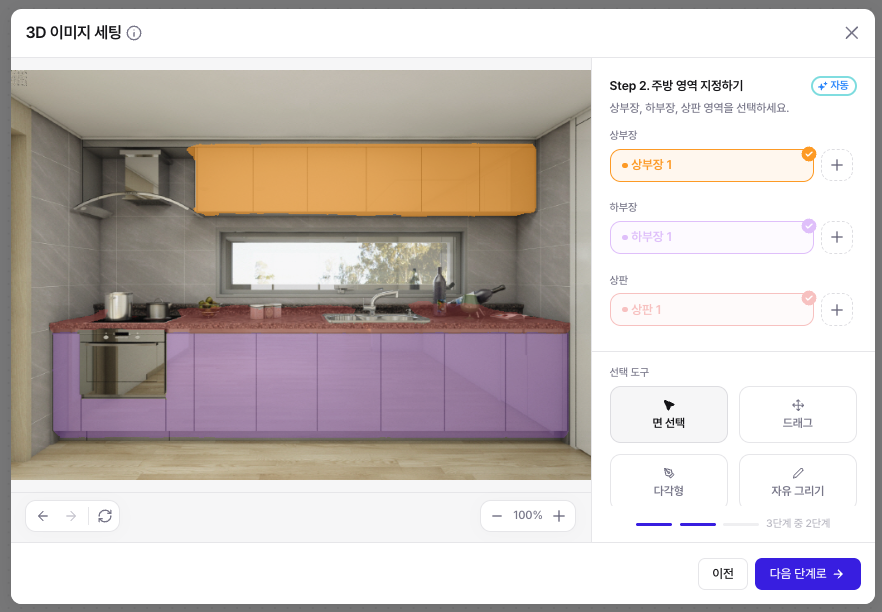
認識された領域のうち、仕上げ材を変更する部分を選択します。

<figure><img src="/files/e70c389ea6e9dc5f072e73c8e6c7a30f9dc38140" alt=""><figcaption></figcaption></figure>

左側 **指定領域**から **壁 / 床 / 主壁** タブを選択し、壁1・壁2・壁3のように詳細領域を選べます。

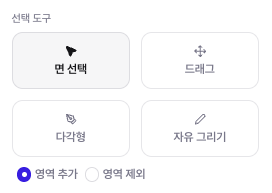
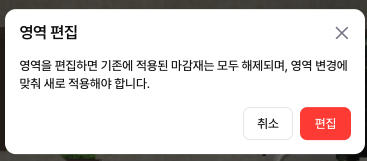
認識が不正確な場合 **領域編集**で範囲を直接調整してください。

選択した領域が画面に表示されます。

<figure><img src="/files/d30e219e70d8dc8a7ed0a04807afb3406a2a371d" alt=""><figcaption></figcaption></figure>

複数の領域をまとめて選択して、一度に作業することもできます。

<figure><img src="/files/f86e1b794d15a55a70f4b5e212cee008b05c67d3" alt=""><figcaption></figcaption></figure>

### STEP 4. 素材（製品）を選択・適用

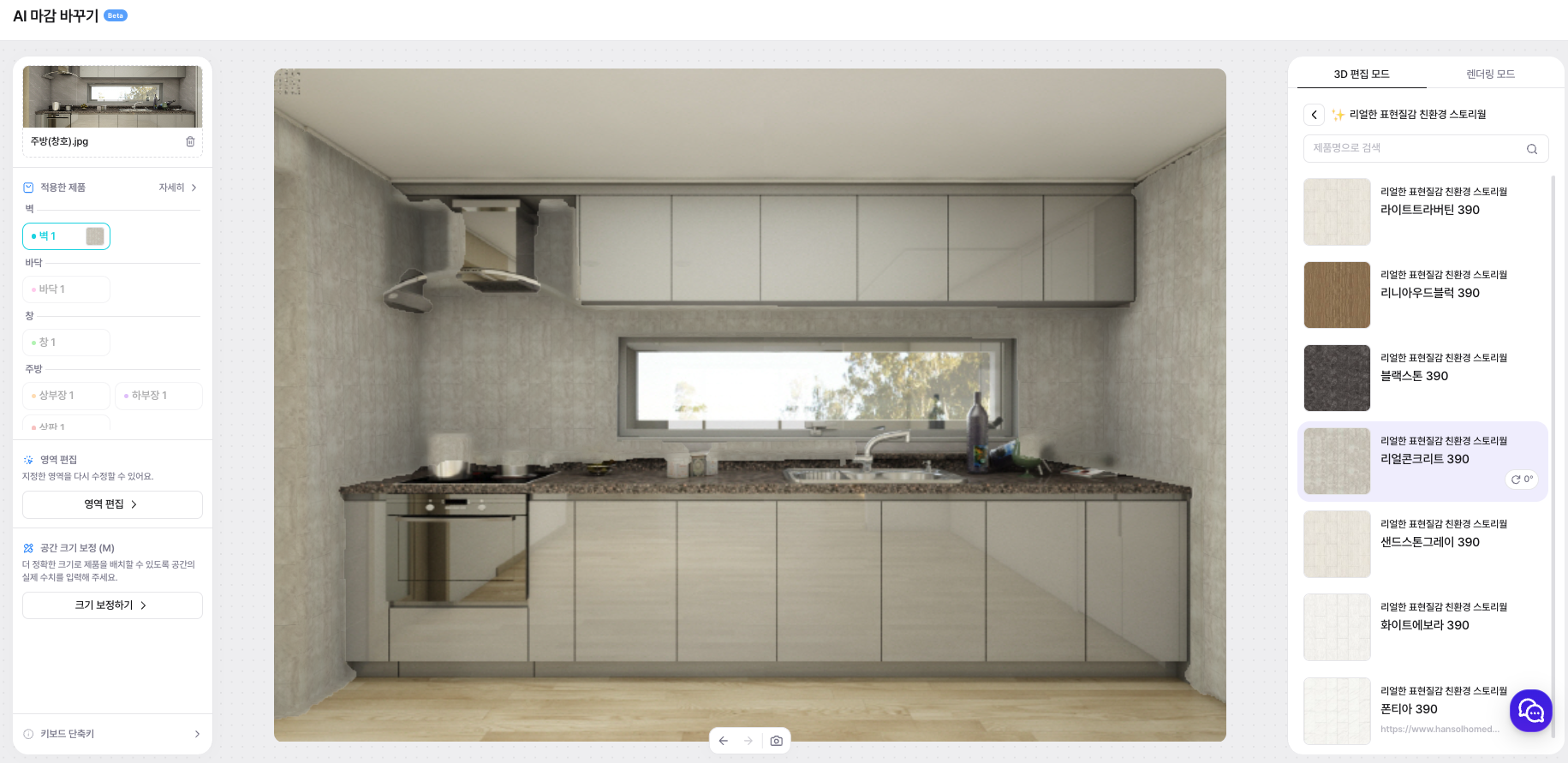
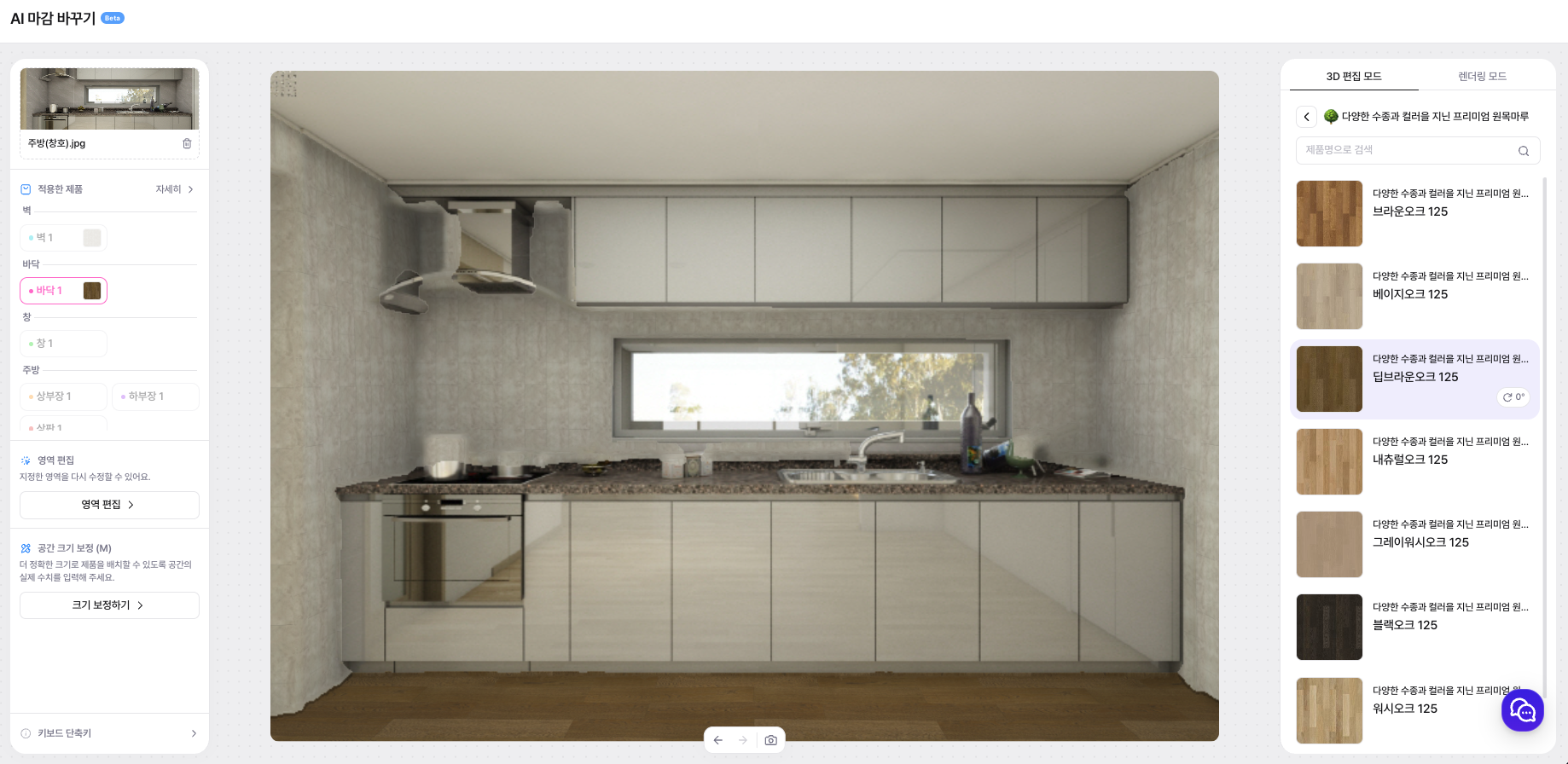
右側の製品リストから適用する素材を選択します。

<figure><img src="/files/f8ae0489ea25b42c7c4b325baa274a6660c30a98" alt=""><figcaption></figcaption></figure>

製品名で検索したり、カテゴリー別に確認できます。（製品コード例: WL479-D）

<figure><img src="/files/7f0ab10dc651cdd17503044712f3ef06c4e09c32" alt=""><figcaption></figcaption></figure>

素材を選択すると指定した領域に即座に適用され、左側 **適用済み製品**で壁・床・主壁ごとに確認できます。

<figure><img src="/files/81440b0e71fa1ee54ea60fc441d77cf21d5a23d9" alt=""><figcaption></figcaption></figure>

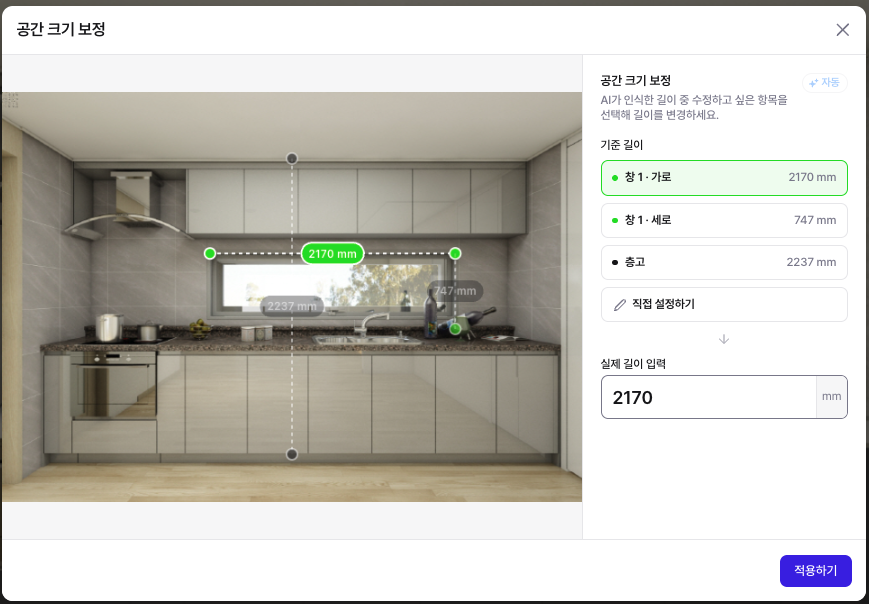
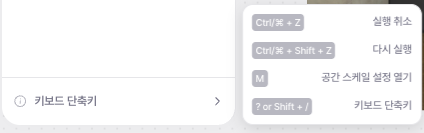
### STEP 5. 空間スケールを設定

実際の寸法を入力すると、素材の質感・パターンが **実測比率**で表現され、よりリアルな結果を得られます。

<figure><img src="/files/a50ead4cb45e1bba34aad0914feeeffb24f31580" alt=""><figcaption></figcaption></figure>

### STEP 6. レンダリング

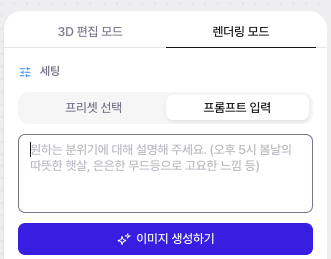
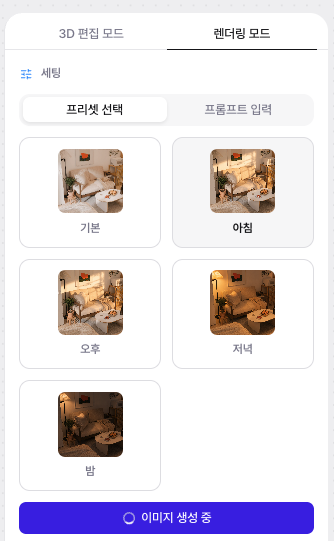
素材の適用が終わったら、右上の **レンダリングモード**に切り替えます。希望の雰囲気をプロンプトで入力し、レンダリングを実行してください。

<figure><img src="/files/97d22df2bb4a7f360e76e005361d8e59174adfba" alt=""><figcaption></figcaption></figure>

レンダリングが進行します。

<figure><img src="/files/f906da3f8c85c4d4ef978c7d855fcb6f96d50d3a" alt=""><figcaption></figcaption></figure>

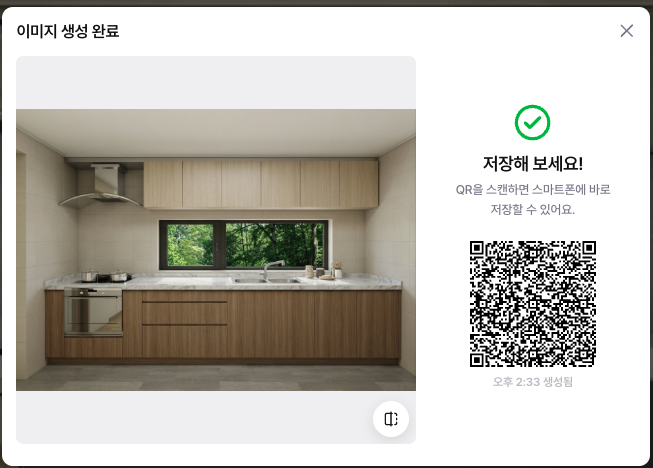
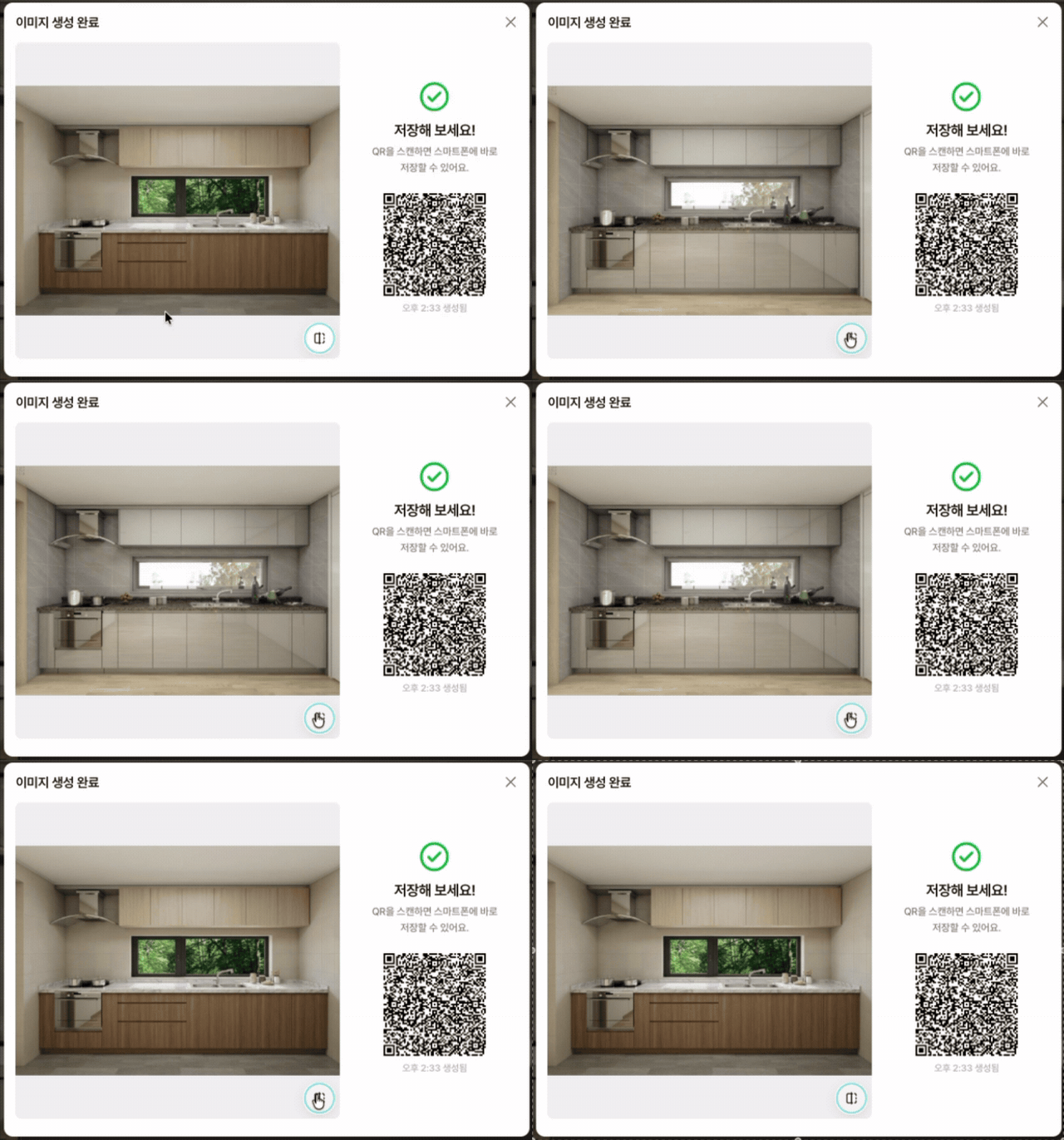
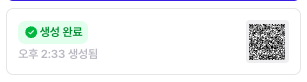
完成した画像を確認して保存してください。

<figure><img src="/files/62639b31addac3f9024c09c79d943505d4ae051e" alt=""><figcaption></figcaption></figure>


---

# Agent Instructions
This documentation is published with GitBook. GitBook is the documentation platform designed so that both humans and AI agents can read, navigate, and reason over technical content effectively. Learn more at gitbook.com.

## Querying This Documentation
If you need additional information that is not directly available in this page, you can query the documentation dynamically by asking a question.

Perform an HTTP GET request on the current page URL with the `ask` query parameter, and the optional `goal` query parameter:

```
GET https://docs.archisketch.com/guide/user-jp/archisketch-ai/ai-finishing-swap.md?ask=<question>&goal=<endgoal>
```

`ask` is the immediate question: it should be specific, self-contained, and written in natural language.
`goal` is optional and describes the broader end goal you are ultimately trying to accomplish on behalf of the user. GitBook uses it to tailor the answer towards what is most useful for that goal.

The response will contain a direct answer to the question and relevant excerpts and sources from the documentation.

Use this mechanism when the answer is not explicitly present in the current page, you need clarification or additional context, or you want to retrieve related documentation sections.