> For the complete documentation index, see [llms.txt](https://docs.archisketch.com/llms.txt). Markdown versions of documentation pages are available by appending `.md` to page URLs; this page is available as [Markdown](https://docs.archisketch.com/guide/user-en/manage-project/project-share.md).
# Share project
In Archisketch, there are two easy ways to share a project with others!\
You can share a project with Archisketch registered users in Editor or View-only mode, and with non-members you can share content such as interior spaces or render shots through a project link.\
With this feature, you can easily collaborate on or show your project to others.
## How to share a project
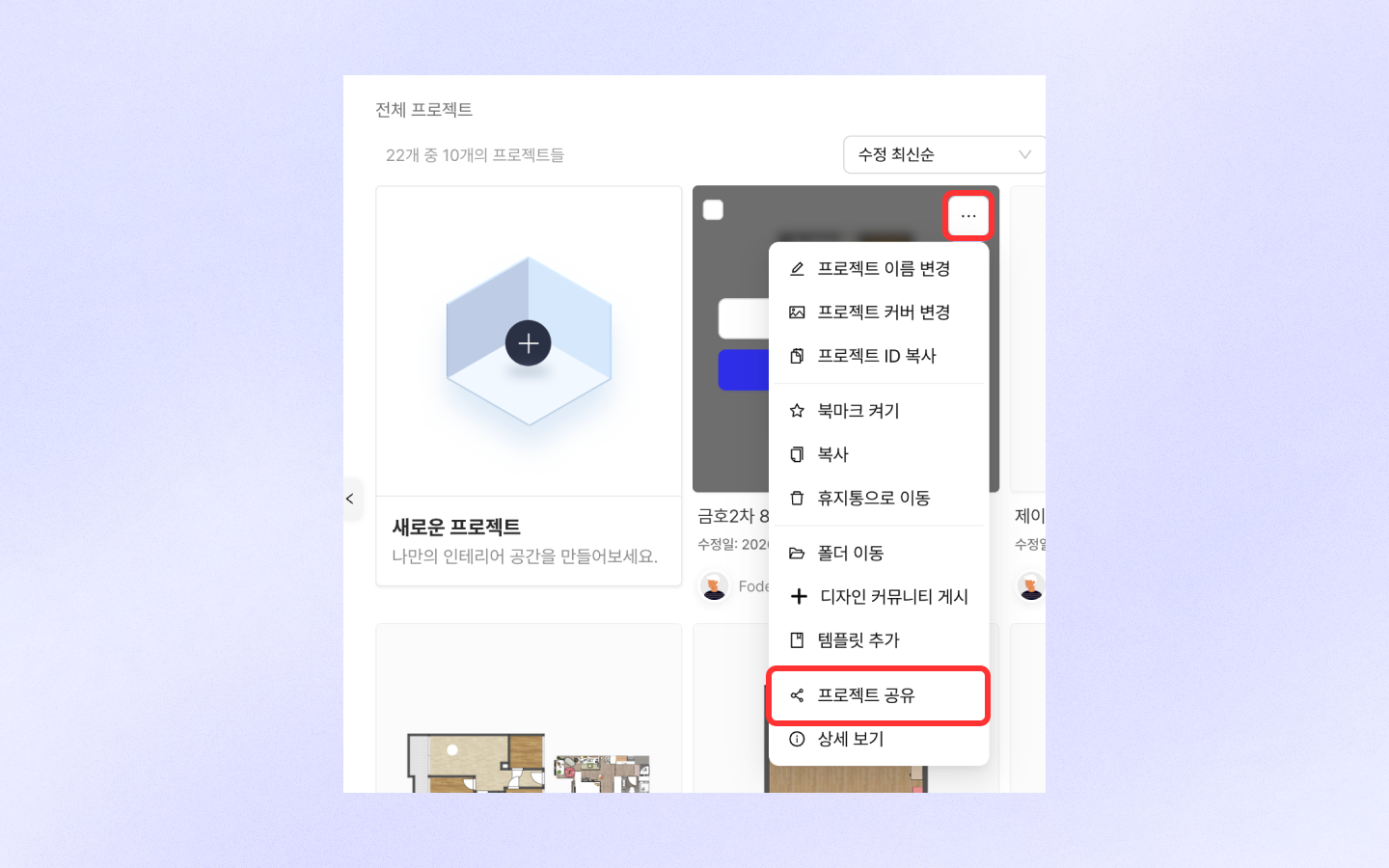
* Click More in the project
* Click Share Project
### Share Project
Project sharing is only available to Archisketch registered users.
* View-only: You can't edit the project; you can only view it.
* Editor: You can edit the project and collaborate.
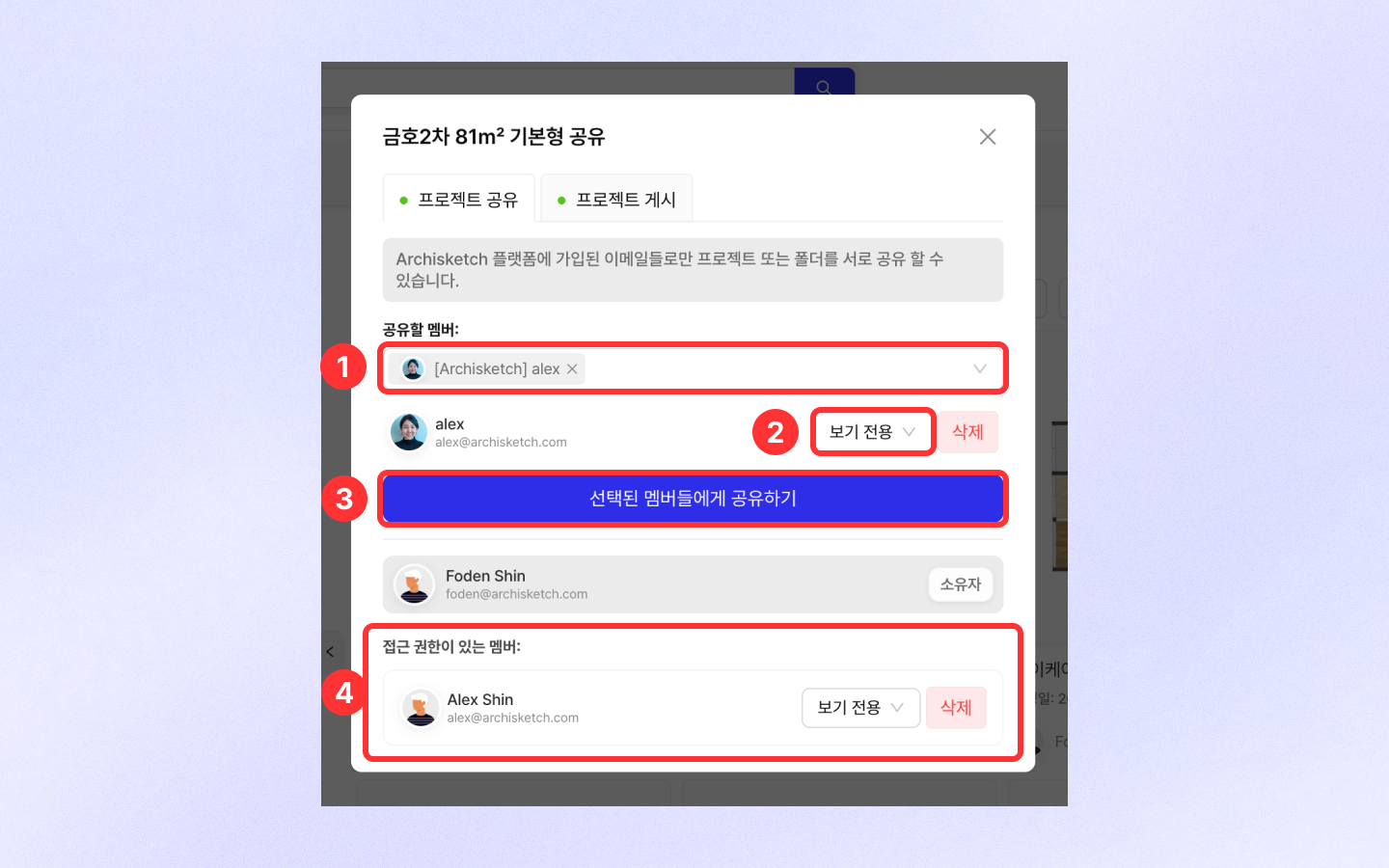
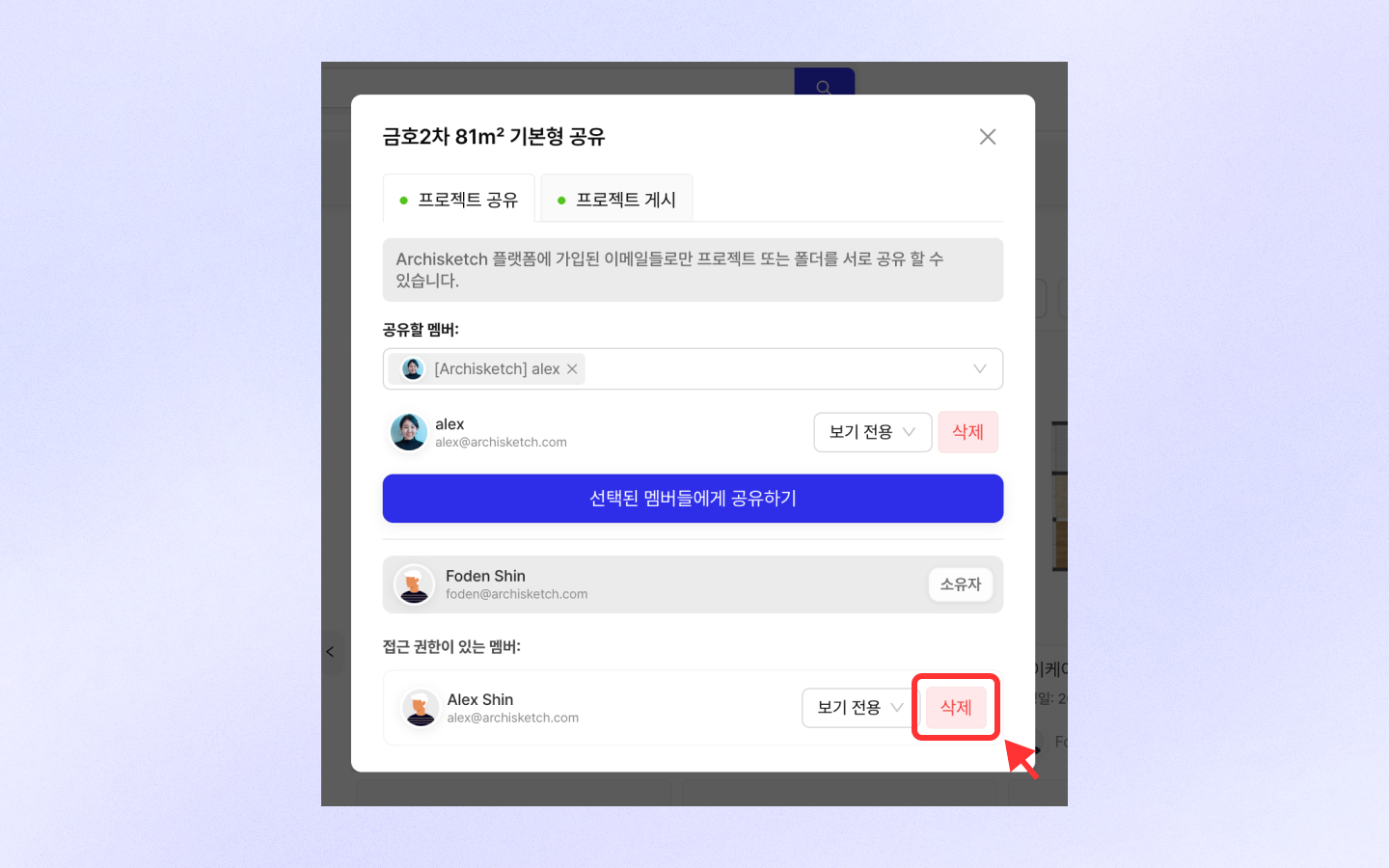
1. Member search: You can search only when you enter the full user ID.
2. Select an ID and choose \[View-only] or \[Editor].
3. Click the Share button for the selected members to complete sharing!
4. Check that they've been added as members with access rights.
#### Check the shared project
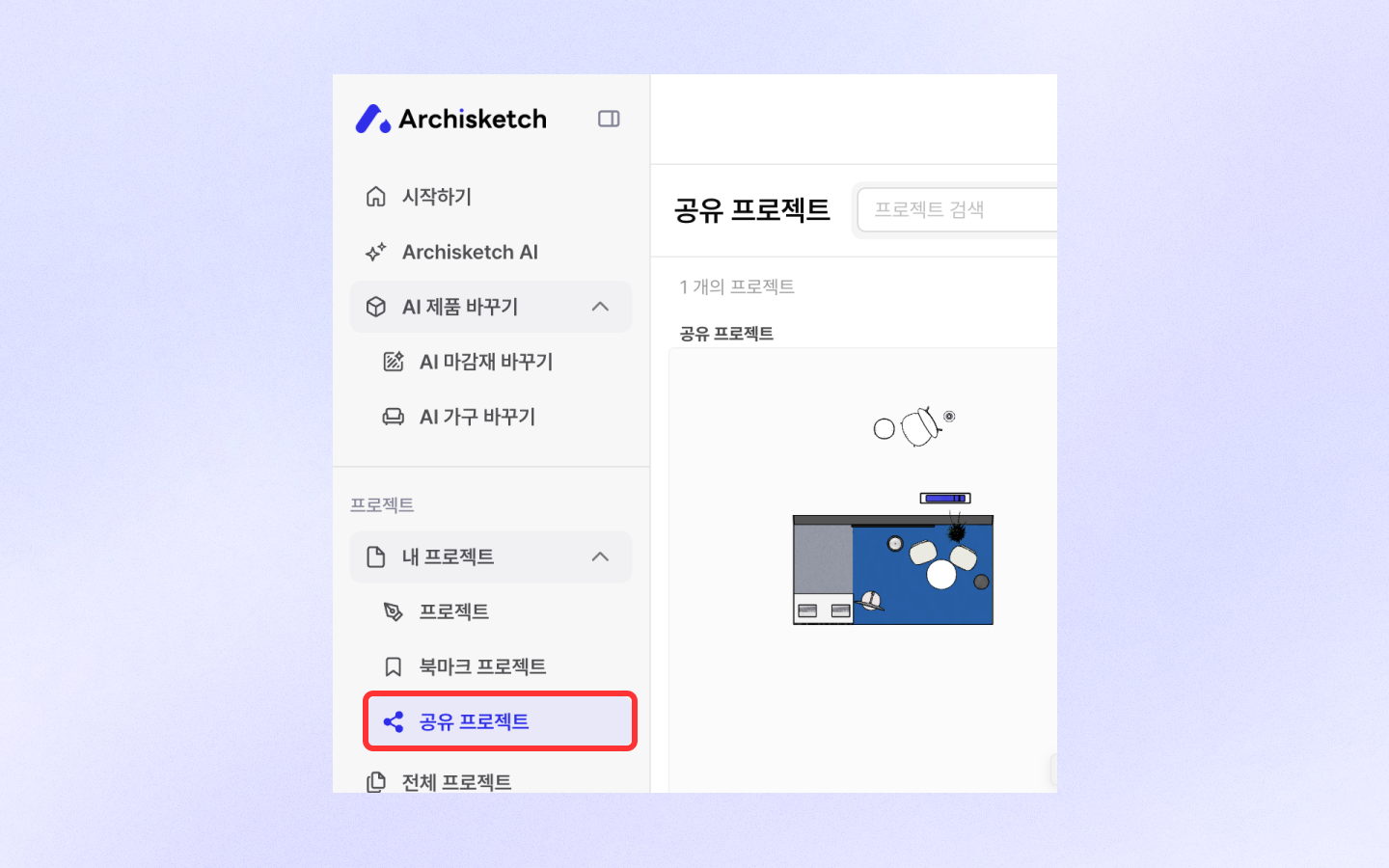
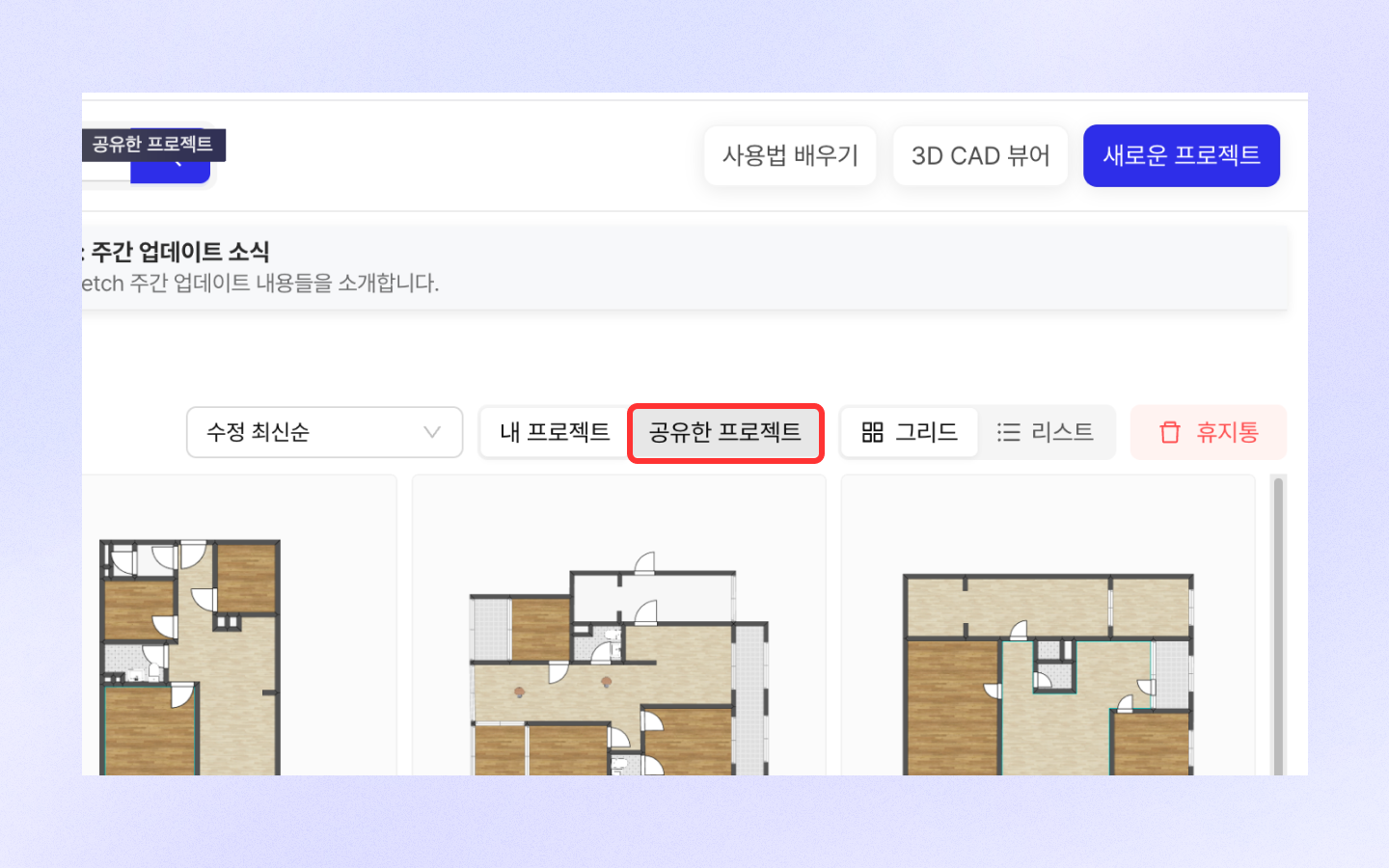
Shared users can check it after logging in under \[My Projects > Shared Projects]!
### Publish Project
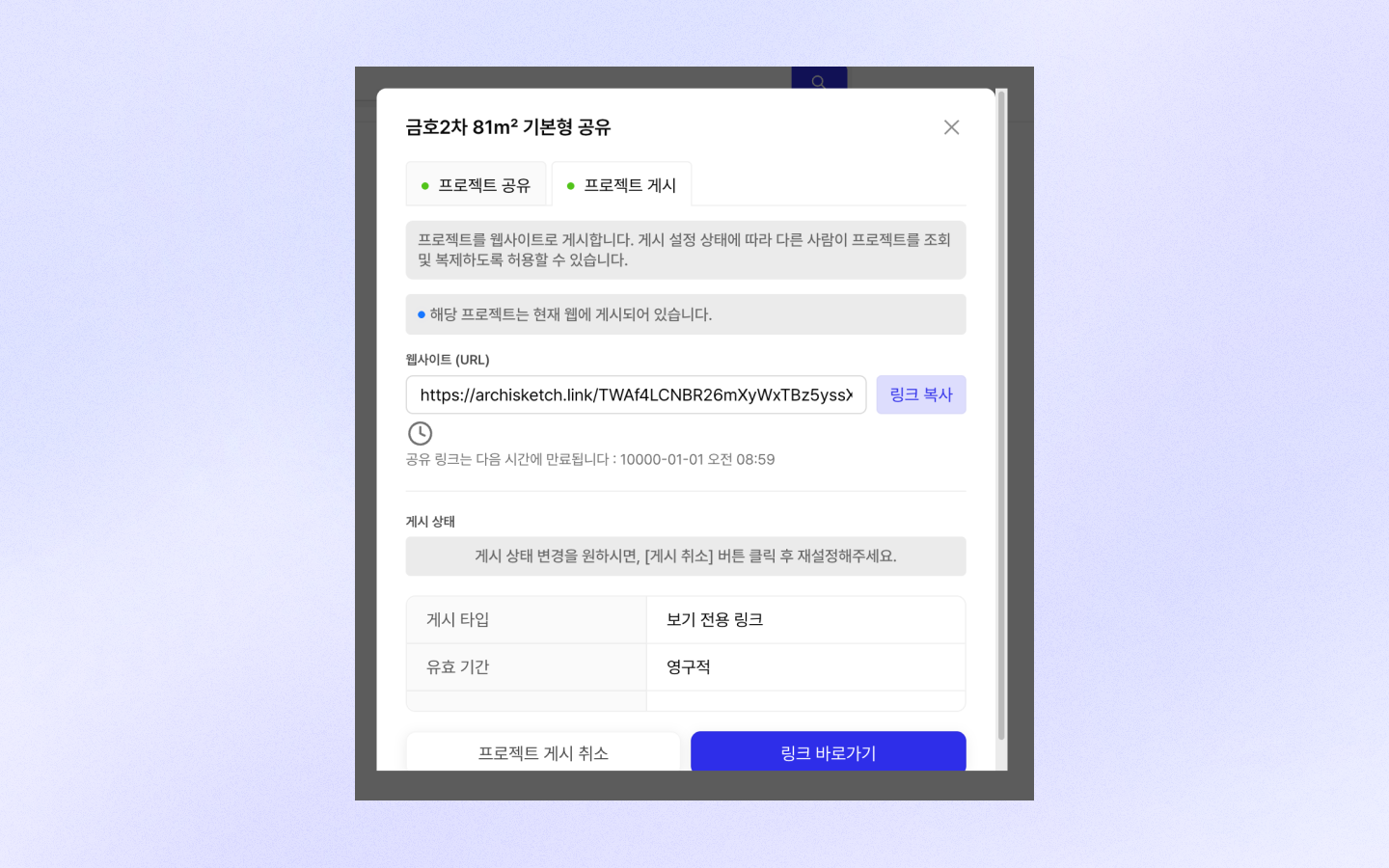
Through project publishing, you can share projects with non-members of Archisketch as well.\
This feature lets you share all content such as drawings, render shots, and 720 tours.\
However, only the latest 20 render shots can be shared.
**Publish a project**
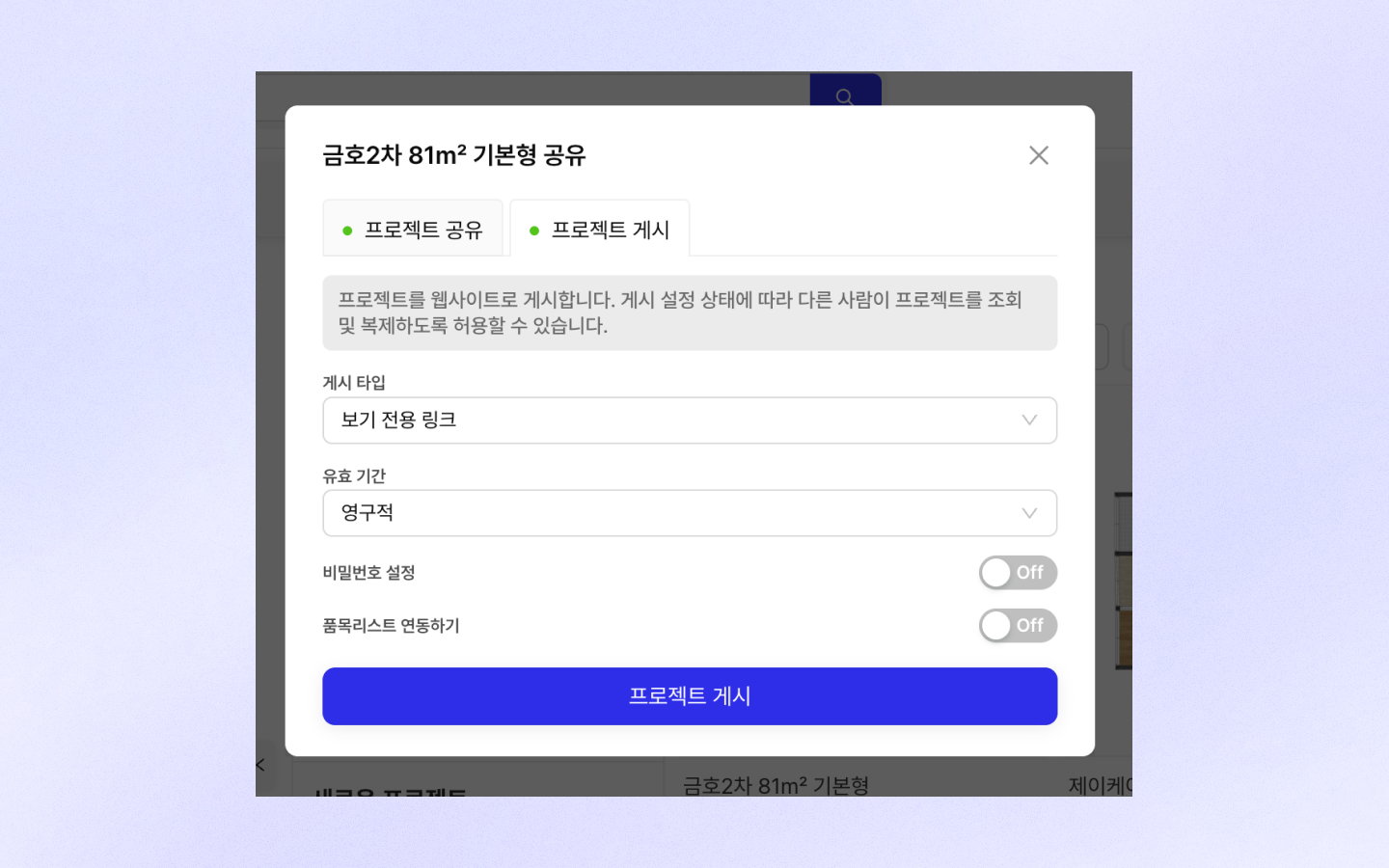
* Click Project Share > Publish tab
* Select publish type:
* View-only link: Even if you're not an Archisketch user, you can view the project through the link.
* Copyable project link: Archisketch users can copy the project with this link.
* Choose the validity period. (The link will be deactivated after the set period.)
* Permanent
* 24 hours
* 14 days
* Click the \[Publish Project] button
* When the website link is generated, click the Copy Link button and paste it wherever you want.
* Click the Link Shortcut button to go straight to the website!
Cancel project publishing
* Go to Project Share > Publish tab
* If you click the Cancel Publish Project button, the link will be deactivated.
{% hint style="danger" %}
When you publish a project, additionally created render shots, 720 tours, etc. become visible in real time, and edits to the drawings are reflected in real time as well.\
If you want to show it to customers or others, we recommend copying the project, giving it a different name, and separating work and sharing versions!
{% endhint %}
## Check shared projects
* Projects I've shared display the profile of the person who received the share next to my profile.\
Also, if you turn on \[Shared Projects] view in My Projects, you can see only the projects I've shared collected separately.
## Unshare
To stop sharing a project, click \[More] in the project and then select Project Share.\
Then, in the list of members with access rights, click the \[Delete] button next to the member you want to unshare with.
## Frequently Asked Questions
#### I'm trying to share a project, but the ID search doesn't work.
If the ID can't be found, first check whether the user is registered with Archisketch.\
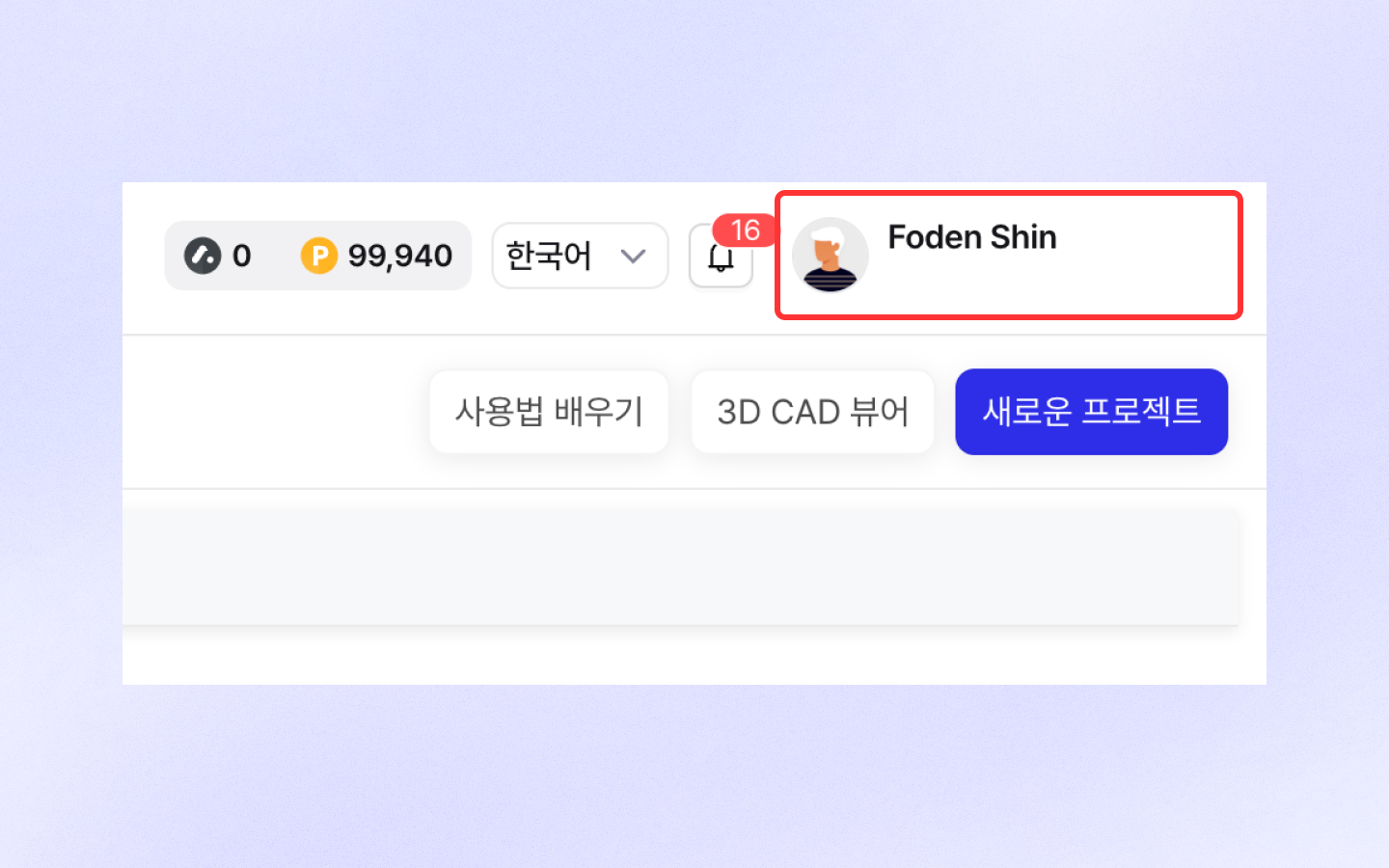
You can check the ID (email) in the account profile at the top right of the page.\
If they are not a registered user, project sharing is not possible, so please sign up first!
---
# Agent Instructions
This documentation is published with GitBook. GitBook is the documentation platform designed so that both humans and AI agents can read, navigate, and reason over technical content effectively. Learn more at gitbook.com.
## Querying This Documentation
If you need additional information that is not directly available in this page, you can query the documentation by asking a question.
Perform an HTTP GET request on the following URL with the `ask` and `goal` query parameters:
```
GET https://docs.archisketch.com/guide/user-en/manage-project/project-share.md?ask=&goal=
```
`ask` is the immediate question: it should be specific, self-contained, and written in natural language.
`goal` is what the user is ultimately trying to achieve, the reason they need the answer. Sharing it helps GitBook give you a better, more relevant answer. A goal is most helpful when it describes the outcome the user wants rather than restating the question. For example, with `ask=how do I create an API token`, a goal like `automate deployments from our CI pipeline` lets GitBook tailor the answer to that use case.
The response will contain a direct answer to the question and relevant excerpts and sources from the documentation.
Use this mechanism when the answer is not explicitly present in the current page, you need clarification or additional context, or you want to retrieve related documentation sections.