> For the complete documentation index, see [llms.txt](https://docs.archisketch.com/llms.txt). Markdown versions of documentation pages are available by appending `.md` to page URLs; this page is available as [Markdown](https://docs.archisketch.com/guide/user-en/manage-project/project-detail.md).
# Project detail page
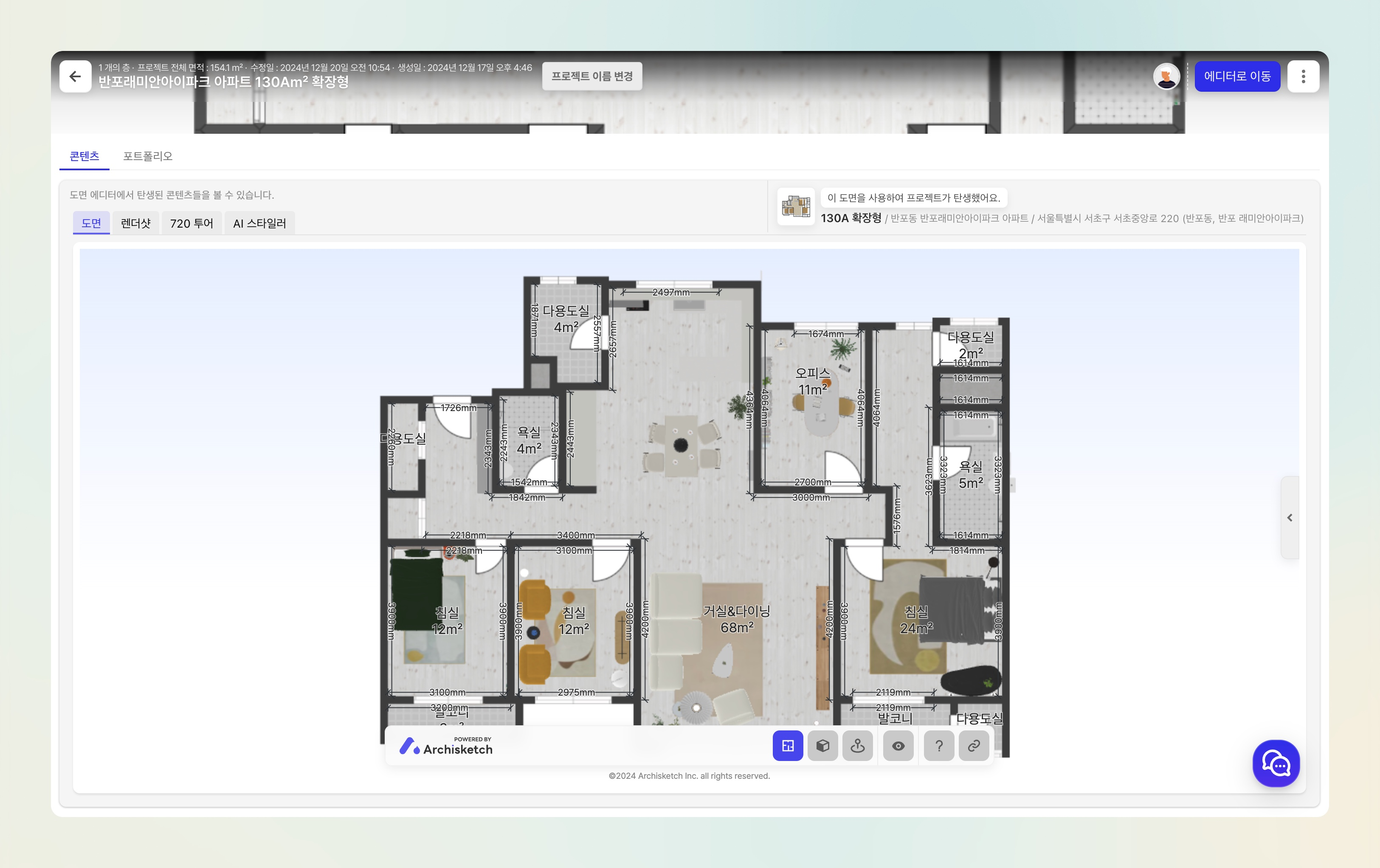
Are you looking at a project detail page like the one below?
I'll walk you through the various features in the project one by one in detail. ☺️
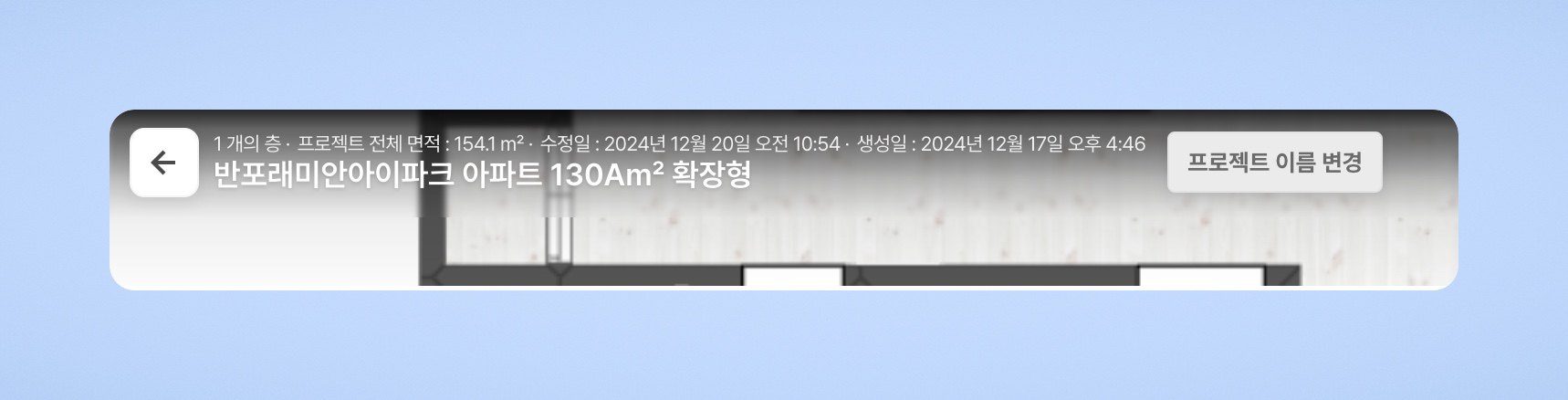
### Project Name
If the project was created through floor plan import, it is automatically saved as the 'building name,' and projects started by drawing a floor plan directly are saved as 'Untitled' by default.\
You can change it to the name you want by clicking the Change Project Name button.
You can also check various information about the project:
* Floor plan area
* Modified date: the last time the project was saved
* Creation date: the time the project was first created
### Change project cover
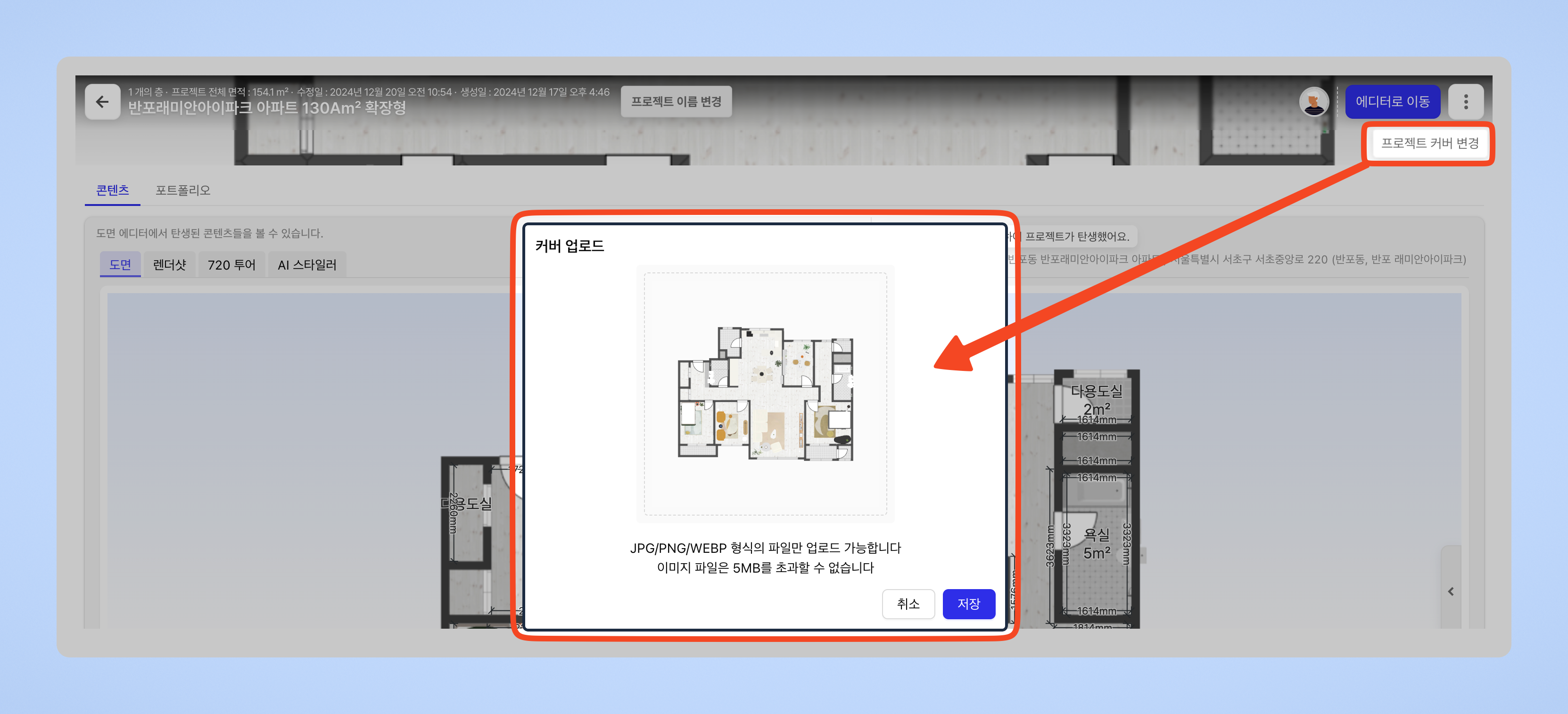
Did you know that you can change the cover image at the top of the project detail page?
* You can upload an image yourself and change the cover however you want.
* The changed cover will still be shown when you publish the project and share the page link.
* If you don't change the cover, the floor plan is set as the cover by default.
**Delete cover**
When a project cover is set, the delete cover button becomes active.
* Clicking this button lets you reset the cover and return it to the default floor plan.
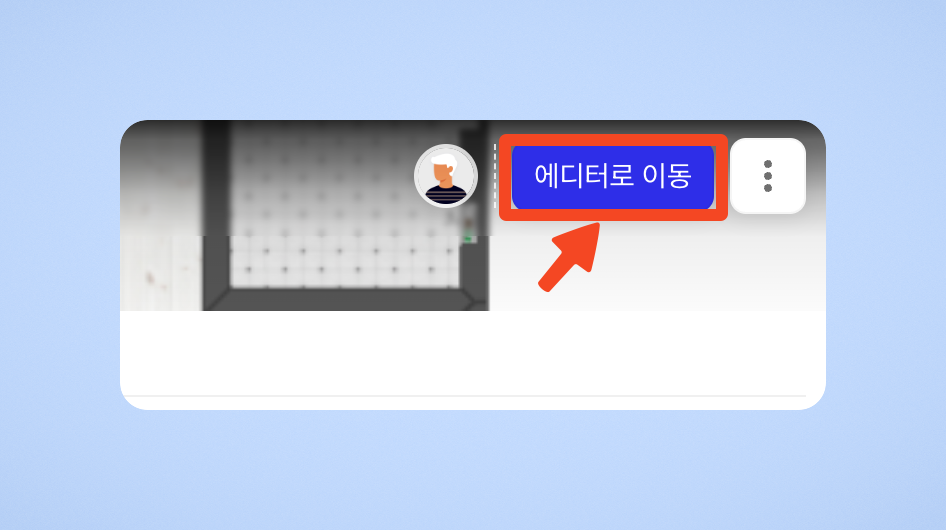
### Go to editor
You can enter the editor.
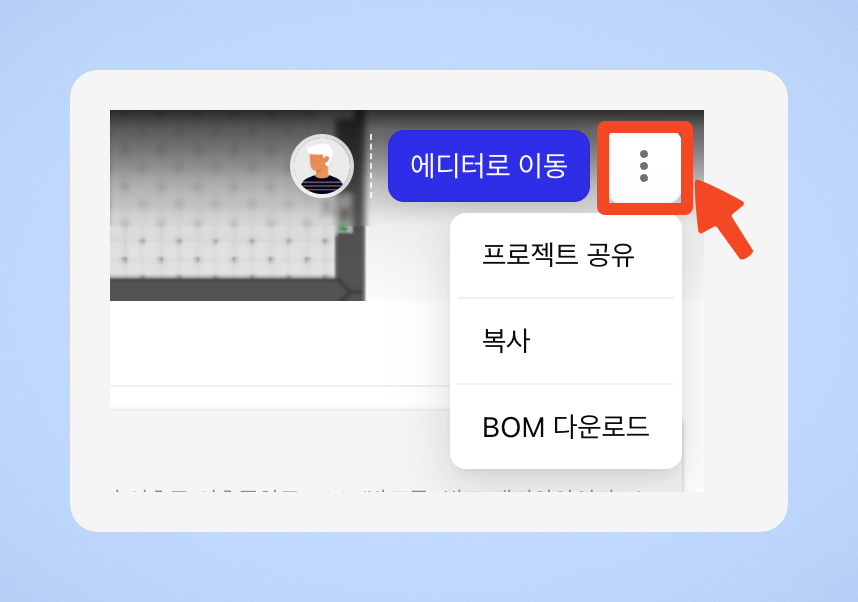
### See more
Project sharing is a feature that lets you share a project with other people. [Learn more →](/guide/user-en/manage-project/project-share.md)
You can create a duplicate of the project.
* It copies the entire project, including rendering, floor plans, and 720 tours.

#### BOM Download
What is BOM?
* BOM: Bill of Material (materials list)
The BOM (product list) is a list that organizes information about all the components that make up a product.\
In Archisketch, we provide a feature that lets you easily download this BOM.\
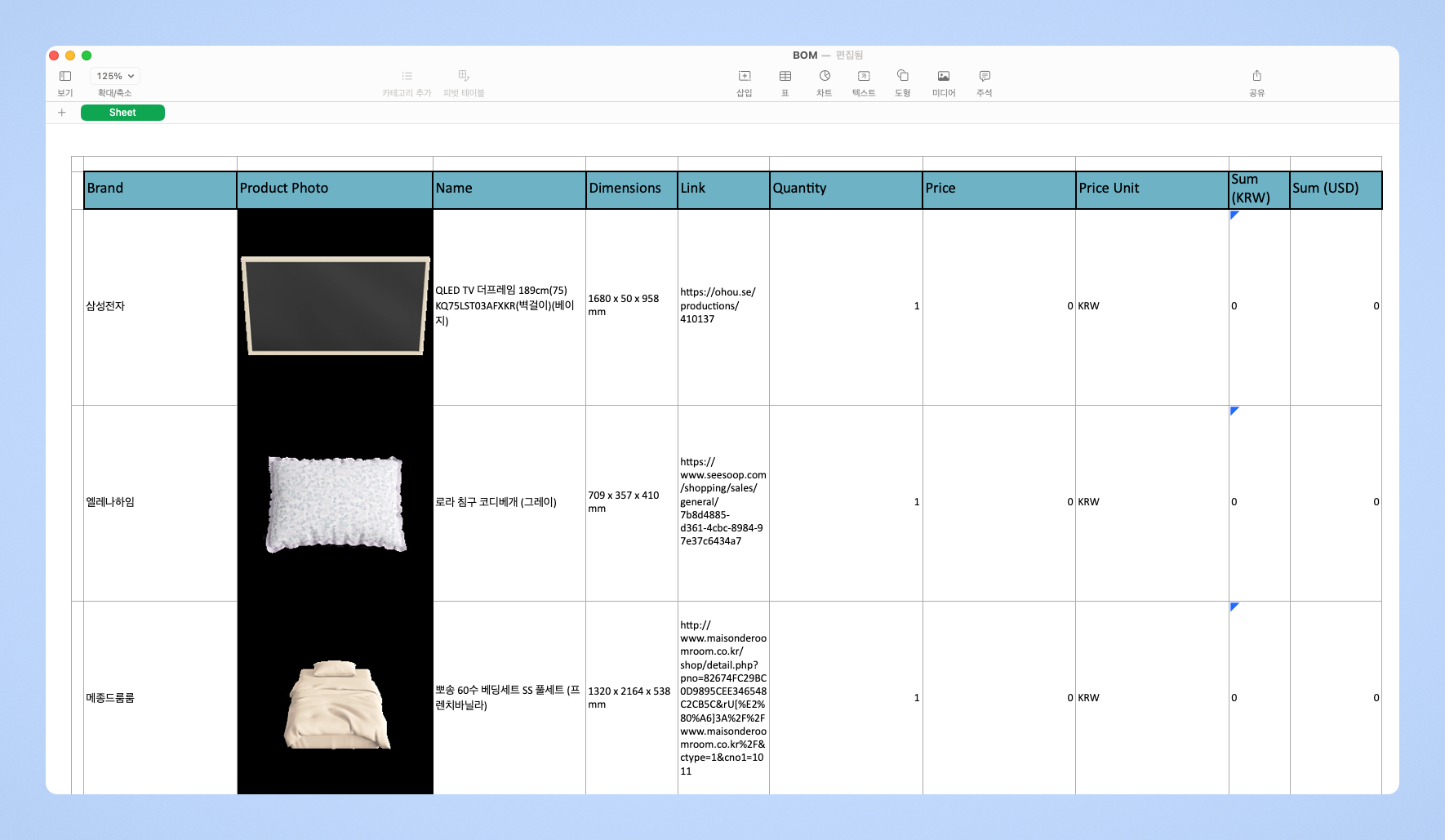
Using this feature, you can download the information for the components that make up a product all at once, and the downloaded BOM is **in Excel file (xlsx)**format.\
The BOM includes product photos, product codes, SKUs, dimensions, descriptions, product purchase links, quantities, prices, and more.\
This makes it easy to use the information needed for product management or procurement.
**How to download BOM**
You can easily download a list of all furniture used in the project as an Excel file.\
When you download it, the file is provided in a compressed format, and when you unzip it, files are generated according to the options you set.\
If you don't set any special options, Excel files are generated by brand by default.\
This makes it easy to organize the information you need!
{% hint style="success" %}
It takes a little time to complete the download, so please wait a moment.
{% endhint %}
**Option settings**
When downloading BOM, you can get more detailed results by setting options like the following:
* **Exclude common library:** You can download it excluding Archisketch common library products such as windows, doors, and other props.
* **Exclude products without prices:** You can exclude products without price information and download only products that include prices.
* **Exclude brand-specific BOM:** You can download all products in a single consolidated file without generating separate files by brand.
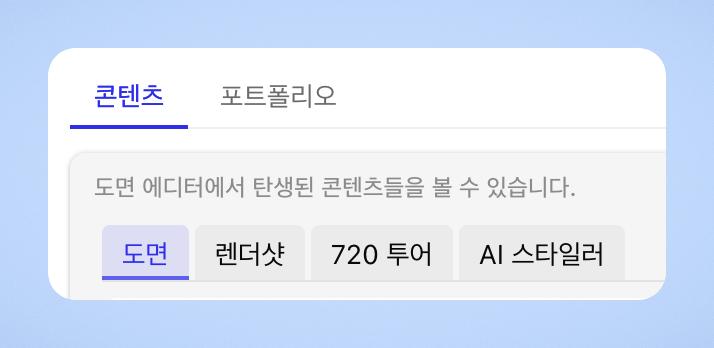
## Content
You can view all the work from projects created in the editor in Content.
---
# Agent Instructions
This documentation is published with GitBook. GitBook is the documentation platform designed so that both humans and AI agents can read, navigate, and reason over technical content effectively. Learn more at gitbook.com.
## Querying This Documentation
If you need additional information that is not directly available in this page, you can query the documentation by asking a question.
Perform an HTTP GET request on the following URL with the `ask` and `goal` query parameters:
```
GET https://docs.archisketch.com/guide/user-en/manage-project/project-detail.md?ask=&goal=
```
`ask` is the immediate question: it should be specific, self-contained, and written in natural language.
`goal` is what the user is ultimately trying to achieve, the reason they need the answer. Sharing it helps GitBook give you a better, more relevant answer. A goal is most helpful when it describes the outcome the user wants rather than restating the question. For example, with `ask=how do I create an API token`, a goal like `automate deployments from our CI pipeline` lets GitBook tailor the answer to that use case.
The response will contain a direct answer to the question and relevant excerpts and sources from the documentation.
Use this mechanism when the answer is not explicitly present in the current page, you need clarification or additional context, or you want to retrieve related documentation sections.