> For the complete documentation index, see [llms.txt](https://docs.archisketch.com/llms.txt). Markdown versions of documentation pages are available by appending `.md` to page URLs; this page is available as [Markdown](https://docs.archisketch.com/guide/user-en/archisketch-ai/ai-finishing-swap/ai.md).
# AI finish registration guide
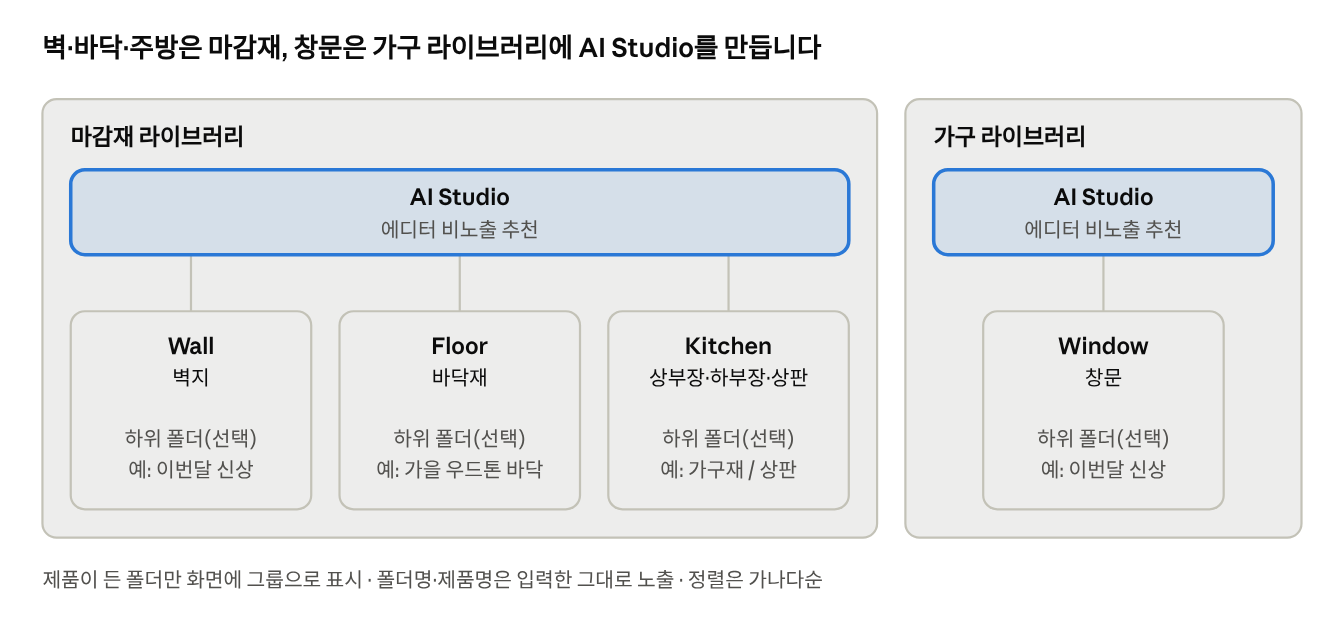
To expose wallpaper, flooring, kitchen materials, and window products to AI Finish Change, in the company library **AI Studio** create folders and place products into the area folders. Wallpaper, flooring, and kitchen materials are **Finish Materials Library**and windows are in **Furniture Library**created in.
Once setup is complete, when a user selects the floor, wall, kitchen, or window area in AI Finish Change, the products placed in that folder will appear immediately in the list on the right. Folder names and product names are displayed on screen exactly as entered, so please choose names that you want users to see.
Before getting started, please check two things.
* This guide is **products already registered in the library**is how to move them to the AI Studio folder. If a product has not yet been registered, please register it first.
* To create folders or change product categories, **separate permission**is required.
***
### 1. Overall folder structure
In both libraries, create AI Studio under the top-level (company name) folder, and either place products directly inside area folders or group them one more time into subfolders.
### 2. Setup procedure
The screens below are sample account examples, and actual folder names will be displayed as the company name.
{% stepper %}
{% step %}
### **Open the Finish Materials Library**
From the dashboard, go to Library > Company Library > Finish Materials Library.
{% endstep %}
{% step %}
### **Create an AI Studio folder and hide it from the editor (recommended)**
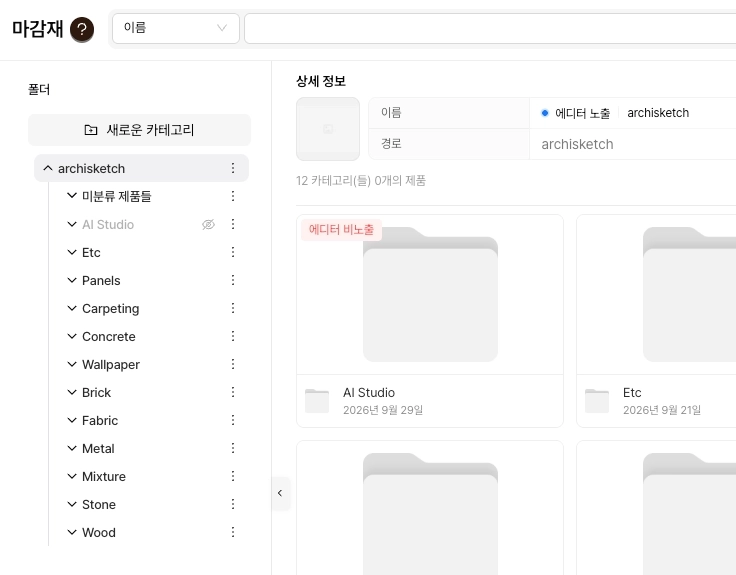
Select the top-level folder named after the company and, with 'Create Subcategory', `AI Studio`create it. Then, if you click 'Hide from Editor,' a red 'Hide from Editor' label will appear on the folder, and an eye icon will be added to the tree. This setting prevents AI Studio products from being mixed into the general 3D editor library.
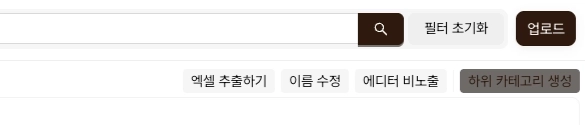
From now on, whenever you create a folder, always **first select where to create the folder (the parent folder), then** press 'Create Subcategory' in the upper right.
{% endstep %}
{% step %}
### **Create area folders**
Select the AI Studio folder and create `Wall`, `Floor`, `Kitchen` folders. `AI Studio`and the area folder name must be **identical in spelling, capitalization, and spacing** to be recognized. You can freely choose names for any subfolders beneath it.
| AI Finish Change area | Library | Folder name | Products to place |
| --------------------- | ------------------------ | ----------- | ----------------------------------------- |
| Walls | Finish Materials Library | `Wall` | Wallpaper |
| Floor | Finish Materials Library | `Floor` | Flooring |
| Kitchen | Finish Materials Library | `Kitchen` | Upper cabinets·lower cabinets·countertops |
| Window | Furniture Library | `Window` | Windows |
{% endstep %}
{% step %}
### **Place products (group into subfolders if needed)**
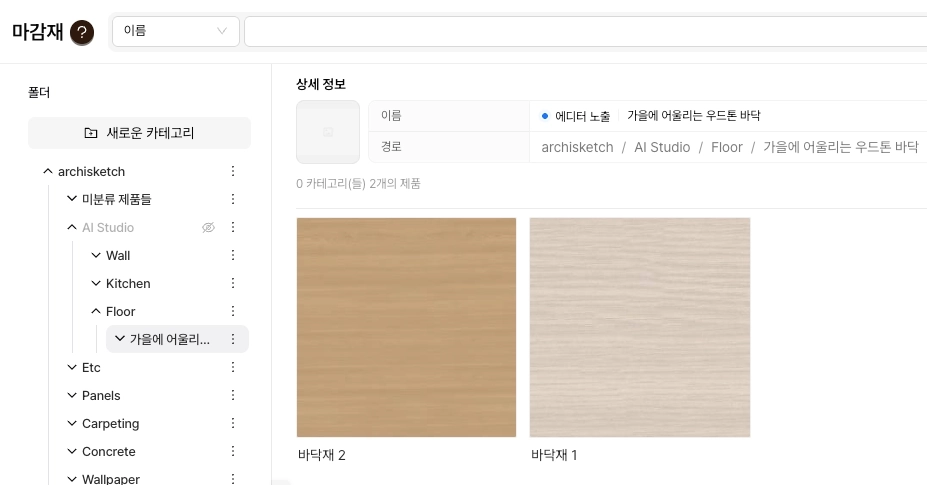
You can place products directly into an area folder, or create one more level of subfolder to place them. Below is an example of Floor > "Autumn-friendly wood-tone floor" > Flooring 1, Flooring 2.
**How to put products into folders** — Change the category of already registered products and move them to the AI Studio folder.
* For one product: In the finish materials list, click the '...' at the upper right of the product thumbnail → 'Edit Category'
* For multiple products: Select them with the checkboxes at the upper left of the products → 'Bulk Edit' at the upper right → 'Edit Category'
* In the 'Edit Category' window, check the folder to place them in (e.g., AI Studio > Floor > Autumn-friendly wood-tone floor), then confirm the 'Category after edit' path below, and click 'Edit.'
* When moved with bulk edit, they are removed from the original folder and remain only in the selected folder.
{% endstep %}
{% step %}
### **Repeat for windows in the furniture library**
In Company Library > Furniture Library, create an AI Studio folder as in step 2, and under it `Window` place window products into the folder. The method for creating folders and moving products is the same as in the Finish Materials Library.
{% endstep %}
{% step %}
### **Check in AI Finish Change**
After finishing the setup, **be sure to refresh the AI Finish Change screen**Please do. In the left menu, go to AI Product Change > AI Finish Change, upload a room photo, and select an area (e.g., Floor 1) under 'Applied Products' on the left. If the subfolder name appears as the group title and products appear as thumbnails in the 3D editing mode on the right, you're done. For how to use features such as photo upload, area editing, and credits, [AI Finish Change User Guide](https://docs.archisketch.com/guide/user/archisketch-ai/ai-finishing-swap)please refer to it.
If you create multiple subfolders, groups will stack one line per folder as shown below, and products beyond four are grouped into +N.
{% endstep %}
{% endstepper %}
### 3. Subfolder and screen display rules
Only folders that contain products appear on the screen as groups, and empty folders are not displayed. You can freely create subfolders under area folders (e.g., Floor > "Autumn-friendly wood-tone floor" > Flooring 1, Flooring 2).
| Folder status | AI Finish Change screen |
| ---------------------------------------------------------------------------------- | ------------------------------------------------------------------------------------------------ |
| No products in the area folder (Wall·Floor...) | The message "There are no products to apply" is displayed |
| No products in the subfolder | That subfolder itself is not shown |
| There is no direct product in subfolder A, only subfolder B that contains products | A is ignored and only B is shown as a group |
| Multiple subfolders with products | A separate group line is displayed for each folder, and products beyond four are grouped into +N |
* **Sorting**: Folders and products are all sorted only in alphabetical order.
* **Kitchen**: Products placed in the Kitchen folder are displayed together regardless of whether you select the upper-cabinet or lower-cabinet area. Please divide them into subfolders such as "Cabinet materials" and "Countertops" so users can view them separately.
* **Language**: Folder names and product names are displayed in the language you entered.
### 4. Notes
* `AI Studio`, `Wall`, `Floor`, `Kitchen`, `Window` Please enter folder names exactly, including spelling, capitalization, and spacing. You may choose any names for subfolders beneath them.
* After changing folders or products, you must refresh the AI Finish Change screen for the changes to take effect.
* Window products should not be placed in the finish materials **Furniture Library**the AI Studio folder of
### 5. Q\&A after setup
I can't see products in AI Finish Change.
First, please refresh the AI Finish Change screen. If you still can't see them, `AI Studio`and the area folder (`Wall`, `Floor`, `Kitchen`, `Window`) please check whether the spelling, capitalization, and spacing are exact.
The message "There are no products to apply" appears.
This means there are no products in the 해당 area folder. Please put at least one product in the area folder or in a subfolder beneath it.
I can't see the subfolder I created on the screen.
Subfolders without products are not displayed. Please check whether there are products inside the subfolder.
Window products don't appear in the list.
Windows must be placed in the AI Studio > Window folder of the Furniture Library, not the Finish Materials Library.
AI Studio products also appear in the 3D editor library.
Please check whether Hide from Editor is set for the AI Studio folder. If you can see an eye icon next to AI Studio in the folder tree, it is hidden.
I want to change the folder or product order.
Folders and products are sorted only in alphabetical order. Since names are shown to users exactly as entered, please decide names with the display name and order in mind.
The products disappeared from the original folder after I moved them.
When you change categories with bulk edit, they are removed from the original folder and remain only in the selected folder. Please duplicate the products before moving them.
I can't create a 'Subcategory' or 'Edit Category.'
Folder and product categories can only be changed by managers or higher. Please check your account permissions.
The product I want to upload is not in the library.
Only products already registered can be moved to the AI Studio folder. Please register the product first, then change its category.
I selected Upper Cabinets, but countertop products are also shown together.
Products in the Kitchen folder are displayed no matter which kitchen area you select. If you divide them into subfolders such as "Cabinet materials" and "Countertops," they will be shown separately by group.
---
# Agent Instructions
This documentation is published with GitBook. GitBook is the documentation platform designed so that both humans and AI agents can read, navigate, and reason over technical content effectively. Learn more at gitbook.com.
## Querying This Documentation
If you need additional information that is not directly available in this page, you can query the documentation by asking a question.
Perform an HTTP GET request on the following URL with the `ask` and `goal` query parameters:
```
GET https://docs.archisketch.com/guide/user-en/archisketch-ai/ai-finishing-swap/ai.md?ask=&goal=
```
`ask` is the immediate question: it should be specific, self-contained, and written in natural language.
`goal` is what the user is ultimately trying to achieve, the reason they need the answer. Sharing it helps GitBook give you a better, more relevant answer. A goal is most helpful when it describes the outcome the user wants rather than restating the question. For example, with `ask=how do I create an API token`, a goal like `automate deployments from our CI pipeline` lets GitBook tailor the answer to that use case.
The response will contain a direct answer to the question and relevant excerpts and sources from the documentation.
Use this mechanism when the answer is not explicitly present in the current page, you need clarification or additional context, or you want to retrieve related documentation sections.