> For the complete documentation index, see [llms.txt](https://docs.archisketch.com/llms.txt). Markdown versions of documentation pages are available by appending `.md` to page URLs; this page is available as [Markdown](https://docs.archisketch.com/guide/user-en/archisketch-ai/ai-ai-snapshot.md).

# AI Snapshot (AI Snapshot)

### What is an AI snapshot?

If basic render shots are taken based on the settings, AI Snapshot **uses a prompt (e.g., “cozy mood”) or presets (morning/day/sunrise·sunset)**&#x61;nd AI automatically sets the lighting and atmosphere to make it look beautiful. So there’s no need to **set the lighting, camera, and environment one by one**, just tell it the mood you want. On the resulting image, the placed product can be **tag (pin)**&#x62;e added, which can be used for consultations and information checks. And because AI handles the settings for you, **the result can also be delivered quickly** within 1 minute.

<table><thead><tr><th width="120.8515625">Category</th><th width="300.50390625">Standard render shot</th><th>AI render shot (AI snapshot)</th></tr></thead><tbody><tr><td>Key strength</td><td>Accurately implemented exactly as set</td><td>Automatically creates the desired mood</td></tr><tr><td>Output method</td><td>Manually control lighting, environment, and camera in detail</td><td>A single line of prompt + presets is enough</td></tr><tr><td>Speed</td><td>Precisely set values and reproduce as intended</td><td>Get results within 1 minute without any setup</td></tr><tr><td>Good for these situations</td><td>Accurate mockups and review, proposals based on actual measurements</td><td>Quickly create pretty shots for marketing and consultations</td></tr></tbody></table>

### **How to use**

{% stepper %}
{% step %}

#### Open Render Shot

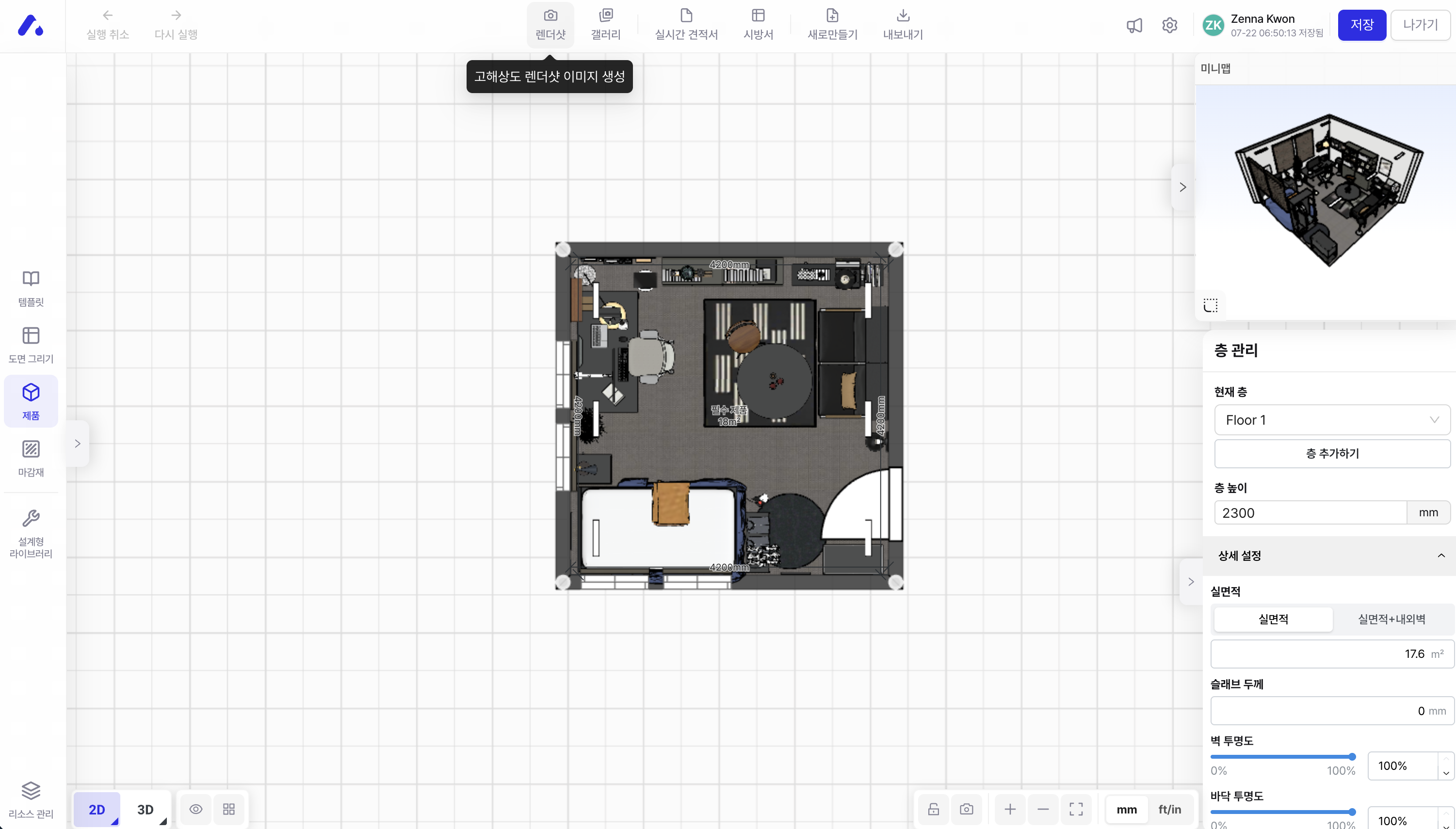
From the top toolbar in the editor, **\[Render Shot]**&#x63;lick (generate a high-resolution render shot image).

<figure><img src="/files/248ad22c25394e55d010ccca5d1375c4ab293c9c" alt=""><figcaption></figcaption></figure>
{% endstep %}

{% step %}

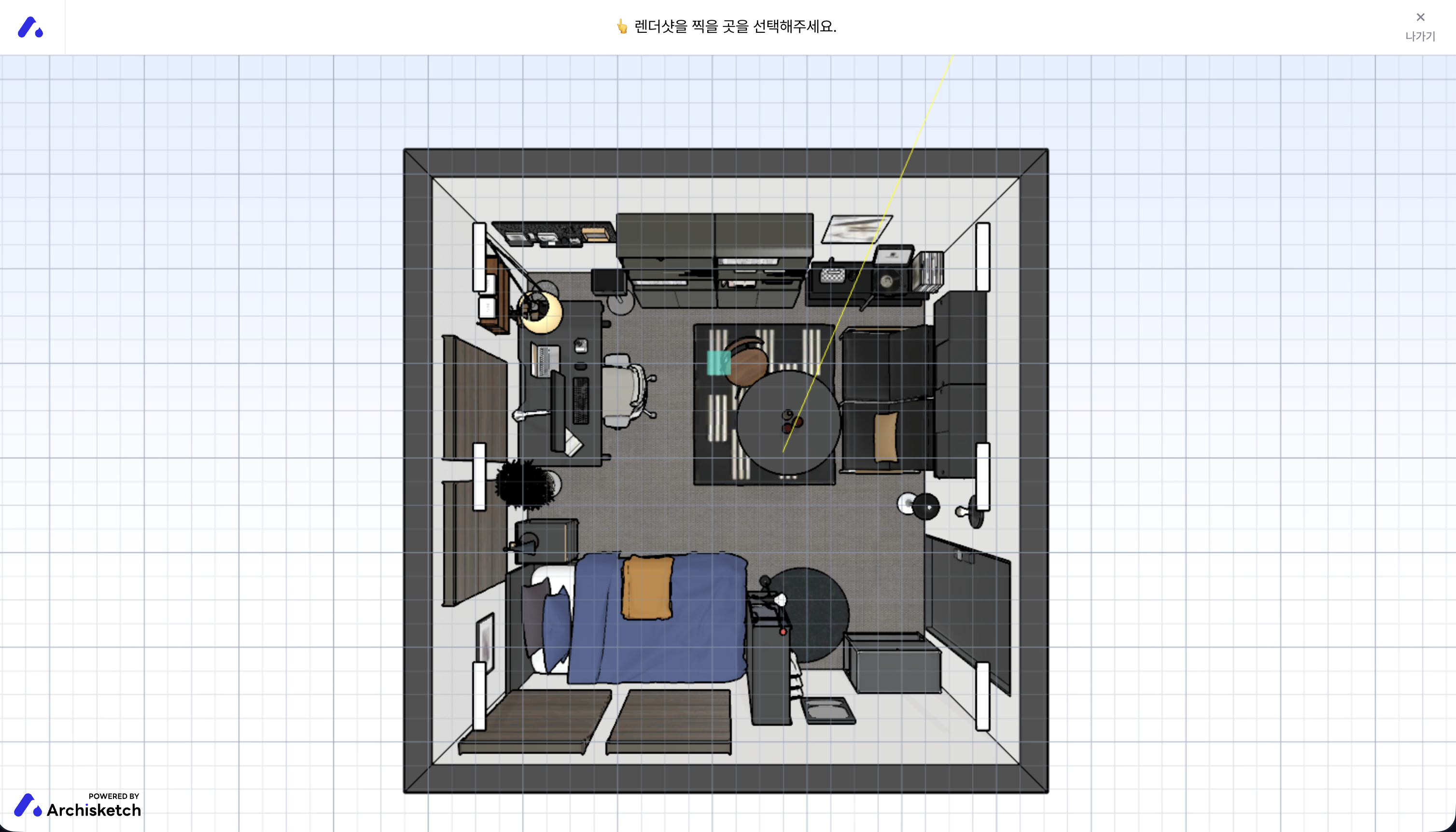
#### Select shooting position

On the 2D floor plan, follow the instruction “Please select where to take the render shot” **camera position and viewing direction (yellow line)**&#x61;nd set them.

<figure><img src="/files/bc7f4db3bea621b6f4013e244bca5551b9574d58" alt=""><figcaption></figcaption></figure>
{% endstep %}

{% step %}

#### Select render mode · view

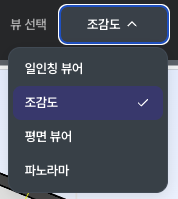
In the render mode at the top of Render Studio, **AI Snapshot**choose it.

You can also choose the view according to the perspective you want. (first-person viewer / bird’s-eye view / plan view / panorama)

<figure><img src="/files/ae1f6b191ad35f9d4475b78b7fee8c5dce846b1b" alt=""><figcaption></figcaption></figure>

**4 view options (shoot from the perspective you want)**

* **First-person viewer** — A viewpoint seen from human eye level. Great for natural interior shots that feel like you’re standing in the actual space.
* **Bird’s-eye view** — A viewpoint looking diagonally down at the space from above. Good for showing the overall layout and structure at a glance.
* **Plan view** — A top-down flat viewpoint. Used when showing the layout like a floor plan.
* **Panorama** — A 360° view of the space. Good for immersive walkthrough-style views.

<figure><img src="/files/93dd414b80c376147601b5268074343983a80902" alt=""><figcaption></figcaption></figure>
{% endstep %}

{% step %}

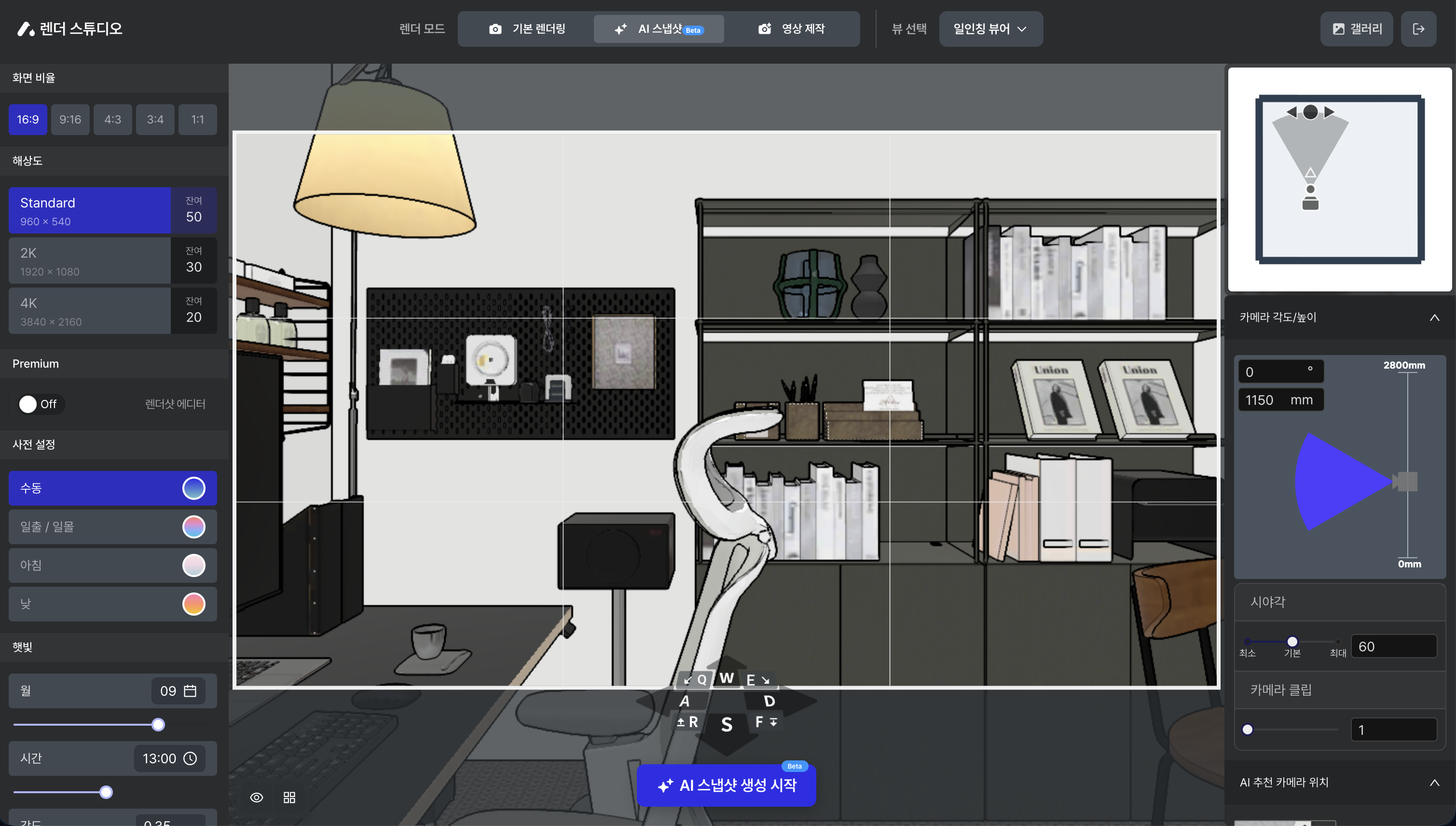
#### Screen · quality · mood · camera settings (optional)

AI Snapshot does not require you to **set the lighting, environment, and camera one by one.** Just give it a prompt and presets (mood), and AI will handle the rest. **Only when you want finer adjustments** do you need to touch the items below. (The settings are **aspect ratio · resolution · presets · sunlight · camera angle/height/field of view** — same as the standard render shot.)

🔗 **View render shot settings in detail** → [Render Studio Guide](https://docs.archisketch.com/guide/user/rendershot/render-studio)

<figure><img src="/files/c94cbe3c6cfba53fc1eea13d531579c5243aa2f5" alt=""><figcaption></figcaption></figure>
{% endstep %}

{% step %}

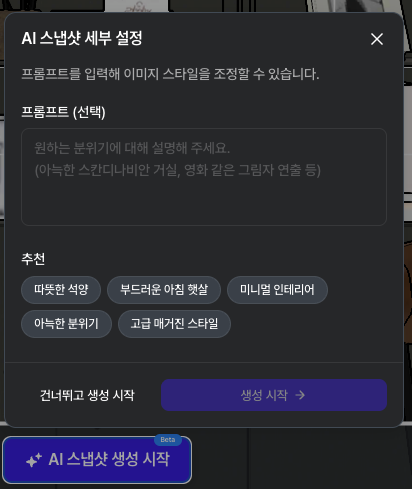
#### Start generating (prompt)

At the bottom **✨ Start generating AI Snapshot**click it. Freely enter the mood you want with a **prompt**(e.g., “cozy mood”), and AI will shoot accordingly. You can also use presets only, without a prompt.

<figure><img src="/files/5b24b940f9950927ac25baa7d48182396878b72b" alt=""><figcaption></figcaption></figure>
{% endstep %}

{% step %}

#### Waiting for generation

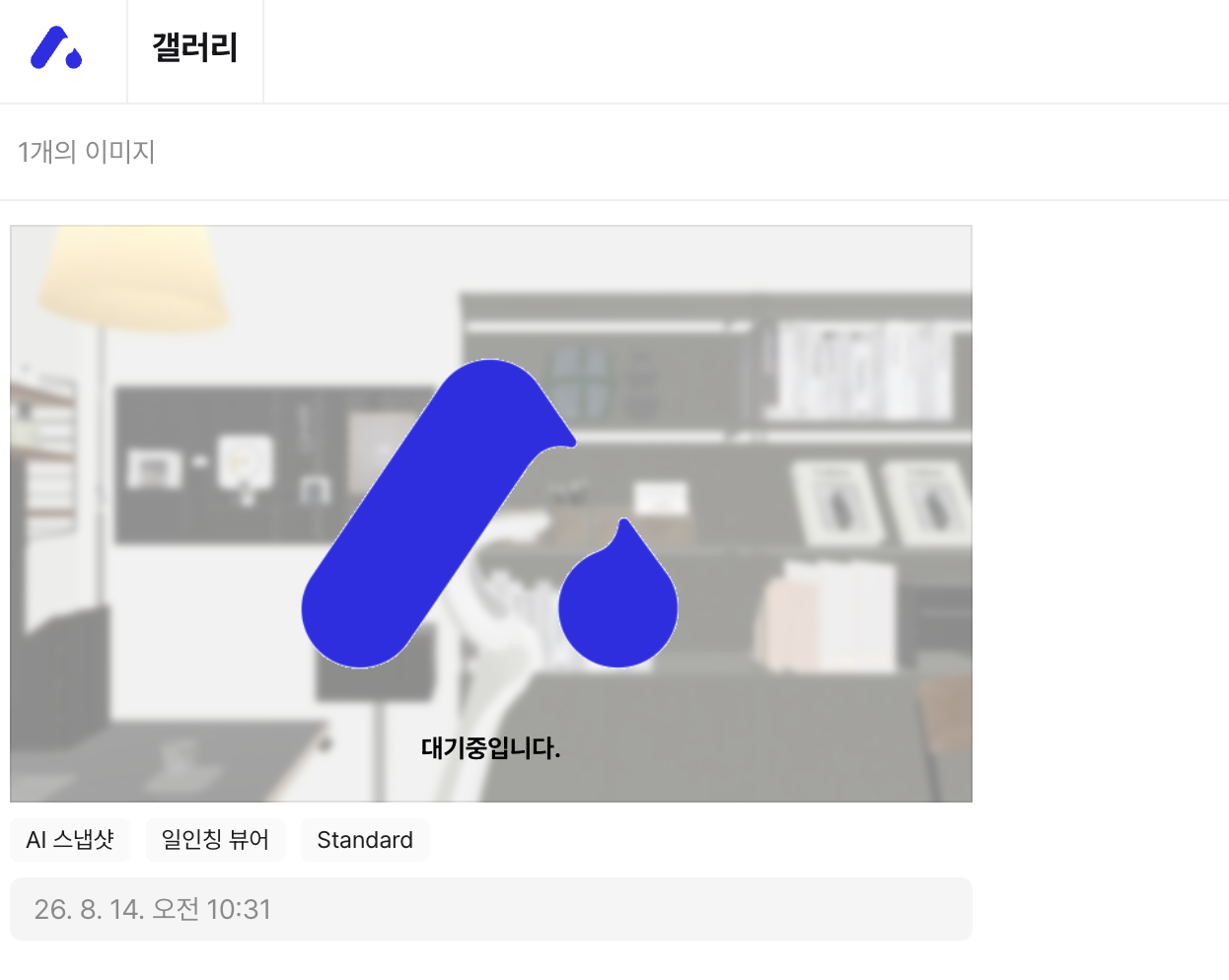
In the gallery **“Waiting”** status will be shown, and it will be completed shortly.

<figure><img src="/files/e84796137a058e4ccc539fad6ae5907e7db9aa3f" alt=""><figcaption></figcaption></figure>
{% endstep %}

{% step %}

#### Check results · tags · download

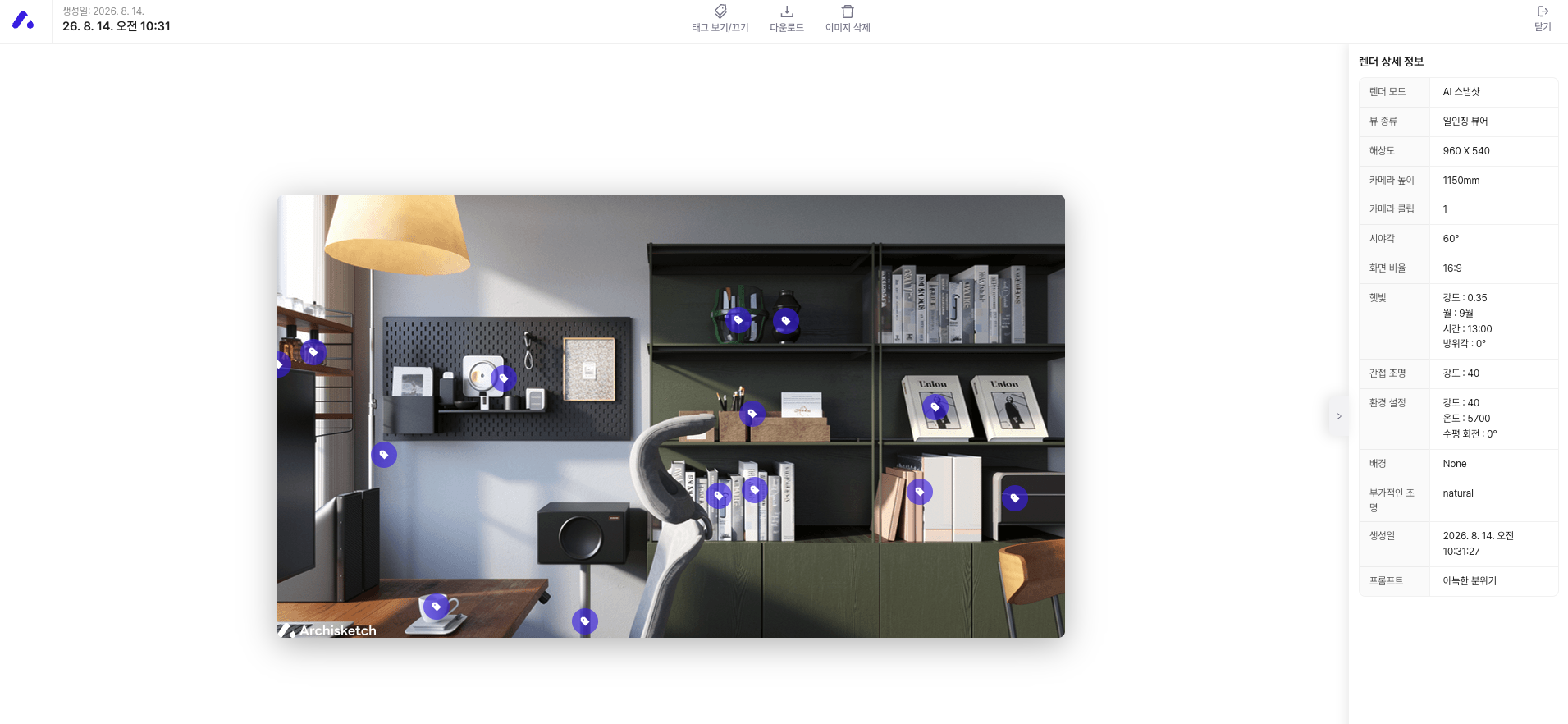
* **In the gallery**check the generated snapshots (tags for render mode · view · resolution · generation date).
* When you click the image, **render details**(render mode · view type · resolution · camera height · field of view · sunlight · environment settings ·**prompt**)

<figure><img src="/files/5795fc3cb4c621eb4a8b082c25ed8d8d93dcf046" alt=""><figcaption></figcaption></figure>
{% endstep %}
{% endstepper %}

{% hint style="info" %}
**tag (pin)**&#x69;s a marker attached to the product position in the result image; when turned on, consumers can immediately check and inquire about the product.
{% endhint %}


---

# Agent Instructions
This documentation is published with GitBook. GitBook is the documentation platform designed so that both humans and AI agents can read, navigate, and reason over technical content effectively. Learn more at gitbook.com.

## Querying This Documentation
If you need additional information that is not directly available in this page, you can query the documentation dynamically by asking a question.

Perform an HTTP GET request on the current page URL with the `ask` query parameter, and the optional `goal` query parameter:

```
GET https://docs.archisketch.com/guide/user-en/archisketch-ai/ai-ai-snapshot.md?ask=<question>&goal=<endgoal>
```

`ask` is the immediate question: it should be specific, self-contained, and written in natural language.
`goal` is optional and describes the broader end goal you are ultimately trying to accomplish on behalf of the user. GitBook uses it to tailor the answer towards what is most useful for that goal.

The response will contain a direct answer to the question and relevant excerpts and sources from the documentation.

Use this mechanism when the answer is not explicitly present in the current page, you need clarification or additional context, or you want to retrieve related documentation sections.