> For the complete documentation index, see [llms.txt](https://docs.archisketch.com/llms.txt). Markdown versions of documentation pages are available by appending `.md` to page URLs; this page is available as [Markdown](https://docs.archisketch.com/guide/intro-en/update-note/2026/202609.md).

# September 2026 Updates

September was **The Parametric Editor moved from a 'drawing tool' to a 'making tool'** It was a month that took a step forward. With panel structure presets, you can set up a storage cabinet skeleton right away, use the cutting editor to plan sheet layout, and catch errors with part inspection before saving. Global variables and variable groups were also added so the same standards can be used across multiple pieces of furniture.

A statistics dashboard was added to consultation and customer management, and the library can now be organized into tag groups set by the administrator. Starting in September, credit standards also apply to AI Furniture Swap and AI Finish Swap.

The September update is broadly divided into five areas.

**① Parametric Editor creation tools**

**② Consultation and customer statistics**

**③ Library tag and folder management**

**④ Dashboard and Editor**

**⑤ AI Furniture and Finish Swap credit guide**

***

### 1. Parametric Editor creation tools

#### Start with a panel structure preset

We added panel presets based on construction principles to the modular editor. There are seven types: top panel, bottom panel, side panel, fixed shelf, movable shelf, back panel, and door, and the system automatically calculates panel size and position according to the onset/inset relationship. When you change a piece of furniture's W/D/H, the panel structure changes along with it according to formulas.

When creating a new modular item, you can choose whether to start from a blank state or from a basic storage cabinet template.

We also improved the editing screen. You can switch between 2D and 3D views, adjust the width of the editing area, set properties by template, and add margins (offsets) to panel placement. Panels also reference variables by name like other parts.

<figure><img src="https://2613077494-files.gitbook.io/~/files/v0/b/gitbook-x-prod.appspot.com/o/spaces%2FMWuDtKHjyUXqBIf7Q6Zw%2Fuploads%2FMMHV4sZyUmdIkL84mmlA%2Fimage.png?alt=media&amp;token=39c4f553-2c99-4849-a36e-b8806bc10dc0" alt=""><figcaption><p>Modular start page</p></figcaption></figure>

#### If you write formulas in words, AI creates them for you

We added AI input to the formula editor so you can write the calculation you want in a sentence and convert it into a formula. The generated formula is checked again against the variables and syntax currently available, so formulas that use nonexistent variables or have invalid syntax won't be entered as-is. The formula editor also includes a variable list and a live preview.

<figure><img src="https://2613077494-files.gitbook.io/~/files/v0/b/gitbook-x-prod.appspot.com/o/spaces%2FMWuDtKHjyUXqBIf7Q6Zw%2Fuploads%2FoKO7aZ2OgPwy1g0kKevZ%2Fimage.png?alt=media&amp;token=7b7f27ee-4487-4628-9ae0-9ac2b2763e09" alt=""><figcaption><p>AI formula generation</p></figcaption></figure>

#### A part cutting editor has been added

We added a cutting editor that automatically creates sheet-cutting plans based on the part configuration. You can view the part list, sheet layout, required number of sheets, and cutting efficiency all on one screen. If there are multiple layout candidates, one is chosen by considering both material efficiency and actual workability.

If a panel is not rectangular, the cutting dimensions are based on the outer rectangle that encloses the actual shape, and holes or grooves are treated separately as post-processing areas. Hidden parts or elements that are not cutting targets, such as 3D models, are excluded, and the reason they were excluded is also shown on screen.

The header menu was changed from `Save / Export / Cutting`to `Save / Export`. Pressing Export lets you choose between printing drawings and cutting parts.

<figure><img src="https://2613077494-files.gitbook.io/~/files/v0/b/gitbook-x-prod.appspot.com/o/spaces%2FMWuDtKHjyUXqBIf7Q6Zw%2Fuploads%2FLPortW3yEQvTQXCNFhU4%2Fimage.png?alt=media&amp;token=3ad1fcdc-6f3e-4459-bd81-ea41655bdca1" alt=""><figcaption><p>Part cutting editor</p></figcaption></figure>

#### Inspect parts before saving

Before saving or producing parametric parts, we check the final state of variables, formulas, panels, and parts all at once. It checks six things: value anomalies, variable settings, panel shape, part configuration, dimension consistency, and part overlaps.

The results are shown in the right panel as errors and warnings, and when you select a problem item, the corresponding part is highlighted in the 3D view. Automatic inspection is on by default, and when saving it guides you through issues; if there are errors before exporting production data, progress is blocked. The header shows `Error present / Warning present / No issues / Inspection required` status, and the inspection time for the same part has been reduced by about 63%.

<figure><img src="https://2613077494-files.gitbook.io/~/files/v0/b/gitbook-x-prod.appspot.com/o/spaces%2FMWuDtKHjyUXqBIf7Q6Zw%2Fuploads%2FgEnHz7poeRLvMBb2QHMS%2Fimage.png?alt=media&amp;token=3c51c5cd-f0b2-4048-bebd-53becf1c651a" alt=""><figcaption><p>Modular part inspection</p></figcaption></figure>

#### Align standards with global variables and variable groups

Values shared across multiple pieces of furniture, such as board thickness, door gap, overlay, and toe-kick position, are **grouped into 23 global variables**for management. You can call variable names directly in formulas and use the same standards across multiple parts, and items that affect other values, such as board thickness, also calculate related items like door overlay together.

If a part already has a variable with the same name, the existing value is applied first so the shape doesn't suddenly change. If needed, `Use global values`to switch to a global-variable standard, and if the value is different, it lets you know in advance that the dimensions may change.

Variables can be grouped into **groups**according to business purpose or product attributes. Public variables and internal variables can each be divided into multiple groups, and each group can have its own name, description, collapse state, order, lock, and visibility. Existing variables are automatically placed into the default group, so formulas and reference relationships remain unchanged.

<figure><img src="https://2613077494-files.gitbook.io/~/files/v0/b/gitbook-x-prod.appspot.com/o/spaces%2FMWuDtKHjyUXqBIf7Q6Zw%2Fuploads%2FvEm3idqIzn4nagAZSg8a%2Fimage.png?alt=media&amp;token=59c4ba3d-8d21-4cb8-aa2e-74b2c3d9a1b3" alt=""><figcaption><p>Modular global variables</p></figcaption></figure>

<figure><img src="https://2613077494-files.gitbook.io/~/files/v0/b/gitbook-x-prod.appspot.com/o/spaces%2FMWuDtKHjyUXqBIf7Q6Zw%2Fuploads%2FDEh7BtOcqy7Bbk2ZEtf1%2Fimage.png?alt=media&amp;token=65d6ffe7-b43f-465c-972d-89a430117fba" alt=""><figcaption><p>Parametric variable groups</p></figcaption></figure>

#### Other improvements

* You can edit and save enterprise parameter hide conditions by part.
* Even if the parameter editing screen becomes long, the Save and Cancel buttons stay pinned at the bottom.
* We fixed an issue where the placement offset was not saved and an issue where values entered in the formula input field disappeared when reopened.
* We fixed an issue where placing 15 or more modules caused a 3- to 4-second freeze when adding or selecting modules.
* In the panel shape editor, widening the right panel also widens the input fields inside it.
* `Variable management`·`Part library` We matched the tab and left section title styling to the header buttons.

***

### 2. Consultation and customer statistics

#### See consultations and customers in numbers

We added a **statistics dashboard**to the Consultation Management, All Consultation Management, and Customer Management pages.

* **Consultations:** Total consultations, in progress, purchase completion rate, average lead time, and trends in consultation count, revenue, average quote amount, and quote count. In detailed statistics, you can also see status distribution, conversion rate, consultations by assignee, and area range distribution.
* **Customers:** Customers within the period, new customers, returning customers, and traffic source distribution. Detailed statistics include customers with many consultations and status/area distributions.

Normally, you only see the summary, `View detailed statistics`and the rest opens up when you click it. You can choose the query period from the last 30 days, 12 weeks, 12 months, or this year, and the statistics and the list below always use the same period.

You no longer need to create a consultation first just to register a customer. You can register customers directly on mobile too.

<figure><img src="https://2613077494-files.gitbook.io/~/files/v0/b/gitbook-x-prod.appspot.com/o/spaces%2FMWuDtKHjyUXqBIf7Q6Zw%2Fuploads%2F8yctVrp0aCAhttUyu9nb%2Fimage.png?alt=media&amp;token=91b56691-6bf3-497f-92a8-2fa809cad43f" alt=""><figcaption><p>Overall consultation management statistics</p></figcaption></figure>

<figure><img src="https://2613077494-files.gitbook.io/~/files/v0/b/gitbook-x-prod.appspot.com/o/spaces%2FMWuDtKHjyUXqBIf7Q6Zw%2Fuploads%2F0KXRdcZzP1EzKfNEJVxT%2Fimage.png?alt=media&amp;token=b046c4ca-a4fb-4cc0-892e-dbe40cb7bdec" alt=""><figcaption><p>Customer management statistics</p></figcaption></figure>

***

### 3. Library tag and folder management

#### Manage tags in groups

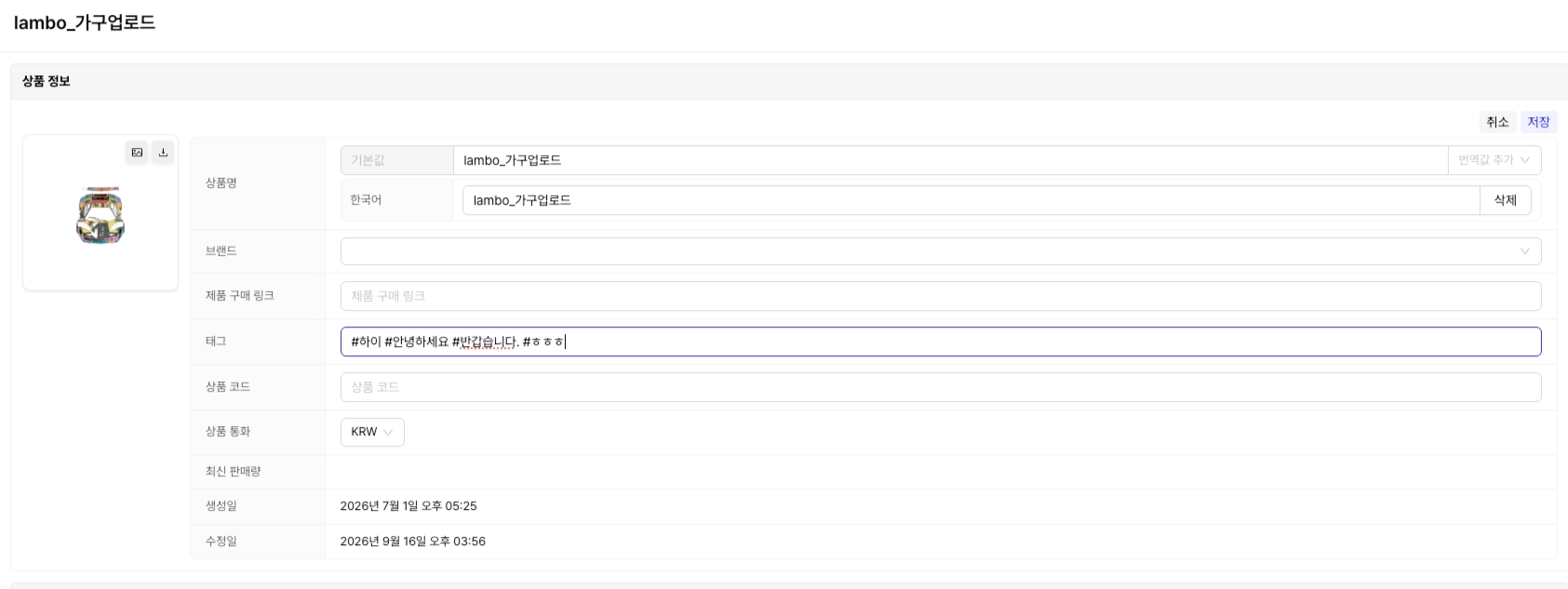
Tags used for products, finishes, and textures can now be managed by group. In the Library Advanced Settings `Tag management`you can create tag groups and set the tag list, whether they are required, the maximum number of selections, and whether they are shown for each group. Tag groups for products, finishes, and textures are managed separately, and template tags continue to use the existing management screen.

When tagging products and materials, it now uses **a selection method from tag groups registered by the administrator**instead of free input. This reduces the problem of multiple tags with the same meaning being created due to typos or wording differences. If no tag groups are registered, you can still enter tags freely as before.

<figure><img src="https://2613077494-files.gitbook.io/~/files/v0/b/gitbook-x-prod.appspot.com/o/spaces%2FMWuDtKHjyUXqBIf7Q6Zw%2Fuploads%2FNYZv9UXuiPLXUe9QsZ2s%2Fimage.png?alt=media&amp;token=2f273ea6-5bbd-4cde-a2ba-307f3bc81f4e" alt=""><figcaption><p>Library Advanced Settings > Tag management</p></figcaption></figure>

{% tabs %}
{% tab title="Before" %}

<figure><img src="https://2613077494-files.gitbook.io/~/files/v0/b/gitbook-x-prod.appspot.com/o/spaces%2FMWuDtKHjyUXqBIf7Q6Zw%2Fuploads%2FPkj21u6koTs7aw1Y10uH%2Fimage.png?alt=media&amp;token=b059f23e-6ccf-4f38-9507-b9251bffe2c1" alt=""><figcaption><p>Before tag input</p></figcaption></figure>
{% endtab %}

{% tab title="After" %}

<figure><img src="https://2613077494-files.gitbook.io/~/files/v0/b/gitbook-x-prod.appspot.com/o/spaces%2FMWuDtKHjyUXqBIf7Q6Zw%2Fuploads%2FhXGEniSFaob62EzU18Q0%2Fimage.png?alt=media&amp;token=e3d480bb-e6c8-410b-9de6-36c90d90db33" alt=""><figcaption><p>After tag input</p></figcaption></figure>
{% endtab %}
{% endtabs %}

#### Folders can now be searched and sorted too

Subfolders in the furniture library can also be searched and sorted like products. We also added an option to keep the manually arranged folder order even when changing the sort method.

{% tabs %}
{% tab title="Before" %}

<figure><img src="https://2613077494-files.gitbook.io/~/files/v0/b/gitbook-x-prod.appspot.com/o/spaces%2FMWuDtKHjyUXqBIf7Q6Zw%2Fuploads%2Fv6AUFIZQ44lxWea3T2IJ%2Fimage.png?alt=media&amp;token=e29626f9-769e-431e-942a-889f4728fa74" alt=""><figcaption><p>Before folder sorting</p></figcaption></figure>
{% endtab %}

{% tab title="After" %}

<figure><img src="https://2613077494-files.gitbook.io/~/files/v0/b/gitbook-x-prod.appspot.com/o/spaces%2FMWuDtKHjyUXqBIf7Q6Zw%2Fuploads%2Fko3nYuuxhmOZMQyCUZi2%2Fimage.png?alt=media&amp;token=6907d06e-95ac-4094-a790-3429f505a5a9" alt=""><figcaption><p>After folder sorting</p></figcaption></figure>
{% endtab %}
{% endtabs %}

***

### 4. Dashboard and Editor

#### The My Projects page has been revamped

You can organize projects by folder and view them. When creating a new project, just tell the AI what you want and it will make it as requested.

{% tabs %}
{% tab title="Before" %}

<figure><img src="https://2613077494-files.gitbook.io/~/files/v0/b/gitbook-x-prod.appspot.com/o/spaces%2FMWuDtKHjyUXqBIf7Q6Zw%2Fuploads%2FQUQzwJlkxzc8g7Krlsar%2Fimage.png?alt=media&amp;token=8d12c0f4-abf6-465d-bfeb-74d7def5f1b4" alt=""><figcaption><p>Before My Projects</p></figcaption></figure>
{% endtab %}

{% tab title="After" %}

<figure><img src="https://2613077494-files.gitbook.io/~/files/v0/b/gitbook-x-prod.appspot.com/o/spaces%2FMWuDtKHjyUXqBIf7Q6Zw%2Fuploads%2FXCCMeuoAkVjH6cYSn2HK%2Fimage.png?alt=media&amp;token=c967b8da-0df8-459b-9ed8-9d1514498c98" alt=""><figcaption><p>After My Projects</p></figcaption></figure>
{% endtab %}
{% endtabs %}

#### Flip grouped furniture

Furniture grouped together can be flipped left-right or up-down. It supports a right-click menu and `Alt+H` / `Alt+V` shortcuts, and the menu appears only when all furniture in the group can be flipped.

<figure><img src="https://2613077494-files.gitbook.io/~/files/v0/b/gitbook-x-prod.appspot.com/o/spaces%2FMWuDtKHjyUXqBIf7Q6Zw%2Fuploads%2FIfzIGK3UnKwwtzOcAx3Y%2Fimage.png?alt=media&amp;token=4a8c3ce7-89e9-4446-b14b-b80cdcb0d8de" alt=""><figcaption><p>Group furniture flip</p></figcaption></figure>

#### We aligned the finish material library structure

We aligned the finish material libraries in the Face, Surface, Construction, and Tile editors to the same three-tier structure as the drawing editor and `Favorites`·`Placed items` added tabs. We also fixed the issue where pressing `Finish materials`before loading a drawing would close the editor, and the issue where wall finish materials did not appear in the list when there were no enclosed rooms.

#### Rendering settings have been expanded

* In Render Studio, if you enter the first-person camera height directly, you can set it from 2000 to 9999 mm. The slider,`R`key, and drag still use the existing 0–2800 mm range.
* In rendering, **Autofocus**and **Automatic furniture lighting**can be turned on or off separately. The default is off, and when RenderShot Editor is turned on, both features are also turned off.

#### Other improvements

* When AI Agent edits a drawing, the changes are reflected immediately in the editor without refreshing.
* We fixed the issue where clicking a shared project card would not enter the editor, or buttons and menus would disappear.
* We fixed the issue where an old image remained even after deleting the project cover image.
* We cleaned up the spacing and layout on the notice creation and detail screens.
* We fixed the issue where the 'Back to top' button did not work on mobile, the consultation page layout broke, and the quote screen could not be scrolled with a finger.

***

### 5. AI Furniture and Finish Swap credit guide

Credit standards apply to 'AI Furniture Swap' and 'AI Finish Swap'.

* **Image upload (initial setup):** On the first day of each month, Basic (free) and Enterprise plans receive two free upload passes per month (excluding Standard, Plus, and Team plans). If you use up the free passes or are not eligible, 0.2 credits are deducted per use. If you close the window before setup is complete, it may be difficult to get the deducted credits back.
* **Image rendering:** In all cases, 0.1 credit is deducted per image.
* **3D extraction from another image (AI Furniture Swap only):** 0.3 credit is deducted per use. The extracted 3D model is saved to your personal library and can be imported into the main editor and placed in a project. Extraction quality may vary depending on the source image's resolution, lighting, and angle.

<figure><img src="https://2613077494-files.gitbook.io/~/files/v0/b/gitbook-x-prod.appspot.com/o/spaces%2FMWuDtKHjyUXqBIf7Q6Zw%2Fuploads%2FXAJbzGBubU7EDgcVfvQR%2Fimage.png?alt=media&amp;token=2e96b829-2e68-45e1-8348-17d01f26cd06" alt=""><figcaption><p>AI Furniture and Finish Swap credit</p></figcaption></figure>

***

September was a month in which we filled in, one by one, the workflow inside the Parametric Editor, from design to cutting to inspection. We’re continuing to refine it so you can finish everything from drawing furniture to preparing it for production right on the screen.

If you run into anything inconvenient while trying it out, please let us know anytime.

We’ll be back next month with an even more convenient version.


---

# Agent Instructions
This documentation is published with GitBook. GitBook is the documentation platform designed so that both humans and AI agents can read, navigate, and reason over technical content effectively. Learn more at gitbook.com.

## Querying This Documentation
If you need additional information that is not directly available in this page, you can query the documentation by asking a question.

Perform an HTTP GET request on the following URL with the `ask` and `goal` query parameters:

```
GET https://docs.archisketch.com/guide/intro-en/update-note/2026/202609.md?ask=<question>&goal=<user_goal>
```

`ask` is the immediate question: it should be specific, self-contained, and written in natural language.
`goal` is what the user is ultimately trying to achieve, the reason they need the answer. Sharing it helps GitBook give you a better, more relevant answer. A goal is most helpful when it describes the outcome the user wants rather than restating the question. For example, with `ask=how do I create an API token`, a goal like `automate deployments from our CI pipeline` lets GitBook tailor the answer to that use case.

The response will contain a direct answer to the question and relevant excerpts and sources from the documentation.

Use this mechanism when the answer is not explicitly present in the current page, you need clarification or additional context, or you want to retrieve related documentation sections.