> For the complete documentation index, see [llms.txt](https://docs.archisketch.com/llms.txt). Markdown versions of documentation pages are available by appending `.md` to page URLs; this page is available as [Markdown](https://docs.archisketch.com/guide/faq-jp/service/credit-guide.md).
# クレジット案内
クレジットの概要、チャージ、返金に関する質問を集めました。
{% hint style="info" %}
従来のポイント制度が終了し **クレジット**に変わりました。このドキュメントでクレジットとは何か、どこで使われ、どれだけ差し引かれるのかを確認してください。
{% endhint %}
### 1. クレジットとは?
クレジットはArchisketchのAI・コンテンツ機能を使う際に差し引かれる通貨です。従来のポイントに代わるものです。
**1クレジット = 1,500ウォン**
クレジットが差し引かれる機能です。
* Archisketch **AI Agent**
* **レンダーショット** (高解像度追加)
* **AIスナップショット**
* **パノラマショット**
* **AIスタイラー**
### 2. 従来のポイント・クレジットの変換
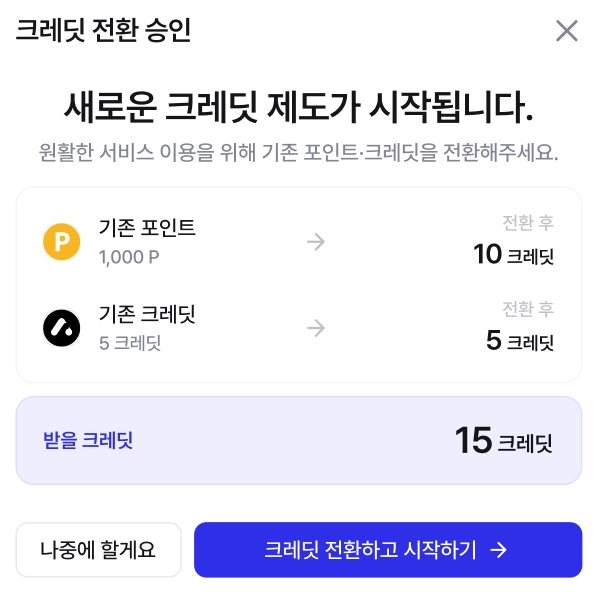
これまで保有されていたポイント・クレジットは、下記の基準で新しいクレジットに変換されます。
* 従来 **100P = 新クレジット1クレジット**
* 従来 **1クレジット = 新クレジット1クレジット**
変換時点でポリシー変更の案内画面と変換承認画面が表示されます。案内に従って変換をご確認ください。
### 3. グレード別の基本提供クレジット
**個人**
| プラン | 基本提供クレジット |
| ------------ | --------- |
| 無料 (Basic) | 1クレジット |
| スタンダード ($29) | 10クレジット |
| プラス ($79) | 30クレジット |
### 4. クレジット単価表(機能別差し引き)
#### 画像生成の追加
**レンダーショット**
* スタンダード: クレジット差し引きなし(Standardプランから回数追加可能)
* 2K: 追加1回ごと **0.2クレジット**
* 4K: 追加1回ごと **0.4クレジット**
* 8K: 追加1回ごと **0.8クレジット**
**AIスナップショット**
* スタンダード: 追加1回ごと **0.2クレジット**
* 2K: 追加1回ごと **0.2クレジット**
* 4K: 追加1回ごと **0.4クレジット**
**パノラマショット**
* 6K: 追加1回ごと **0.6クレジット**
* 12K: 追加1回ごと **1.2クレジット**
#### AIスタイラーの使用
* 1回ごと **0.1クレジット**
#### 使用時の差し引きの流れ
ポイント変換なしで、機能を使うとクレジットがすぐに差し引かれます。
* スタジオで希望の解像度を選び、 **\[レンダリング]**(または実行)を押すと、差し引き案内のポップアップが表示されます。
* ポップアップには **現在保有しているクレジット**と **差し引かれるクレジット**が表示されます。
* 確認後 **\[クレジットを使用する]**を押すとクレジットが差し引かれ、機能を利用できます。
### 5. スタンダード画質のAIスナップショット無料体験
* 無料(0$)・スタンダード($29)ユーザーに、スタンダード画質のAIスナップショット **無料体験3回**が提供されます。
* この場合、「**3回無料体験!**」ラベルが表示されます。
* 3回すべて使用すると **0回提供の状態**に戻ります。
### 6. クレジットの種類(返金・有効期限)
クレジットは発行方式によって種類が分かれます。種類によって返金・有効期限が異なります。
| 画面表示名 | 説明 | 返金 | 有効期限 |
| ----------- | ------------------------- | --------- | -------- |
| クレジットチャージ | 直接決済してチャージした有料クレジット | 未使用分の返金可能 | なし |
| 無料クレジット付与 | 登録・体験用の無料クレジット | 不可 | 30日ごとに更新 |
| サブスクリプション提供 | サブスクリプションユーザーに毎月提供 | 不可 | 30日ごとに更新 |
| カスタマーサポート付与 | カスタマーサポートの一環として付与されたクレジット | ケース別 | 付与時に案内 |
{% hint style="info" %}
複数の種類を保有している場合、 **無料・サブスク・サポートクレジットが先に差し引かれ**、直接チャージした **有料クレジットは最後に差し引かれ**ます。(有効期限のあるクレジットが先に使われます。)
{% endhint %}
### 7. クレジットチャージ・返金
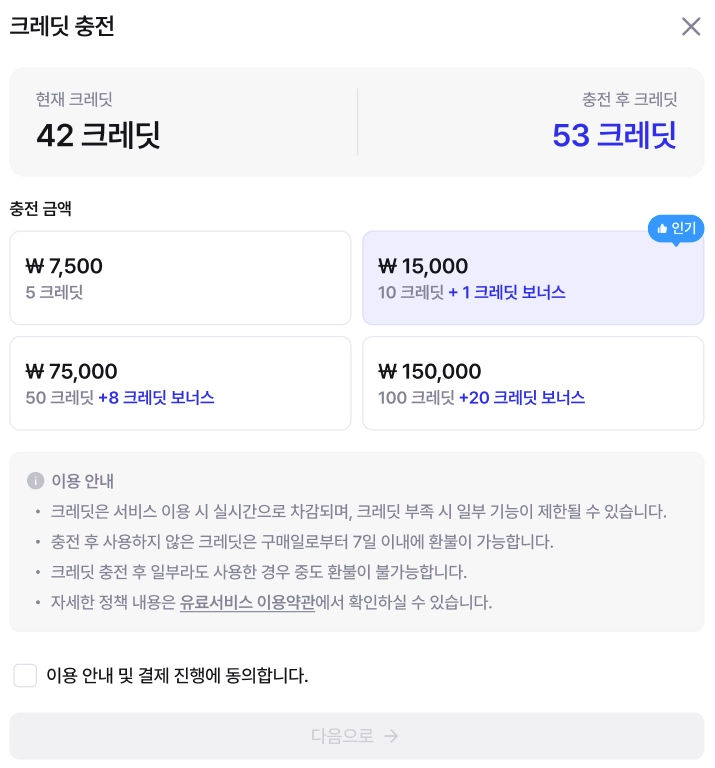
クレジットは **前払いでチャージ**して使用します。チャージ画面でチャージ金額を選択し、決済手段を確認してから支払うとクレジットが付与されます。
**チャージページへ行く方法**
* 残数のない解像度の **\[残り]** 部分をクリック
* クレジット不足案内のポップアップで **\[チャージする]** クリック
* プロフィール > **クレジットチャージ**
* マイプロフィール > **アカウント設定 > クレジットチャージ** ボタン
**返金**
* **未使用の有料クレジット(クレジットチャージ)**のみ返金可能です。無料・サブスク・体験クレジットは返金されません。
* 返金は **決済後7日以内**のクレジットのみ可能です。
* 返金をご希望の場合は、ウェブサイト右下の **Channel Talk**からお問い合わせください。
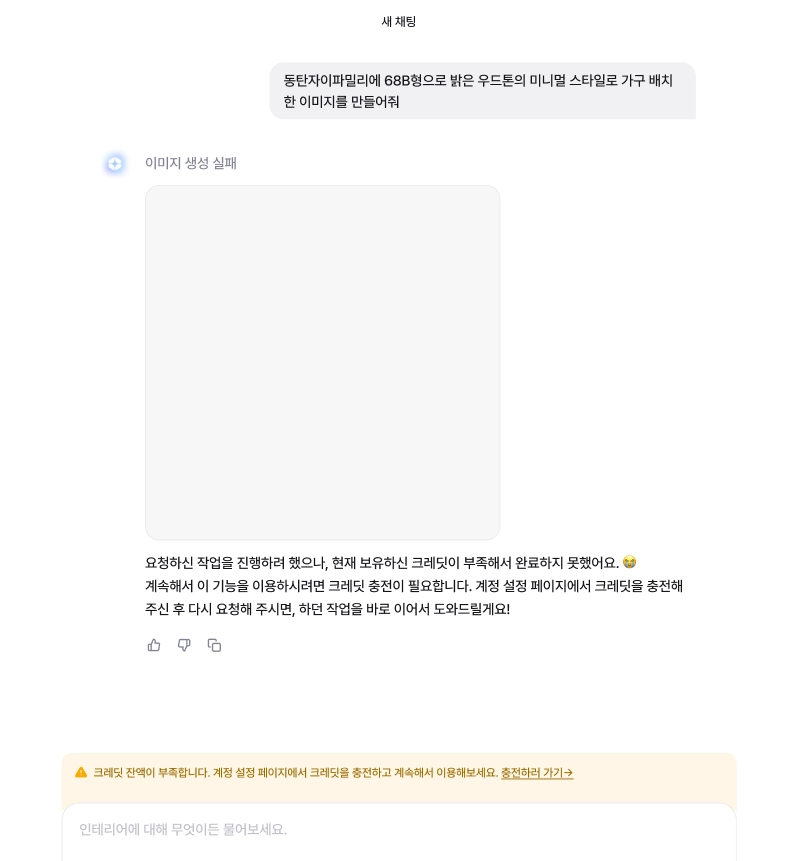
**残高が不足すると**
* 残高が不足すると該当機能は実行されません。クレジットをチャージしてください。
* AI Agentなどの使用中にクレジットが尽きると、進行が停止し、チャージ案内が表示されます。
### 8. 使用に失敗した場合、クレジットは差し引かれますか?
* **差し引かれません**: 入力エラー、残高不足、サーバーエラーなどで正常に実行されなかった場合
* **差し引かれることがあります**: 使用中に直接キャンセルした場合(進行した分だけ部分差し引き)、作業は完了したが結果のダウンロードだけ失敗した場合
### 9. 自分のクレジット・請求履歴の確認
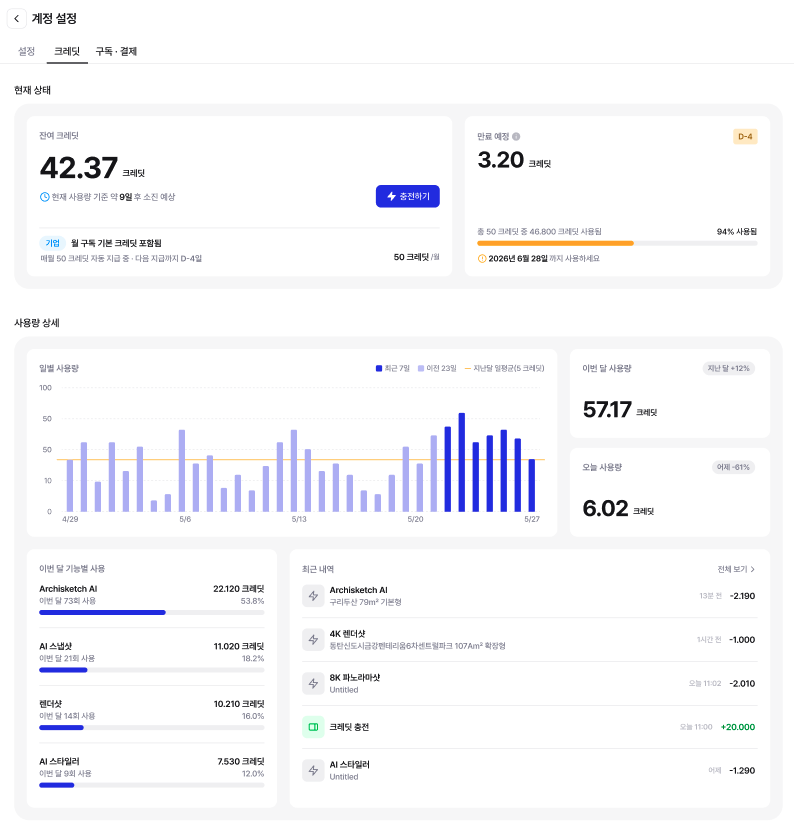
* **アカウント設定 > クレジット**で現在のクレジット残高と使用量、有効期限切れ予定のクレジットを確認できます。
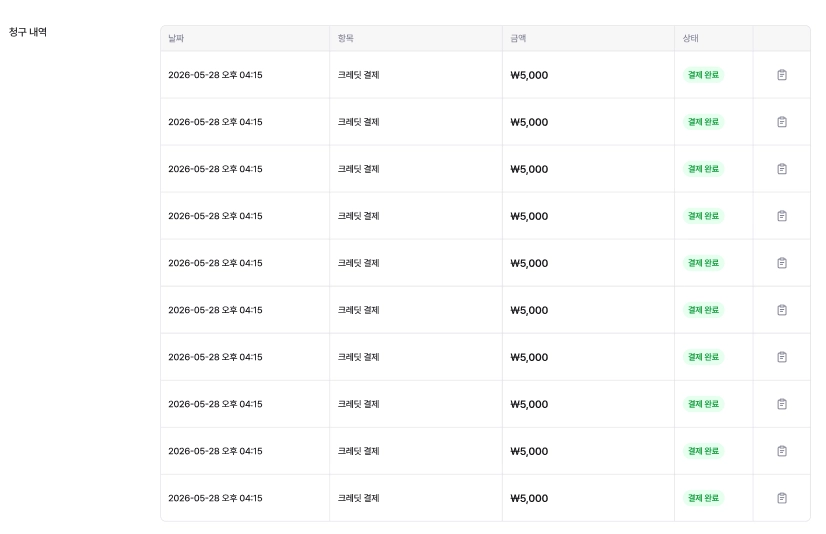
* **請求明細**でクレジットの決済履歴を確認できます。1ページに最大 **10件**まで、 **決済が正常に完了した件**のみ表示されます。
---
# Agent Instructions
This documentation is published with GitBook. GitBook is the documentation platform designed so that both humans and AI agents can read, navigate, and reason over technical content effectively. Learn more at gitbook.com.
## Querying This Documentation
If you need additional information that is not directly available in this page, you can query the documentation by asking a question.
Perform an HTTP GET request on the following URL with the `ask` and `goal` query parameters:
```
GET https://docs.archisketch.com/guide/faq-jp/service/credit-guide.md?ask=&goal=
```
`ask` is the immediate question: it should be specific, self-contained, and written in natural language.
`goal` is what the user is ultimately trying to achieve, the reason they need the answer. Sharing it helps GitBook give you a better, more relevant answer. A goal is most helpful when it describes the outcome the user wants rather than restating the question. For example, with `ask=how do I create an API token`, a goal like `automate deployments from our CI pipeline` lets GitBook tailor the answer to that use case.
The response will contain a direct answer to the question and relevant excerpts and sources from the documentation.
Use this mechanism when the answer is not explicitly present in the current page, you need clarification or additional context, or you want to retrieve related documentation sections.