> For the complete documentation index, see [llms.txt](https://docs.archisketch.com/llms.txt). Markdown versions of documentation pages are available by appending `.md` to page URLs; this page is available as [Markdown](https://docs.archisketch.com/guide/faq-en/service/subscription.md).
# Subscription, Payment, and Refund Guide
We’ve gathered everything about Archisketch subscriptions, payments, and refunds in one place. Find the plan you’re using below and go to the guide you want.
Please find the plan you’re using below and go to the guide you want.
* I’m using a personal plan (Standard · Plus) → **1. Personal plan**
* I’m using a team plan (subscription · payment · refunds) → **2. Team plan**
* I want to top up or get a refund for credits → **3. Credit top-up · refund**
* I want to check my payment method or receipt → **4. Payment method · billing details**
***
### Before you start — open the subscription information screen
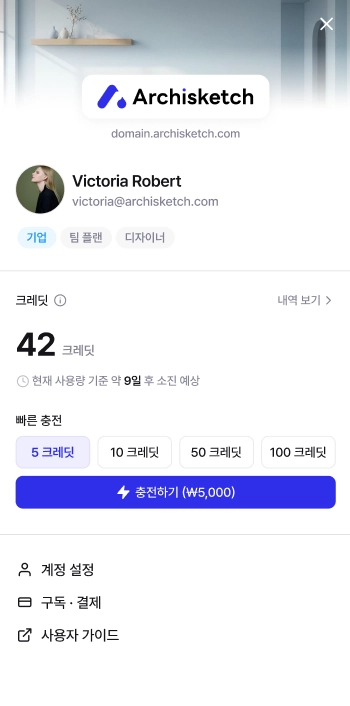
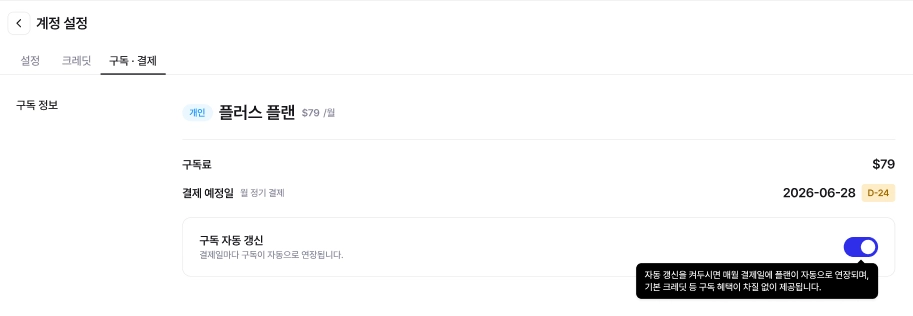
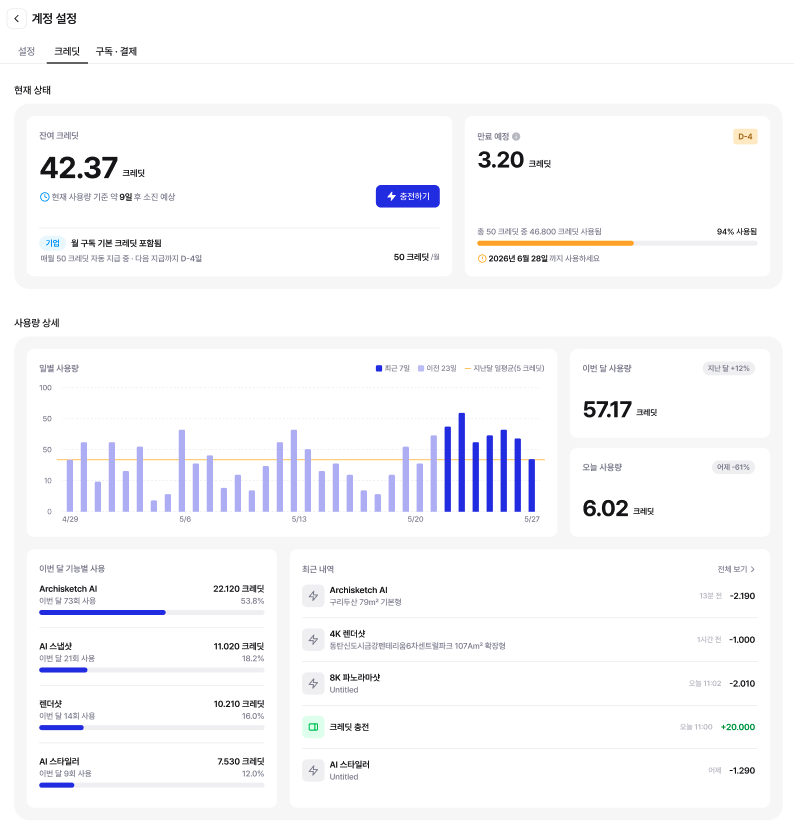
All payment and subscription-related settings can be managed on **Account Settings > Subscription · Billing** screen.
**Path**
Archisketch login → click your profile in the top right → **Account Settings** → **Subscription · Billing**
On this screen, you can check your current plan, next billing date, payment method, and billing details, and you can also turn off auto-renewal or cancel your subscription.
***
### 1. Personal plan (Standard · Plus) guide · cancellation · refund
#### Which plan should I choose?
Choose a plan based on your project volume and the features you need.
* If you don’t create many designs → **Free Basic plan**offers a variety of basic features as well.
* If you need advanced features → paid **Standard**·**Plus** plans are recommended. They are especially suitable in the following cases.
* When you want to edit furniture materials directly in the editor
* When you want to upload modeling files you own
* When you want to upload finishing materials yourself (Plus)
* When you want to upload drawings as CAD files (Plus)
* When you use a large number of renderings each month
| Category | Basic | Standard | Plus |
| ----------------------------------- | -------- | -------- | ------------- |
| Edit furniture materials | ❌ | ✔ | ✔ |
| Upload modeling files | ❌ | ✔ | ✔ |
| Upload finishing materials yourself | ❌ | ❌ | ✔ |
| Upload CAD drawings | ❌ | ❌ | ✔ |
| Monthly rendering allowance | Standard | Generous | Very generous |
For a detailed plan comparison, please check [Plan and feature guide](https://www.archisketch.com/ko/pricing/)here.
#### When is the fee charged?
* The Basic plan is free of charge.
* For Standard · Plus, after the initial payment, **automatic billing on each billing date**with the registered payment method.
* If you do not want to continue your subscription, before the next billing date **turn off auto-renewal**please. (See below for how to do it)
#### Differences between personal and business (team) plans
* **Personal plan**: You can use Archisketch’s built-in free modeling and finishing materials. It is suitable for individual users and makes basic features easy to use.
* **Business (team) plan**: In addition to basic features, this provides business-tailored services and brand-specific support. If you need separate support, you can get guidance through an onboarding inquiry.
#### How to cancel a subscription
If you want to stop using the personal plan, there are two ways. To stop without losing money, **turn off auto-renewal**is recommended.
#### 1) Turn off auto-renewal (recommended)
If you turn off auto-renewal before the next billing date, **you will not be charged from the next billing cycle.** You can continue using the already paid period until the end.
**Path**
Account Settings → Subscription Info → right side of Subscription Info **‘Turn off auto-renewal’** Select
#### 2) Cancel subscription immediately
will switch you to the **Basic (free) plan**.
{% hint style="danger" %}
**Caution**: If you click the ‘Cancel subscription immediately’ button, you will be switched to the Basic (free) plan right away, and **refunds for the remaining days are not available**. If you want to keep using it until the billing date and then cancel, please use the ‘Turn off auto-renewal’ option above.
{% endhint %}
#### Refund policy
* For Standard · Plus, if it is within **7 days**after payment, **a full refund**with the registered payment method.
* If more than 7 days have passed, when you turn off auto-renewal, you can use it until the end of that month, and **the subscription will be automatically canceled starting next month**with the registered payment method.
* If you want to stop automatic billing in advance, please use ‘Turn off auto-renewal’.
* The Basic (free) plan has no payment, so it is not eligible for a refund.
***
### 2. Team plan (subscription · payment · refund)
Here is an overview of starting a subscription, canceling a subscription, account management, and refunds for the Professional Team Plan. (Changing payment cards and receipts are **4. Payment method · billing details** see below)
#### Start subscription
* A team plan subscription requires **a credit or debit card issued by a domestic card company**. **Foreign cards are not supported.**
* **The subscription starts as soon as payment is completed**.
#### Check subscription info
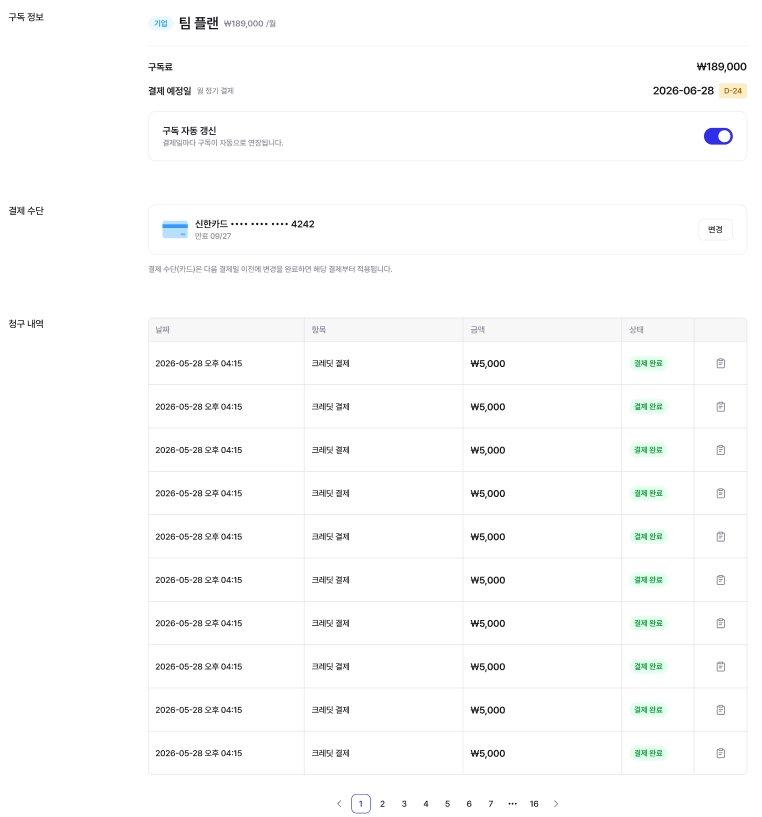
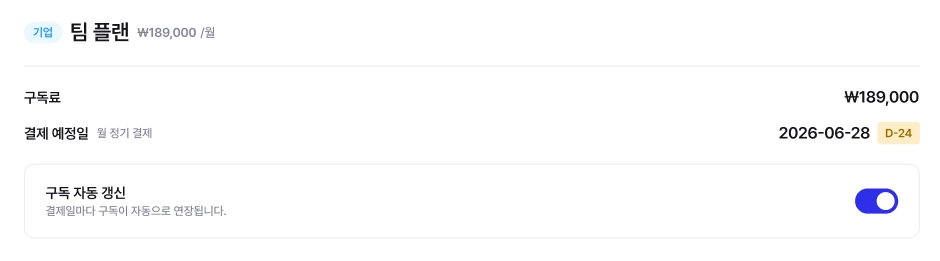
In an administrator (admin) account, **Dashboard → My Info → Account Settings → Payment Information**can be checked there.
#### Cancel subscription (turn off auto-renewal)
* **Monthly subscription**: in the dashboard **turn off auto-renewal**is possible. If you turn off auto-renewal, **it will end after use until the end of that month**with the registered payment method.
* **Annual subscription**: you cannot use auto-renewal cancellation. To cancel your subscription, **contact Archisketch Customer Support (ChannelTalk)**.
{% hint style="danger" %}
**Important after subscription expiry**: once the expiration date passes, the existing team plan domain will **be deactivated and cannot be restored**. Once a subscription expires, it cannot be reversed, so please decide carefully.
{% endhint %}
#### Change payment method (annual ↔ monthly)
You cannot change the payment method during the subscription period (1 year). To change it, **cancel and refund the existing subscription, then subscribe again using the method you want**.
#### Payment failure & grace period
* If payment fails due to a card issue (limit exceeded, expired card, etc.), **a 7-day grace period**is granted. During this period, **automatic retries are made every day at 10:00 AM**, and if payment is completed, the service remains active as normal.
* If payment is not completed by the end of the grace period (**the 8th day**), the domain will be deactivated.
* In the admin account \[Subscription Info], check the card registration status and update your payment information during the grace period to continue using the service without interruption.
#### If the service is deactivated due to payment failure
If automatic payment fails for 7 days, the service will stop and the domain will be deactivated starting on the 8th day. To resume, **manual payment**is required.
* Request for restoration: email or ChannelTalk
* The support team will help process the payment and restore the domain.
{% hint style="danger" %}
If the payment fails for customer-side reasons such as **payment method issues**, the subscription period will not be extended even if the service is interrupted, and no compensation or refund will be provided for that period.
{% endhint %}
#### Add or remove accounts (change in number of people)
After the initial subscription, you can add or remove accounts (team members). Please request an account limit change through \*\*Customer Support (ChannelTalk)\*\*.
* **Add account**: additional payment → increased account limit → new member joins and starts using
* **Remove account**: proactively remove an account in Dashboard \[Account Management] → request a lower limit from Customer Support → confirm reduced account limit
* For both additional charges and refunds **only the card used for the initial payment** is used, and only one card can be registered.
**🟢 Payment amount when adding accounts**
{% tabs %}
{% tab title="Monthly installment payment customers" %}
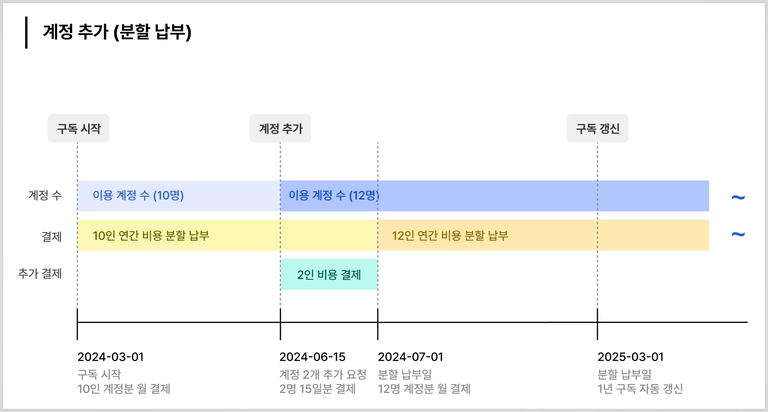
**1) Monthly installment payment customers** — additional account fees are prorated and charged based on the remaining contract period.
Additional fee (per day) = (monthly fee ÷ number of days in that month) × (remaining days including that month) × (number of additional accounts)
{% endtab %}
{% tab title="2) Annual payment customers" %}
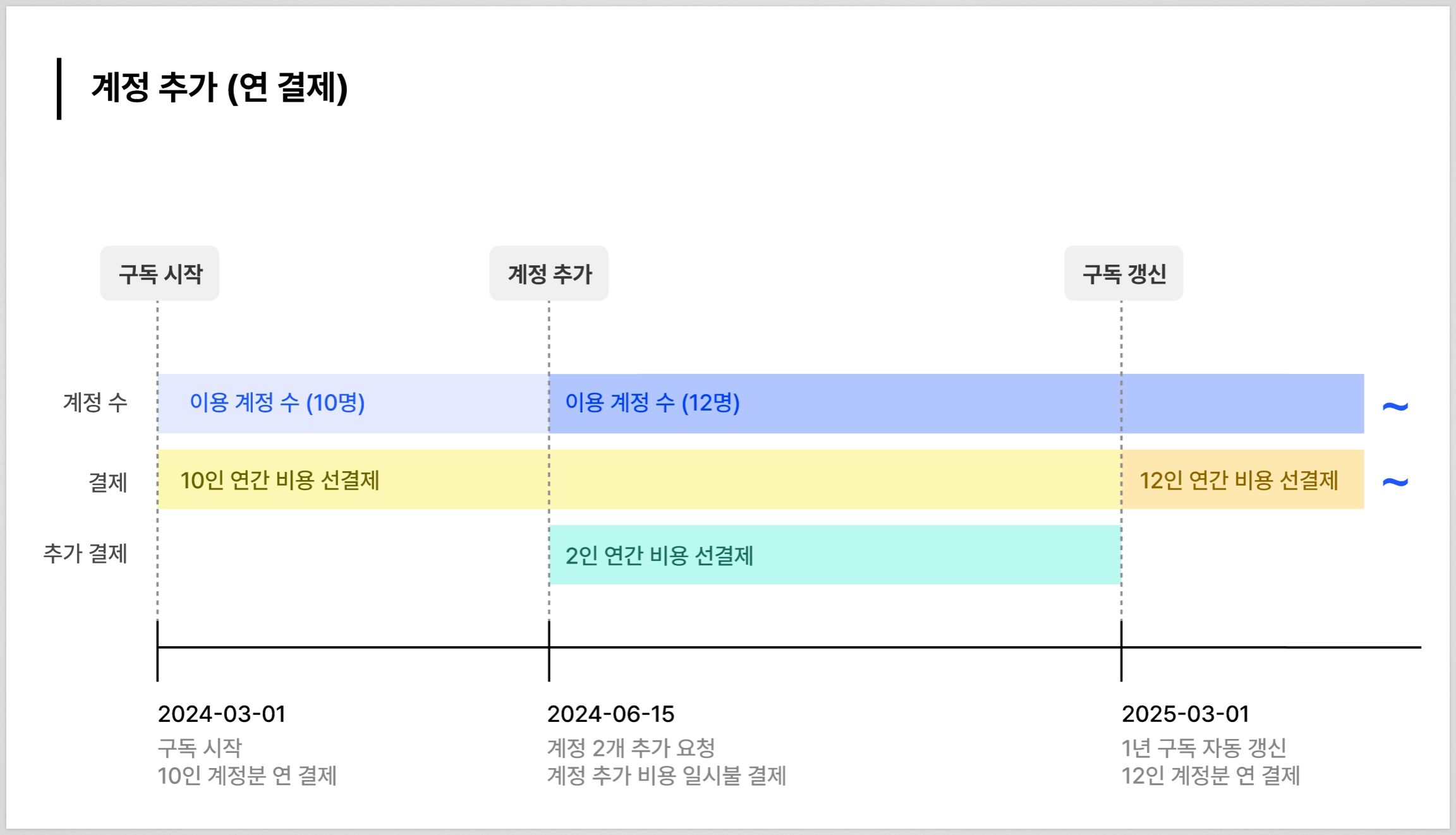
**2) Annual payment customers**
* If canceled midway, the refund amount is calculated based on the remaining subscription period.
* The discount rate of the annual plan is revoked, and it is recalculated based on the original fee.
* Additional accounts are charged in a lump sum after calculating the daily fee for the month of application.
* (A) Daily fee for the application month = (monthly fee ÷ number of days in that month) × (remaining days including that month) × (number of additional accounts)
* (B) Fee after the application month = (monthly usage fee) × (number of remaining months) × (number of additional accounts)
👉 **(A) + (B) = billed amount**
{% endtab %}
{% endtabs %}
**🚫 Refund when removing accounts**
Account removal is **only possible on the monthly billing/renewal date** . The fee for the removed account is **prorated based on the remaining contract period**, and refunded to the originally used (registered) payment method.
{% tabs %}
{% tab title="Monthly installment payment customers" %}
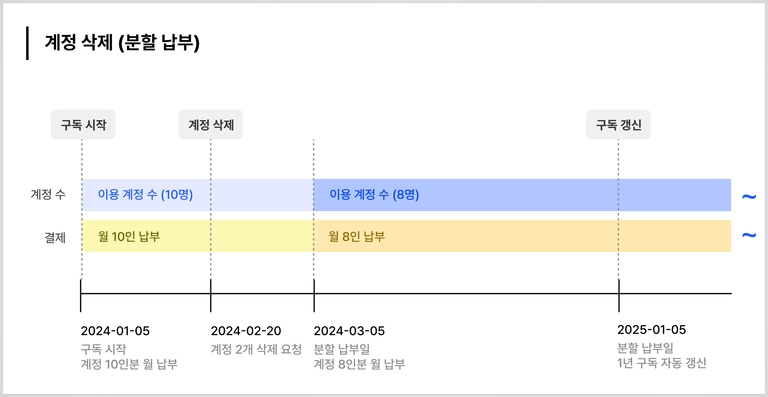
**1) Monthly installment payment customers**
Since account removal is only possible on the monthly billing/renewal date, installment payments have **no refund amount.**
💡 **Example**
* \[2024-01-05] Installment payment
* \[2024-02-20] Account removal requested → \[2024-03-04] account can still be used until
* \[2024-03-05] Account removal applied and installment payment charged
{% endtab %}
{% tab title="Annual payment customers" %}
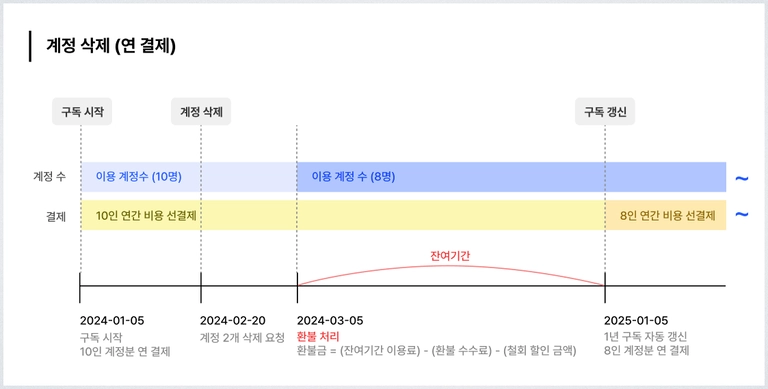
**2) Annual payment customers**
For the month in which account removal is requested, you can continue using the existing account, and from the following month until the subscription renewal date, a refund is issued based on monthly calculations.
📌 **How annual payment refunds are calculated when removing accounts**
**(A) Fee after the application month** = (monthly usage fee) × (number of remaining months) × (number of removed accounts)
**(B) Fee** = (fee after the application month) × 10%
**(C) Withdrawal discount amount** = (number of remaining months ÷ 12 months) × (monthly usage fee) × (discount rate 20%) × (number of removed accounts)
👉 **(A) − (B) − (C) = final refund amount**
💡 **Example**
* \[2024-01-05] Lump-sum payment
* \[2024-02-20] Account removal requested → \[2024-03-04] account can still be used until
* \[2024-03-05] Refund for usage from \[2024-03-05 \~ 2025-01-04] for the removed account
* \[2025-01-05] Account removal applied and lump-sum payment charged
{% endtab %}
{% endtabs %}
#### Refund when canceling a subscription
Team plan refunds depend on **payment method (annual / monthly installment)**and **cancellation timing**.
**If I cancel my subscription, can I get a refund?**
Whether a refund is possible depends on the cancellation timing. After the initial payment, **7 days**if you cancel **a full refund**with the registered payment method.
**What if you cancel after 7 days?**
some amount may be refunded or a refund fee may be charged.
> **Refund fee**: the amount proportionate to the remaining days **10%** (based on the amount before discount)
{% tabs %}
{% tab title="Canceling monthly installment payments" %}
**How monthly installment refund amounts are calculated**
A refund is available for the unused remaining period. If you cancel your subscription, the service ends immediately.
**(D) Subscription fee for remaining period** = (number of subscription days remaining until the next billing date) × (daily subscription fee)
* Daily subscription fee = (installment amount ÷ total days in the month) × (number of accounts)
**(E) Refund fee** = (D) × 10%
👉 **(D) − (E) = final refund amount**
{% endtab %}
{% tab title="Canceling prepaid annual payment" %}
**2) Canceling prepaid annual payment**
The refund amount is calculated based on the remaining subscription period. **(A) Remaining balance for the unused period of the lump-sum payment**minus **(B) withdrawal discount amount**and **(C) refund fee**and then refunded, and if you cancel your subscription, the service ends immediately.
\
📌 **How prepaid annual payment refunds are calculated**
**(A) Subscription fee for remaining period** = (total daily subscription fee) + (total monthly subscription fee)
* Total daily subscription fee = (lump-sum payment amount ÷ 365 days) × (remaining days in the application month) × (number of accounts)
* Total monthly subscription fee = (number of months remaining from the following month until the subscription renewal date) × (lump-sum payment amount ÷ 12 months) × (number of accounts)
**(B) withdrawal discount amount** = (number of remaining months ÷ 12 months) × (monthly usage fee) × (discount rate 20%) × (number of accounts)
**(C) refund fee** = (A) × 10%
👉 **(A) − (B) − (C) = final refund amount**
{% endtab %}
{% endtabs %}
**Can I get a refund if I used fewer accounts than I paid for?**
Members can join within the number of accounts set at the time of the initial payment, and **refunds are not available regardless of the number of joined members**. (For example, if you paid for a 5-person plan but only 3 people actually used it, no refund is available)
#### Refund process
* A refund request is received through Customer Support (ChannelTalk).
* **Only to the card used for payment** refunds are possible.
* Refund processing **takes about 5–7 business days** .
***
### 3. Credit top-up · refund
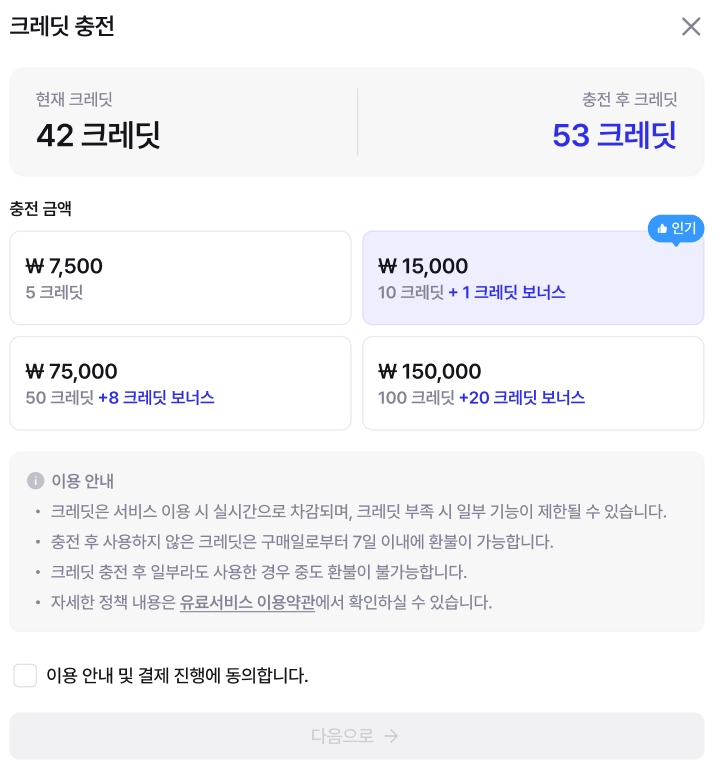
Credits can be topped up directly in the top-up modal, and refunds are also possible if the conditions are met.
#### Top up credits
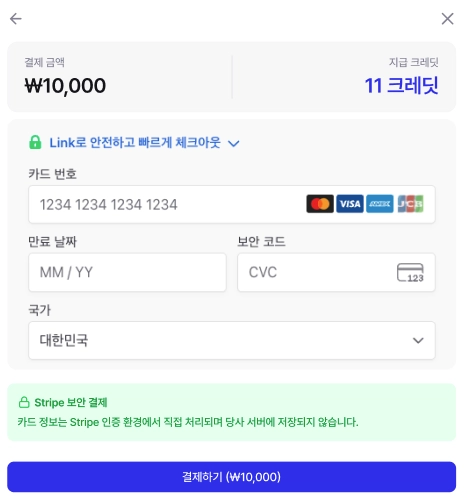
On a screen where credits are needed, **Top up** Pressing the button opens the top-up modal. Select the top-up amount, check the payment method, and complete the payment to receive credits.
#### Credit refund guide
* After payment, **7 days**only the credits
* Unused credits are automatically expired after **1 year from the date they were added**with the registered payment method.
* If you want a refund, please contact **ChannelTalk**at the bottom right of the website.
***
### 4. Payment method · billing details
#### Change payment card
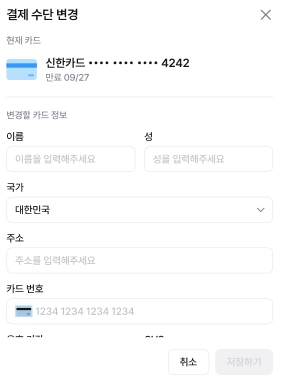
In an administrator account, **Dashboard → My Info → Subscription Info → Change Payment Information**you can register or change your card there. From the next billing cycle, the changed card will be charged.
* **Before the next billing date**must be completed for it to apply to that billing cycle. (For example, if the next billing date is August 25, complete it by August 24)
* Only one **card can be registered** , and multiple cards cannot be saved.
{% hint style="danger" %}
Caution: Changing the payment card is limited to the ‘Team Plan’.
{% endhint %}
#### Check billing details and receipts
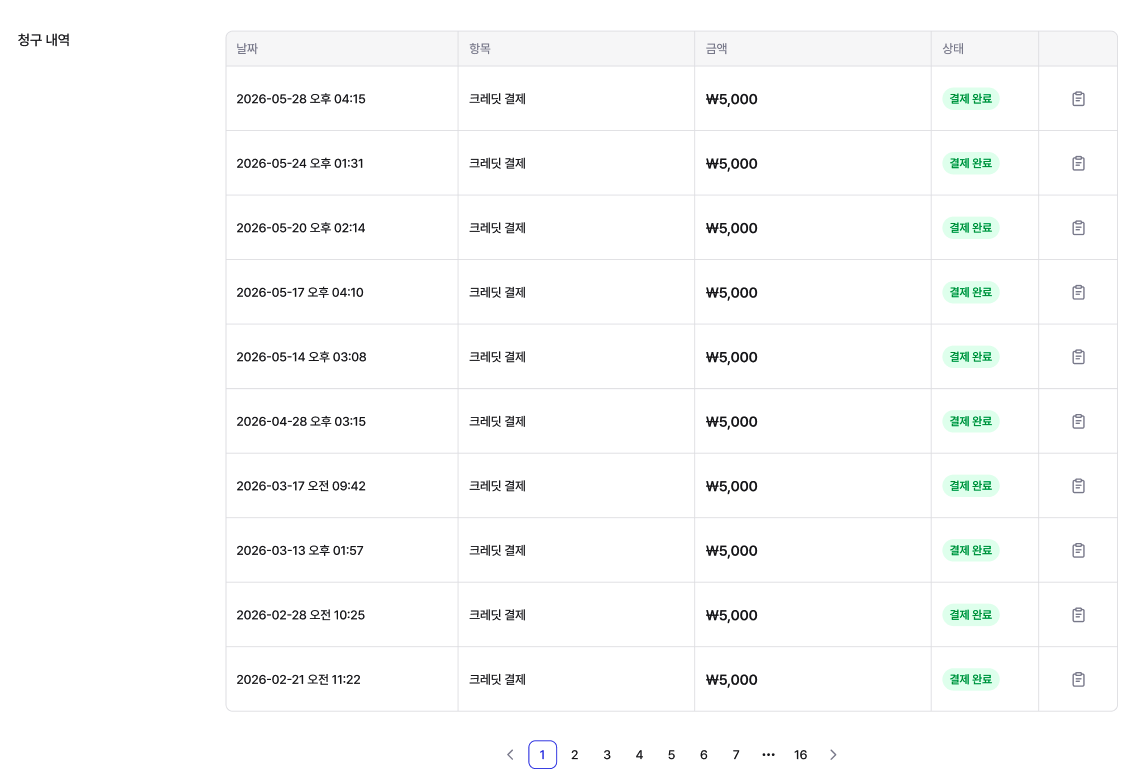
**Billing details**You can check the date, item, amount, and status (payment completed), and download receipts for each item using the icon next to it.
{% hint style="danger" %}
**Receipt issuance guide:** Receipts can only be issued for credit top-up details.
{% endhint %}
***
### 5. Cases where refunds are not possible
Unfortunately, refunds are difficult in the following cases.
1. Refunding the unused difference even if fewer accounts were used than were paid for (e.g., using only 3 people on a 5-person plan)
2. Remaining days when switching to Basic using the ‘Cancel subscription immediately’ button
3. Credits after 7 days from payment
4. Accounts restricted due to terms violations or fraudulent use
***
### 6. Frequently Asked Questions (FAQ)
**Q. What is the difference between ‘Turn off auto-renewal’ and ‘Cancel subscription immediately’?**
Turning off auto-renewal stops billing from the next payment onward only, and you can use the currently paid period until the end. This is the way to stop without loss. Canceling subscription immediately switches you to Basic (free) right away and there is no refund for remaining days, so if it is before the billing date, we recommend turning off auto-renewal.
**Q. I paid for a 5-person plan, but only 3 people actually used it. Will I get a refund for the difference?**
Since the number of accounts set at the time of payment is the 기준, refunds for unused portions are difficult. However, if you adjust the number of people before renewal, the next billing cycle will be charged based on the reduced number of people.
**Q. How long does the refund process take?**
ChannelTalk inquiry → confirmation of eligibility (1–2 business days) → card refund (5–7 business days). The whole process takes about a week.
**Q. I canceled or replaced the card I used for payment. Can I still get a refund?**
Refunds are in principle made to the payment card, but depending on the card issuer’s policy, they may be handled by another method. If you let us know through ChannelTalk that your card has changed, we’ll guide you.
**Q. Are credits refundable?**
Credits obtained through payment can be refunded if it is within 7 days after payment. Unused credits automatically expire 1 year after the date they were added.
**Q. What is the difference between canceling a subscription and removing an account?**
Canceling a subscription means stopping the service itself, while removing an account means only reducing the number of users within the same plan. For example, if you want to go from a 5-person plan to a 4-person plan by removing one person, that is ‘removing an account’.
**Q. Does the Basic (free) plan have a separate refund?**
Basic is a free plan with no payment, so it is not eligible for refunds.
---
# Agent Instructions
This documentation is published with GitBook. GitBook is the documentation platform designed so that both humans and AI agents can read, navigate, and reason over technical content effectively. Learn more at gitbook.com.
## Querying This Documentation
If you need additional information that is not directly available in this page, you can query the documentation by asking a question.
Perform an HTTP GET request on the following URL with the `ask` and `goal` query parameters:
```
GET https://docs.archisketch.com/guide/faq-en/service/subscription.md?ask=&goal=
```
`ask` is the immediate question: it should be specific, self-contained, and written in natural language.
`goal` is what the user is ultimately trying to achieve, the reason they need the answer. Sharing it helps GitBook give you a better, more relevant answer. A goal is most helpful when it describes the outcome the user wants rather than restating the question. For example, with `ask=how do I create an API token`, a goal like `automate deployments from our CI pipeline` lets GitBook tailor the answer to that use case.
The response will contain a direct answer to the question and relevant excerpts and sources from the documentation.
Use this mechanism when the answer is not explicitly present in the current page, you need clarification or additional context, or you want to retrieve related documentation sections.