> For the complete documentation index, see [llms.txt](https://docs.archisketch.com/llms.txt). Markdown versions of documentation pages are available by appending `.md` to page URLs; this page is available as [Markdown](https://docs.archisketch.com/guide/faq-en/service/credit-guide.md).
# Credit Guide
We’ve gathered questions about the concept of credits, top-ups, and refunds.
{% hint style="info" %}
The existing points system has ended and **Credit**has replaced it. In this document, check what credit is, where it is used, and how much is deducted.
{% endhint %}
### 1. What is credit?
Credit is the currency deducted when using Archisketch’s AI and content features. It replaces the existing points.
**1 credit = KRW 1,500**
These are the features where credit is deducted.
* Archisketch **AI Agent**
* **Render Shot** (high-resolution add-on)
* **AI Snapshot**
* **Panorama Shot**
* **AI Styler**
### 2. Conversion from existing points/credit
Your existing points/credit will be converted to new credit according to the criteria below.
* Existing **100P = 1 new credit**
* Existing **1 credit = 1 new credit**
At the time of conversion, a policy change notice screen and a conversion approval screen will appear. Please follow the instructions to confirm the conversion.
### 3. Basic credit by plan
**Personal**
| Plan | Basic credit |
| -------------- | ------------ |
| Free (Basic) | 1 credit |
| Standard ($29) | 10 credits |
| Plus ($79) | 30 credits |
### 4. Credit price list (deductions by feature)
#### Additional image generation
**Render Shot**
* Standard: no credit deduction (additional uses available starting with the Standard plan)
* 2K: per additional use **0.2 credits**
* 4K: per additional use **0.4 credits**
* 8K: per additional use **0.8 credits**
**AI Snapshot**
* Standard: per additional use **0.2 credits**
* 2K: per additional use **0.2 credits**
* 4K: per additional use **0.4 credits**
**Panorama Shot**
* 6K: per additional use **0.6 credits**
* 12K: per additional use **1.2 credits**
#### Using AI Styler
* per use **0.1 credits**
#### Deduction flow when using
Without converting points, credit is deducted immediately when you use the feature.
* Select the desired resolution in the studio and **\[Render]**(or Run), and a deduction notice pop-up will appear.
* The pop-up shows **current credit balance**and **credit to be deducted**.
* After confirming, **\[Use Credit]**press it to deduct credit and use the feature.
### 5. Free trial for Standard-quality AI Snapshot
* Free (0$) and Standard ($29) users receive Standard-quality AI Snapshot **3 free trials**are provided.
* In this case, "**3 free trials!**" label is displayed.
* Once all 3 are used, **0 trials provided**is restored.
### 6. Credit types (refunds and expiration)
Credit is divided into types depending on how it is issued. Refunds and expiration vary by type.
| Display name | Description | Refund | Expiration |
| ---------------------- | --------------------------------------- | ------------------------- | -------------------- |
| Credit top-up | Paid credit topped up by direct payment | Unused portion refundable | None |
| Free credit grant | Free credit for sign-up and trial use | Not possible | Renews every 30 days |
| Subscription grant | Provided monthly to subscription users | Not possible | Renews every 30 days |
| Customer support grant | Credit granted as customer support | Case by case | Notice upon grant |
{% hint style="info" %}
If you have multiple types, **free, subscription, and support credit are deducted first**and directly topped-up **paid credit is deducted last**. (Credits with expiration are used first.)
{% endhint %}
### 7. Credit top-up and refunds
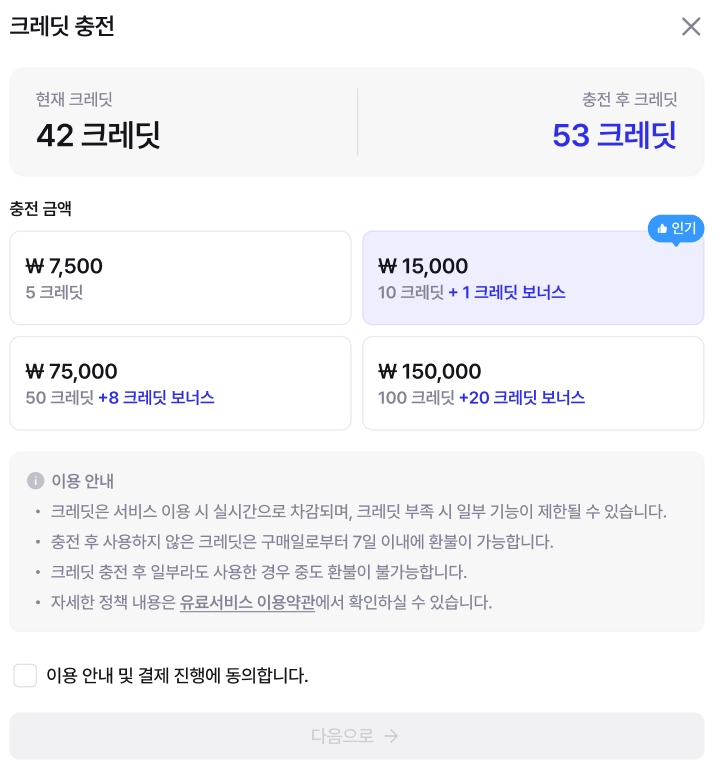
Credit is **topped up in advance**and used. On the top-up screen, select the top-up amount and confirm the payment method, then pay to receive credit.
**How to go to the top-up page**
* of a resolution with no remaining quantity **\[Remaining]** click the
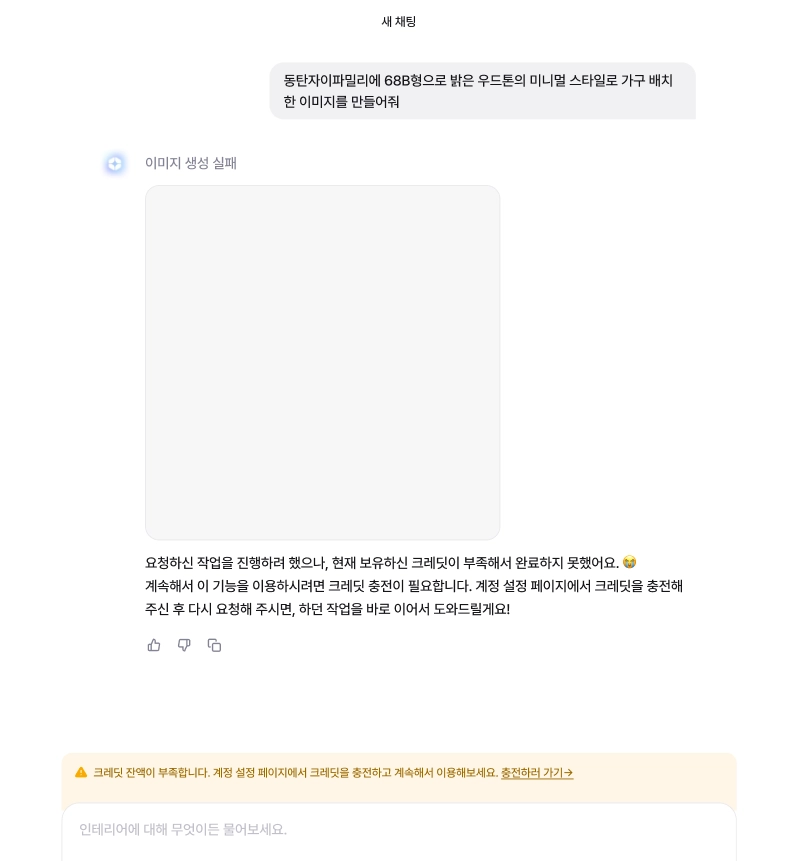
* In the insufficient credit notice pop-up, **\[Top up]** click
* Profile > **Credit top-up**
* My Profile > **Account Settings > Credit Top-up** button
**Refund**
* **Refunds are available only for unused paid credit (credit top-up)**. Free, subscription, and trial credit are not refundable.
* Refunds are **within 7 days of payment**credit only.
* If you want a refund, please contact **ChannelTalk**at the bottom right of the website.
**If the balance is insufficient**
* If the balance is insufficient, the feature will not run. Please top up credit.
* If credit runs out during use of AI Agent, etc., progress stops and a top-up notice is displayed.
### 8. If usage fails, is credit deducted?
* **No deduction**: if it did not run normally due to input error, insufficient balance, server error, etc.
* **May be deducted**: if you cancel directly during use (partial deduction for the progress made), or if the task completed but only the result download failed
### 9. Check my credit and billing history
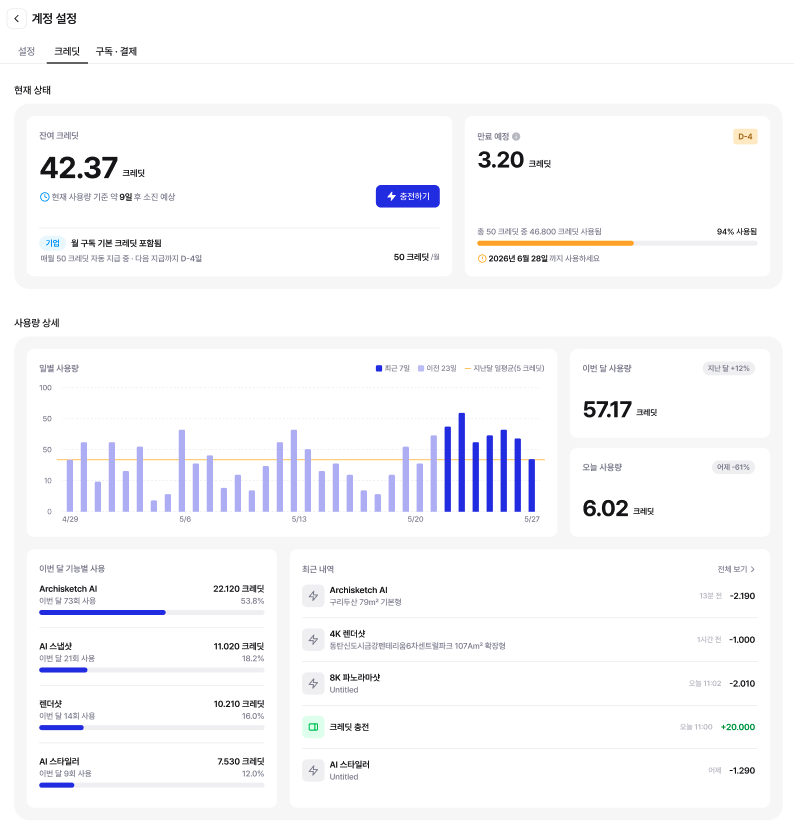
* **Account Settings > Credit**You can check your current credit balance, usage, and credits scheduled to expire.
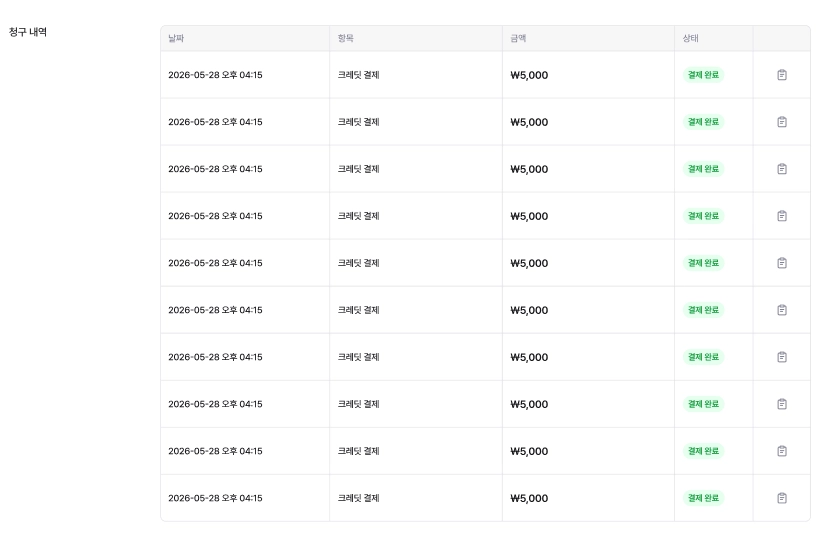
* **Billing details**You can check your credit payment history. Up to **10**entries per page, **only successfully completed payments**are displayed.
---
# Agent Instructions
This documentation is published with GitBook. GitBook is the documentation platform designed so that both humans and AI agents can read, navigate, and reason over technical content effectively. Learn more at gitbook.com.
## Querying This Documentation
If you need additional information that is not directly available in this page, you can query the documentation by asking a question.
Perform an HTTP GET request on the following URL with the `ask` and `goal` query parameters:
```
GET https://docs.archisketch.com/guide/faq-en/service/credit-guide.md?ask=&goal=
```
`ask` is the immediate question: it should be specific, self-contained, and written in natural language.
`goal` is what the user is ultimately trying to achieve, the reason they need the answer. Sharing it helps GitBook give you a better, more relevant answer. A goal is most helpful when it describes the outcome the user wants rather than restating the question. For example, with `ask=how do I create an API token`, a goal like `automate deployments from our CI pipeline` lets GitBook tailor the answer to that use case.
The response will contain a direct answer to the question and relevant excerpts and sources from the documentation.
Use this mechanism when the answer is not explicitly present in the current page, you need clarification or additional context, or you want to retrieve related documentation sections.