> For the complete documentation index, see [llms.txt](https://docs.archisketch.com/llms.txt). Markdown versions of documentation pages are available by appending `.md` to page URLs; this page is available as [Markdown](https://docs.archisketch.com/guide/enterprise-en/parametric-library/component-library.md).
# Parts Library
The parts library is a library that manages parts containing design information.
## What is a part
A part is an object that contains specification information and parametric design information.
### Part types
There are three types of parts.
#### 1. Modeling
* **A modeling part is a part that has one modeling defined in the modeling library**and serves as the basis for composite and group parts.
* It is created automatically when a model is uploaded, and can also be created by uploading a model when creating a part.
#### 2. Group
* **A group part is a part that groups one or more other parts together**and is used by selecting one of several parts when placing a drawing.
It is a part used by selecting one of several parts when placing a drawing.
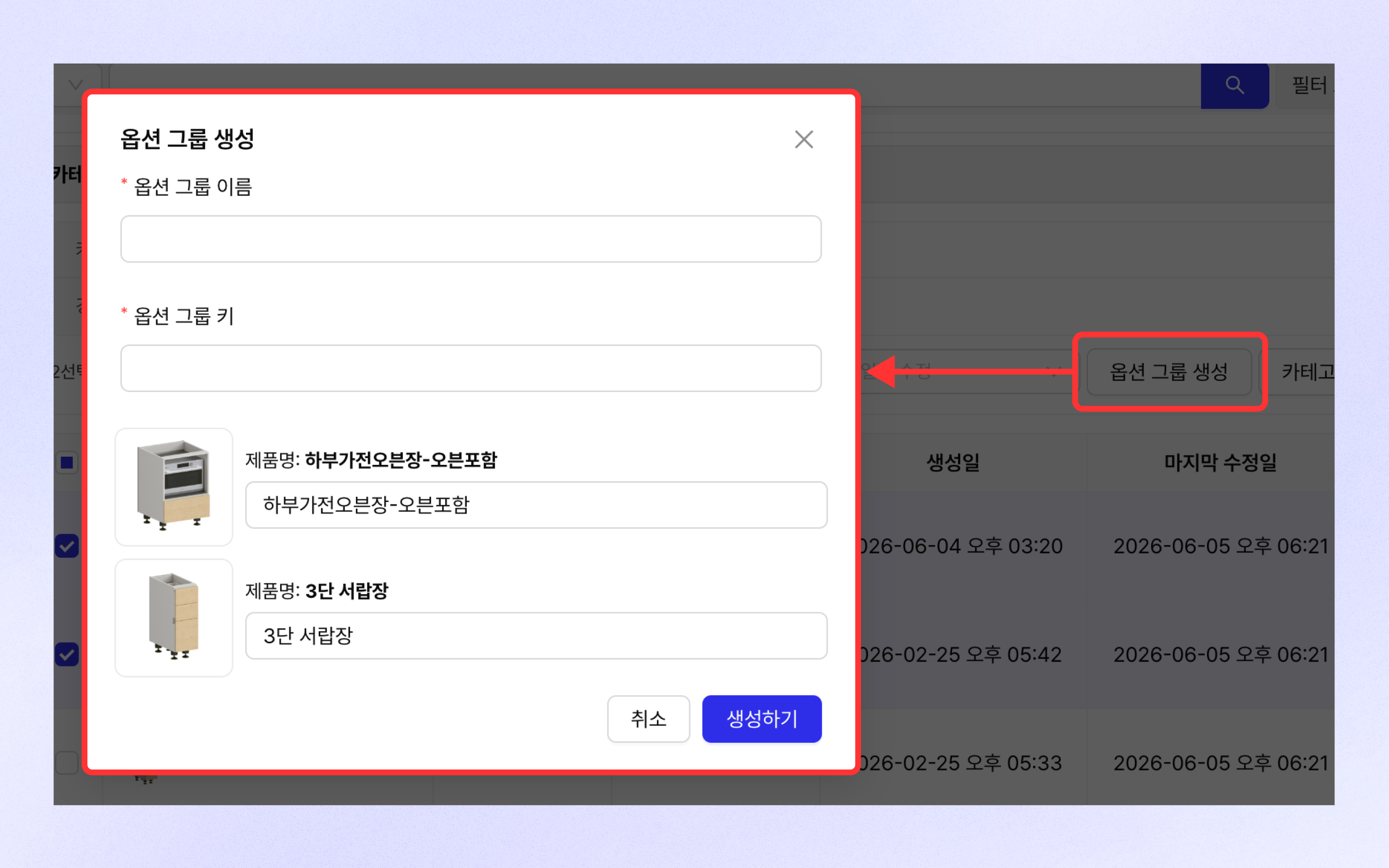
* It can be created through "Parts Library > Select parts with checkboxes > Click the Create Option Group button."
* It has option information in \[key - value] form, and one of several parts is selected and used with that option.
#### 3. Composite
* **A composite part is a part created by combining one or more modeling parts or another composite part**and the actual part assembly is done through the Part Editor.
* Unlike group parts, all parts needed for the assembly are required when placing a drawing.\
However, parts that include only basic information are also treated as composite parts.
* When creating a part, you can save it without uploading a model, or move to the Part Editor and create it by assembling the part directly.
## View parts
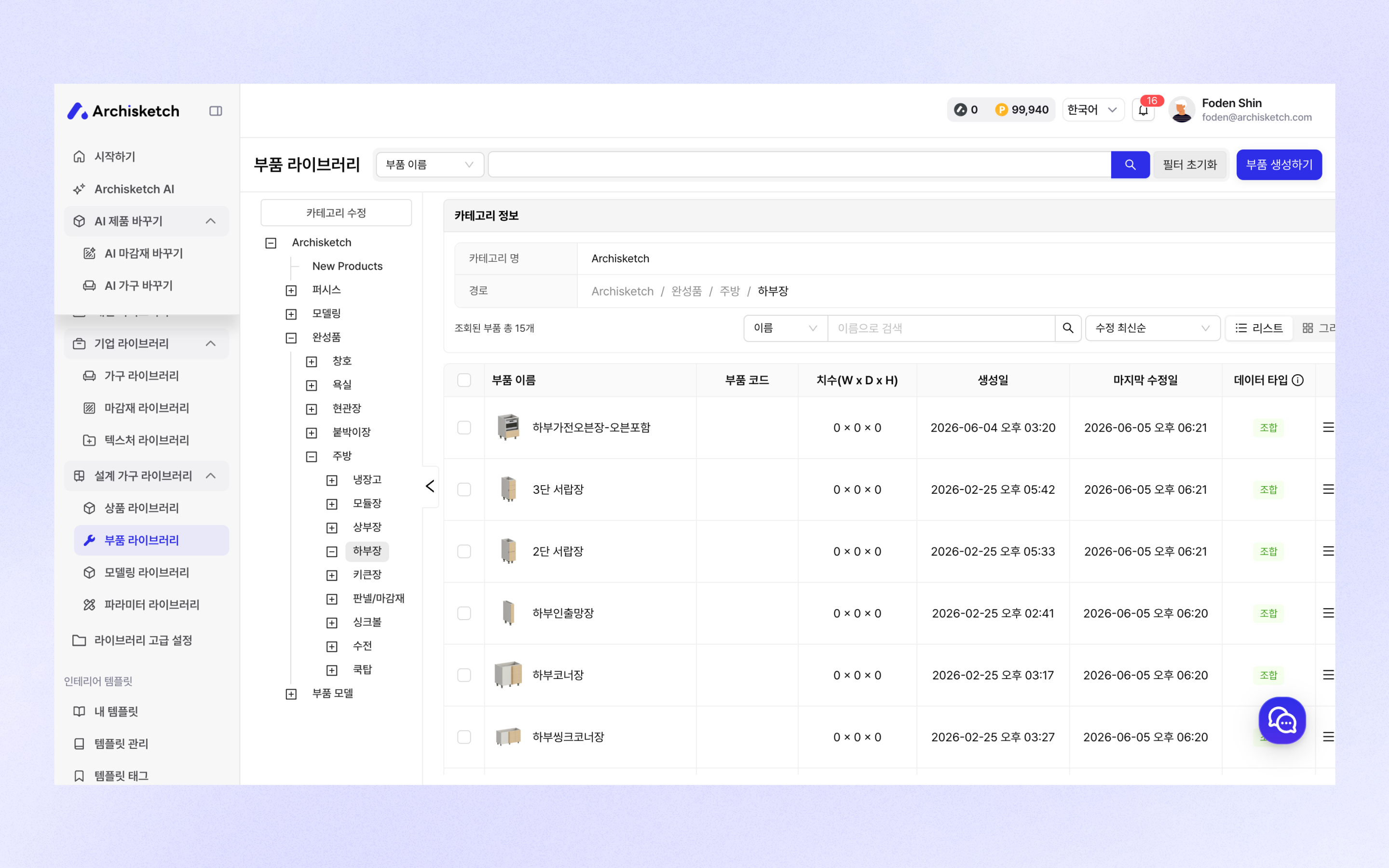
You can check the parts list in Design Furniture Library > Parts Library.
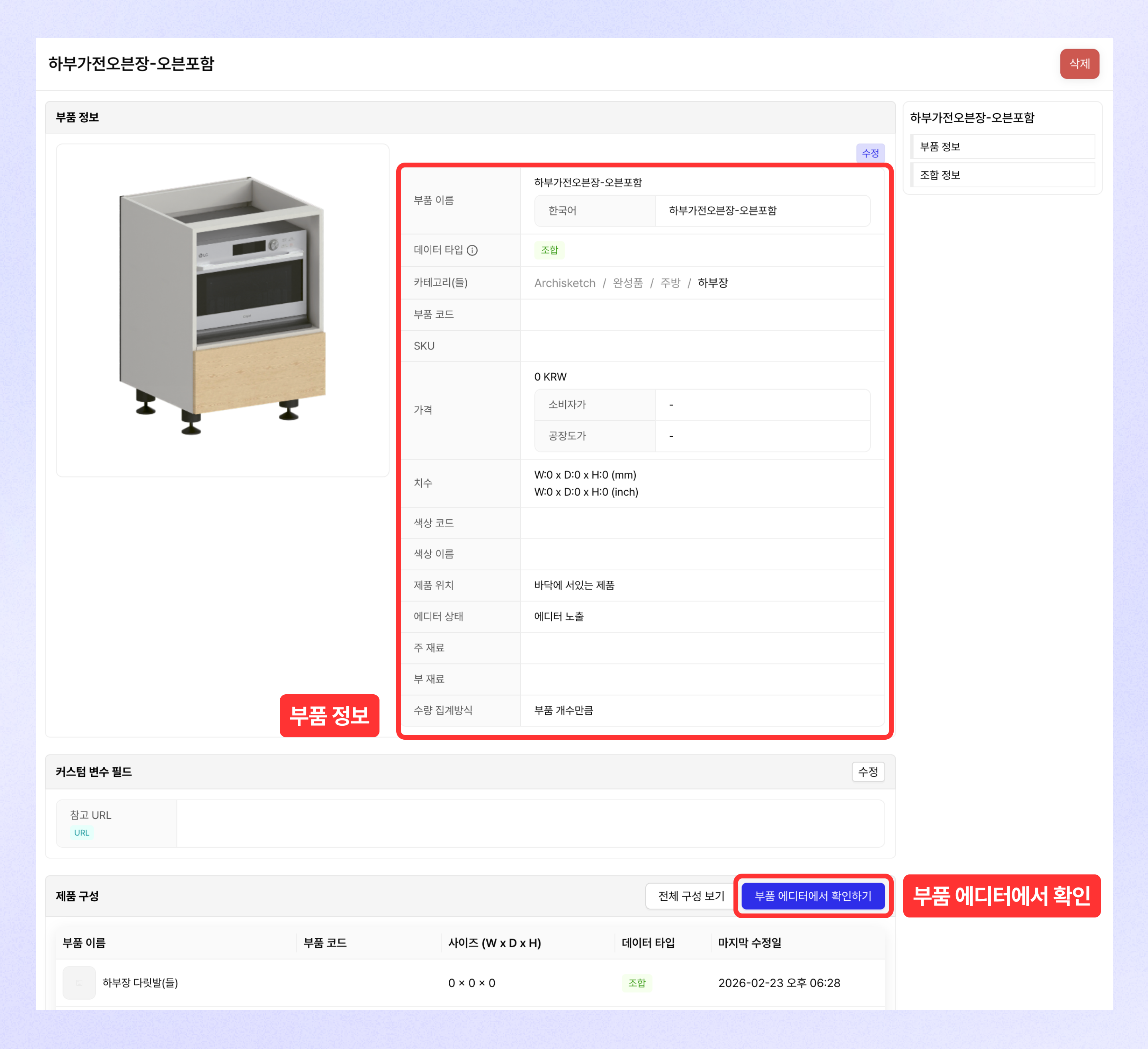
On the part detail page, you can view part information, and **\[View in Part Editor]** you can click the button to open and view the part in the Part Editor.
## Create part
### Create modeling & composite parts
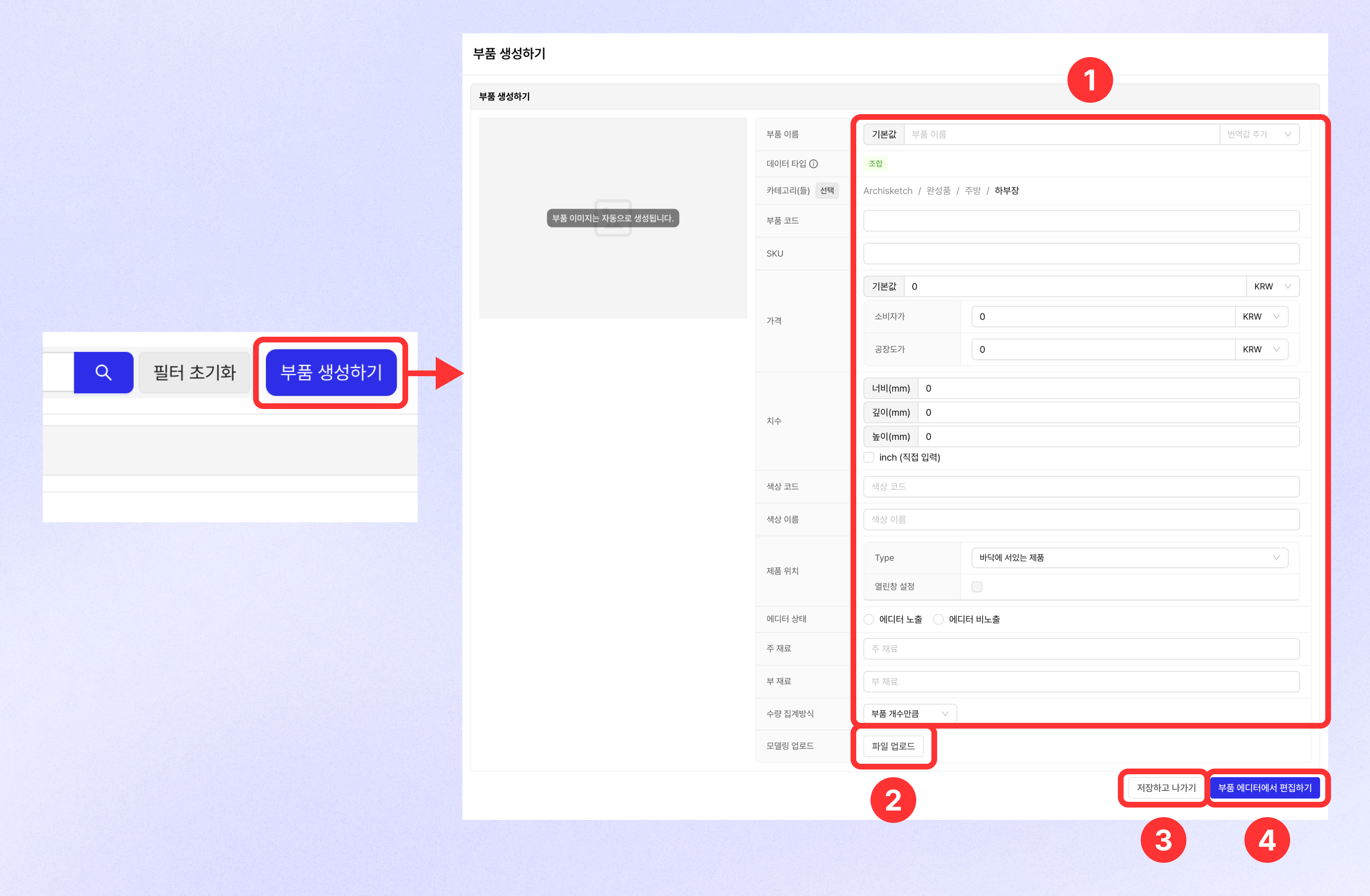
* top right **\[Create Part]**you can click to move to the part creation page.
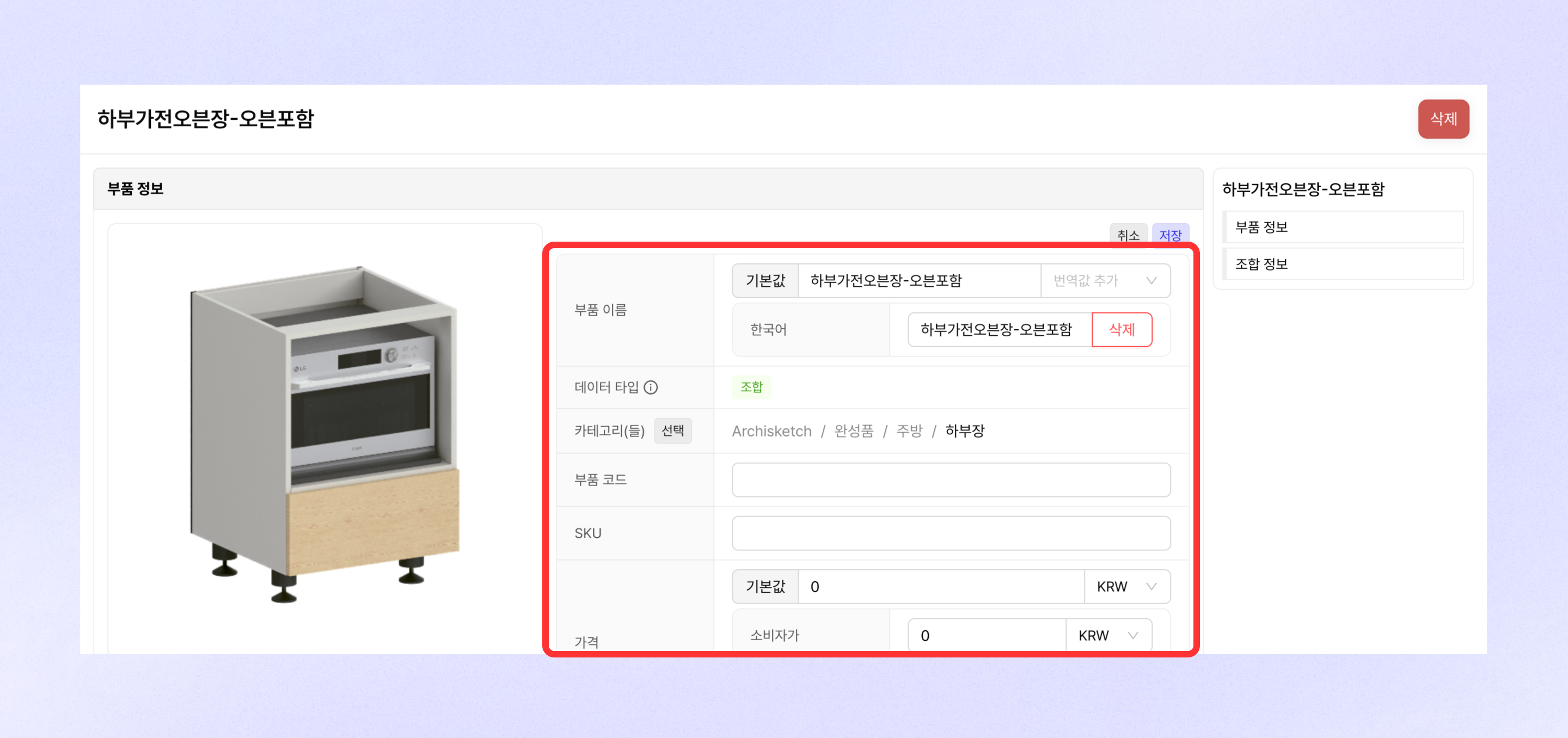
* The part image (thumbnail) is generated automatically, and you can enter part information directly. (Part name required)
* There are two ways to add part modeling: **1) Upload a modeling file, 2) Edit in the Part Editor**There are two ways.
* When a modeling file is uploaded, a part of the 'Modeling' type is created, and the file is automatically uploaded to the parts library as well.
* When editing in the Part Editor, you are taken to the Part Editor, where you can set it up and apply it.
* You can create a part by entering only the part information without uploading a modeling file.
{% hint style="info" %}
* A part can belong to only one category.
* A part can be created through another child part or modeling.
{% endhint %}
### Create group part
* After selecting two or more parts from the parts list, **\[Create Option Group]** click the button to enter the option group creation modal.
* You can create a group part by entering the option group name (part name) and key (option name).
## Edit part
### Individual editing
On the part detail page, click Edit in Part Information to edit the part information.
### Bulk editing
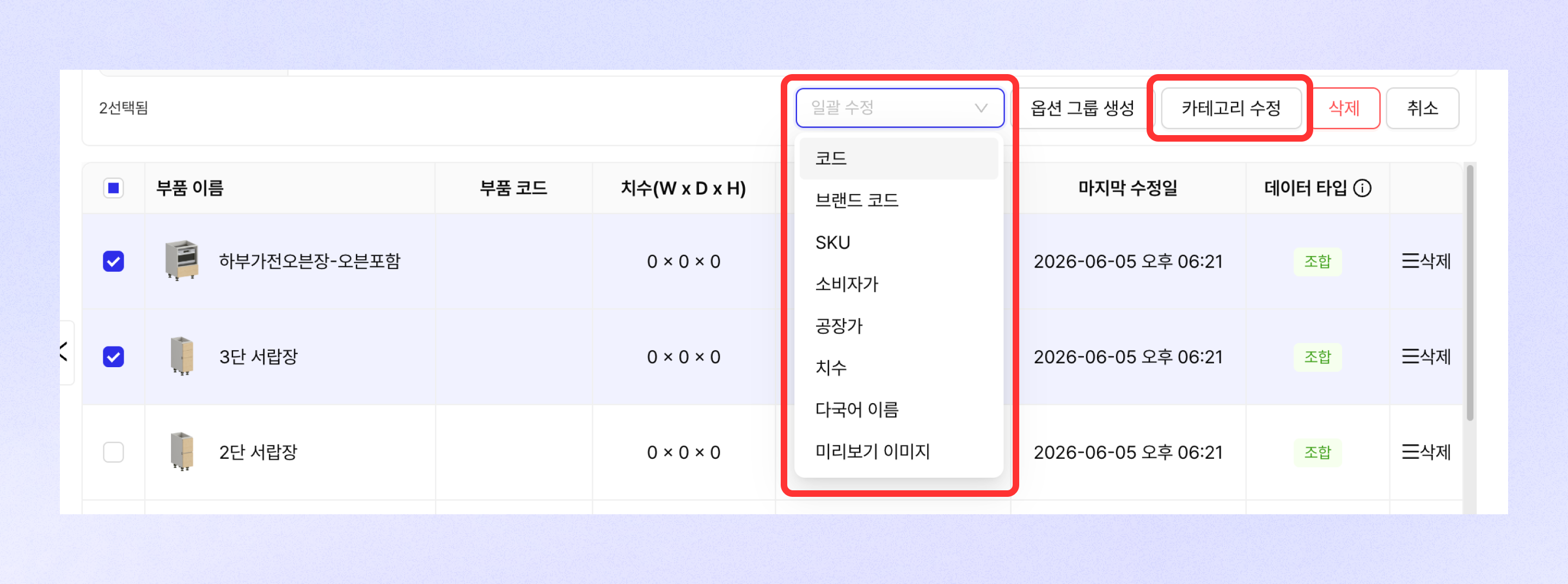
* After selecting two or more parts, you can bulk edit various part information for the selected parts through the \[Bulk Edit] button.
* You can bulk edit categories by clicking the \[Edit Category] button.
## Delete part
### Individual deletion
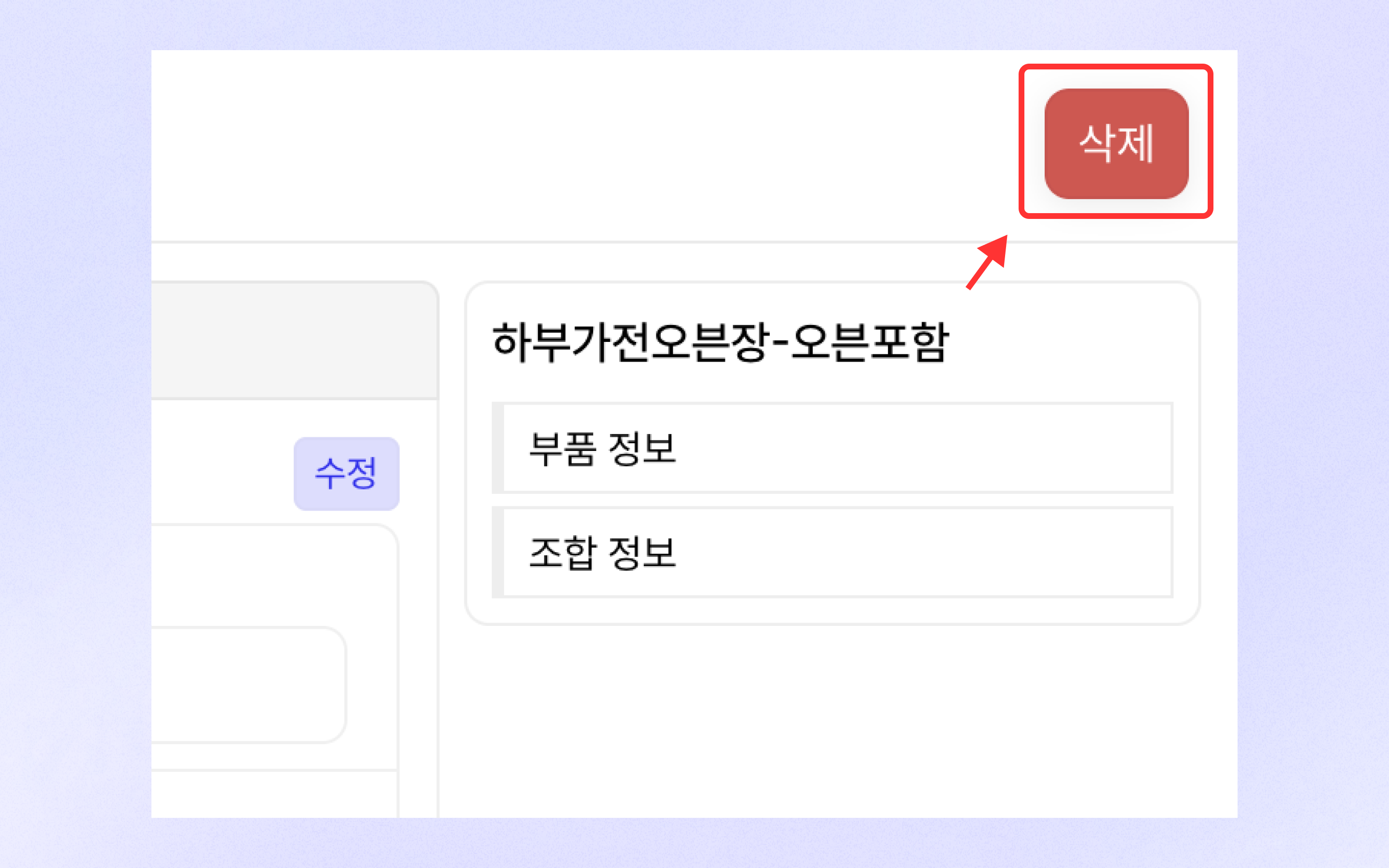
You can delete a part by clicking the \[Delete] button at the top right of the part detail page.
### Bulk deletion
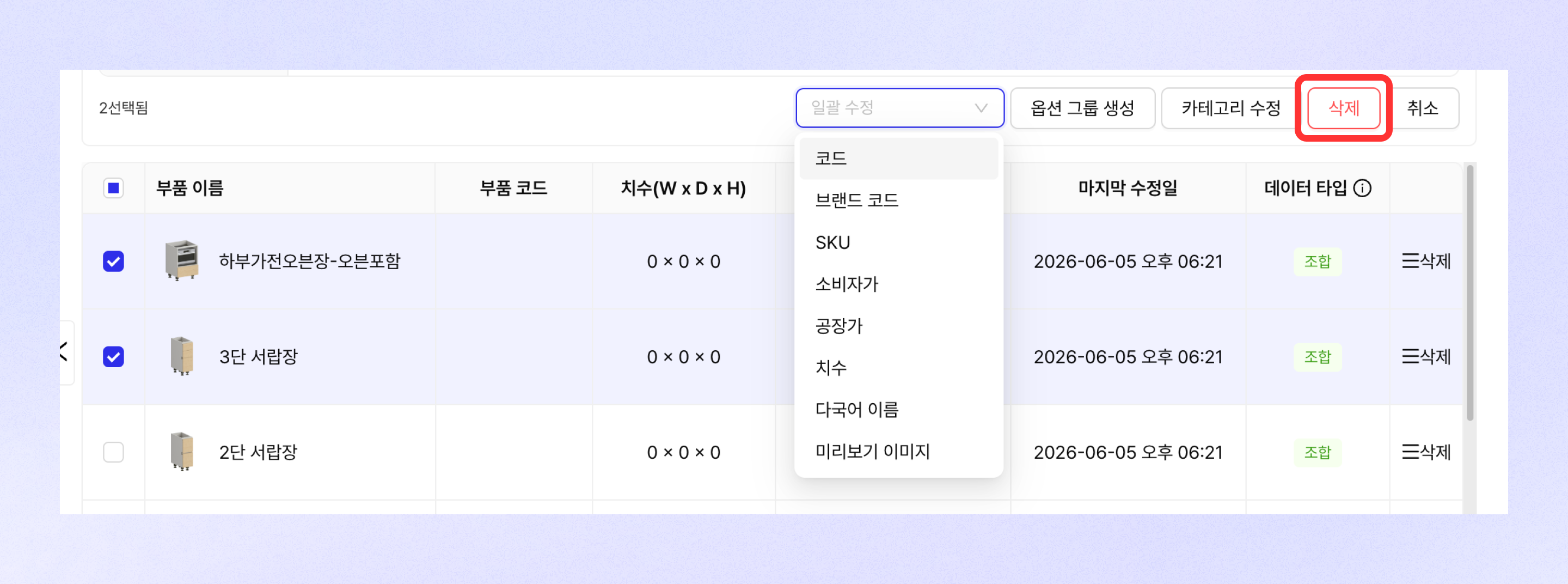
After selecting two or more parts, you can delete the selected parts at once through the \[Delete] button.
---
# Agent Instructions
This documentation is published with GitBook. GitBook is the documentation platform designed so that both humans and AI agents can read, navigate, and reason over technical content effectively. Learn more at gitbook.com.
## Querying This Documentation
If you need additional information that is not directly available in this page, you can query the documentation dynamically by asking a question.
Perform an HTTP GET request on the current page URL with the `ask` query parameter, and the optional `goal` query parameter:
```
GET https://docs.archisketch.com/guide/enterprise-en/parametric-library/component-library.md?ask=&goal=
```
`ask` is the immediate question: it should be specific, self-contained, and written in natural language.
`goal` is optional and describes the broader end goal you are ultimately trying to accomplish on behalf of the user. GitBook uses it to tailor the answer towards what is most useful for that goal.
The response will contain a direct answer to the question and relevant excerpts and sources from the documentation.
Use this mechanism when the answer is not explicitly present in the current page, you need clarification or additional context, or you want to retrieve related documentation sections.