> For the complete documentation index, see [llms.txt](https://docs.archisketch.com/llms.txt). Markdown versions of documentation pages are available by appending `.md` to page URLs; this page is available as [Markdown](https://docs.archisketch.com/guide/enterprise-en/manage-furniture/upload-skp.md).
# Upload SKP File
Archisketch supports SKP file uploads. However, modeling files that are large in size or contain many meshes may not be able to be uploaded, or errors may occur in the editor.
## Furniture Upload
### Step 1. Select a file
Please click \[Corporate Library → Products → Furniture Upload] to select a file.

* **Uploadable file formats**: SKP, ZIP (OBJ, GLTF)
* **SKP version**: 2023 or earlier
* **Size limit**: 100MB or less
{% hint style="warning" %}
Even for files under 100MB, if the modeling file contains many meshes, upload may not be possible or errors may occur in the editor. If an error occurs during upload, please contact us via Channel Talk.
{% endhint %}
### Step 2. Set properties
You can edit the name or specify properties for product placement.
1. **Edit name**: You can edit the product name.
2. **Product placement**: You can specify properties depending on where the product will be placed.
* Products placed on the floor: rugs
* Products standing on the floor: chairs, tables
* Products attached to the ceiling: ceiling lights, ceiling fans
* Products attached to the wall: curtains, picture frames
3. **Additional upload**: You can additionally select and upload other products. (Multiple selection available)

### Step 3. Upload
Click the \[Upload] button to start uploading the product.

1. **Go back**: You will be taken to \[Furniture Library - Unclassified Products], where you can check products that are currently being uploaded.
2. **Change material**: Enter \[Effector] to modify materials or change sizes.
3. **Additional upload**: You can continue uploading additional products.
{% hint style="warning" %}
**Category organization is required for uploaded products!**
Uploaded products are initially saved in the \[Unclassified Products] category, and in this state they cannot be viewed or used in the editor. To use a product in the editor, be sure to move it to the appropriate category.
{% endhint %}
## Model optimization
#### Model optimization guide
When uploading a model to the Archisketch furniture library, upload may be restricted not only by file size but also by the number of Meshes and Vertices that make up the model.
The current upload criteria are as follows.
* File size: 100MB or less
* Mesh: 500 or fewer
* Vertex: 1,000,000 or fewer
Therefore, even if the file size is 100MB or less, upload may be restricted if the number of Meshes is high or the model structure is complex.
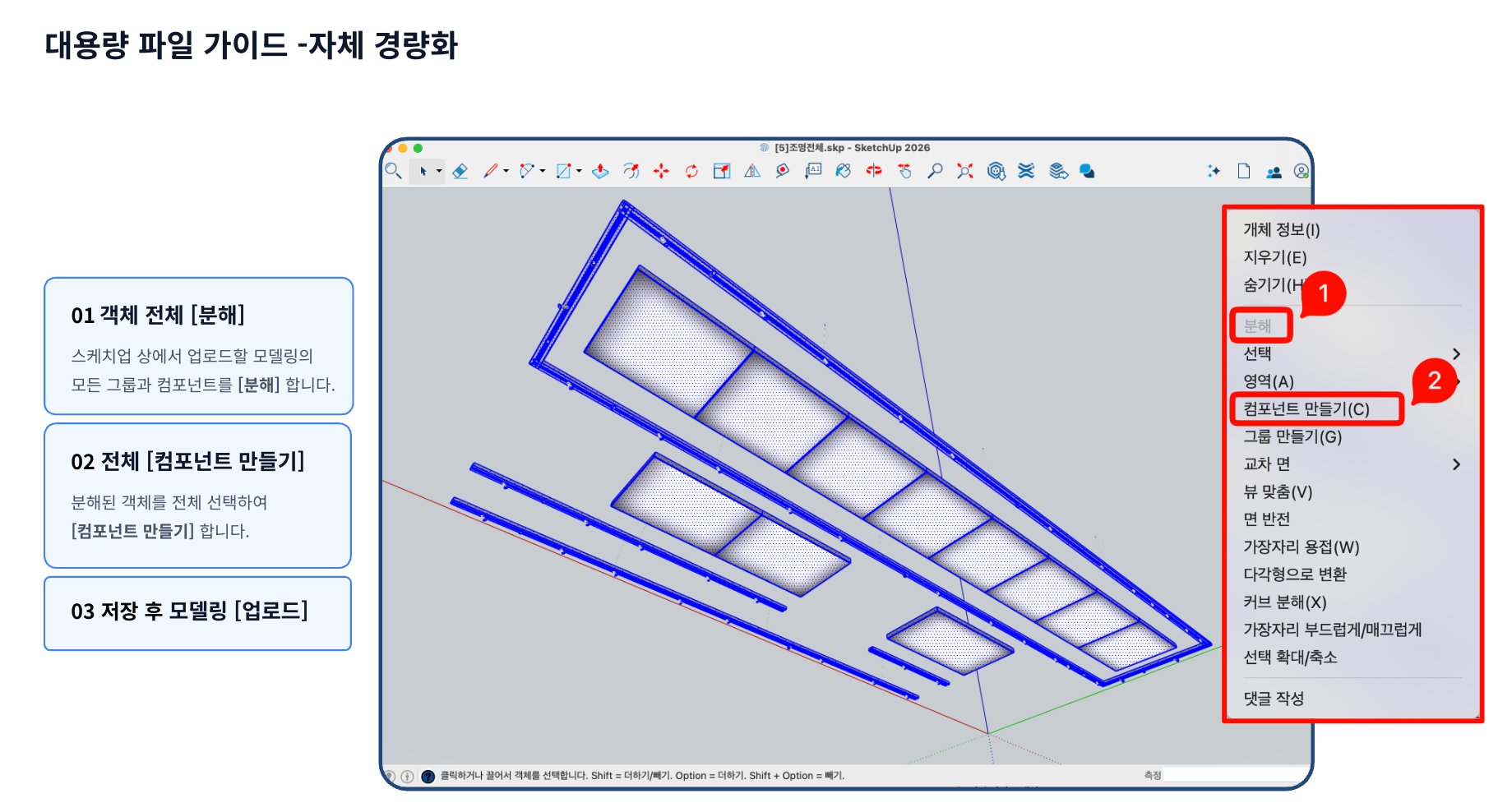
#### If upload does not work
If upload is not possible because the model exceeds the limit criteria during upload, the 3D model needs to be optimized.
**01. \[Explode] the entire object**\
After selecting all groups and components of the model to upload, **\[Explode]**proceed.
**02. \[Create Component] for the whole**\
After reselecting the entire exploded object, **\[Create Component]**to combine them into a single component.
**03. Save and re-upload the model**\
After saving the optimized file, upload it again to the Archisketch furniture library.
{% hint style="info" %}
Upload may be restricted if the model has unnecessarily detailed objects or too many meshes.
In some cases, simplifying the object structure as above makes uploading possible.
{% endhint %}
## Modeling retouch service
If SKP files or other 3D files are deemed unsuitable for upload and use, through Archisketch **modeling retouch**you can request.
* This can be done at a lower cost than new production.
* We help ensure optimized modeling files can be used smoothly in Archisketch.
**Inquiry information**
For related inquiries, Archisketch **Channel Talk**If you leave a message through it, the responsible department will kindly guide you.
---
# Agent Instructions
This documentation is published with GitBook. GitBook is the documentation platform designed so that both humans and AI agents can read, navigate, and reason over technical content effectively. Learn more at gitbook.com.
## Querying This Documentation
If you need additional information that is not directly available in this page, you can query the documentation dynamically by asking a question.
Perform an HTTP GET request on the current page URL with the `ask` query parameter, and the optional `goal` query parameter:
```
GET https://docs.archisketch.com/guide/enterprise-en/manage-furniture/upload-skp.md?ask=&goal=
```
`ask` is the immediate question: it should be specific, self-contained, and written in natural language.
`goal` is optional and describes the broader end goal you are ultimately trying to accomplish on behalf of the user. GitBook uses it to tailor the answer towards what is most useful for that goal.
The response will contain a direct answer to the question and relevant excerpts and sources from the documentation.
Use this mechanism when the answer is not explicitly present in the current page, you need clarification or additional context, or you want to retrieve related documentation sections.