> For the complete documentation index, see [llms.txt](https://docs.archisketch.com/llms.txt). Markdown versions of documentation pages are available by appending `.md` to page URLs; this page is available as [Markdown](https://docs.archisketch.com/guide/enterprise-en/manage-furniture/new-modeling-request/fill-out-request.md).
# Step 1. Fill out the request form
Archisketch has professional 3D modelers and works optimized for the Archisketch engine, ensuring fast, high-quality results. Request modeling production through Archisketch!
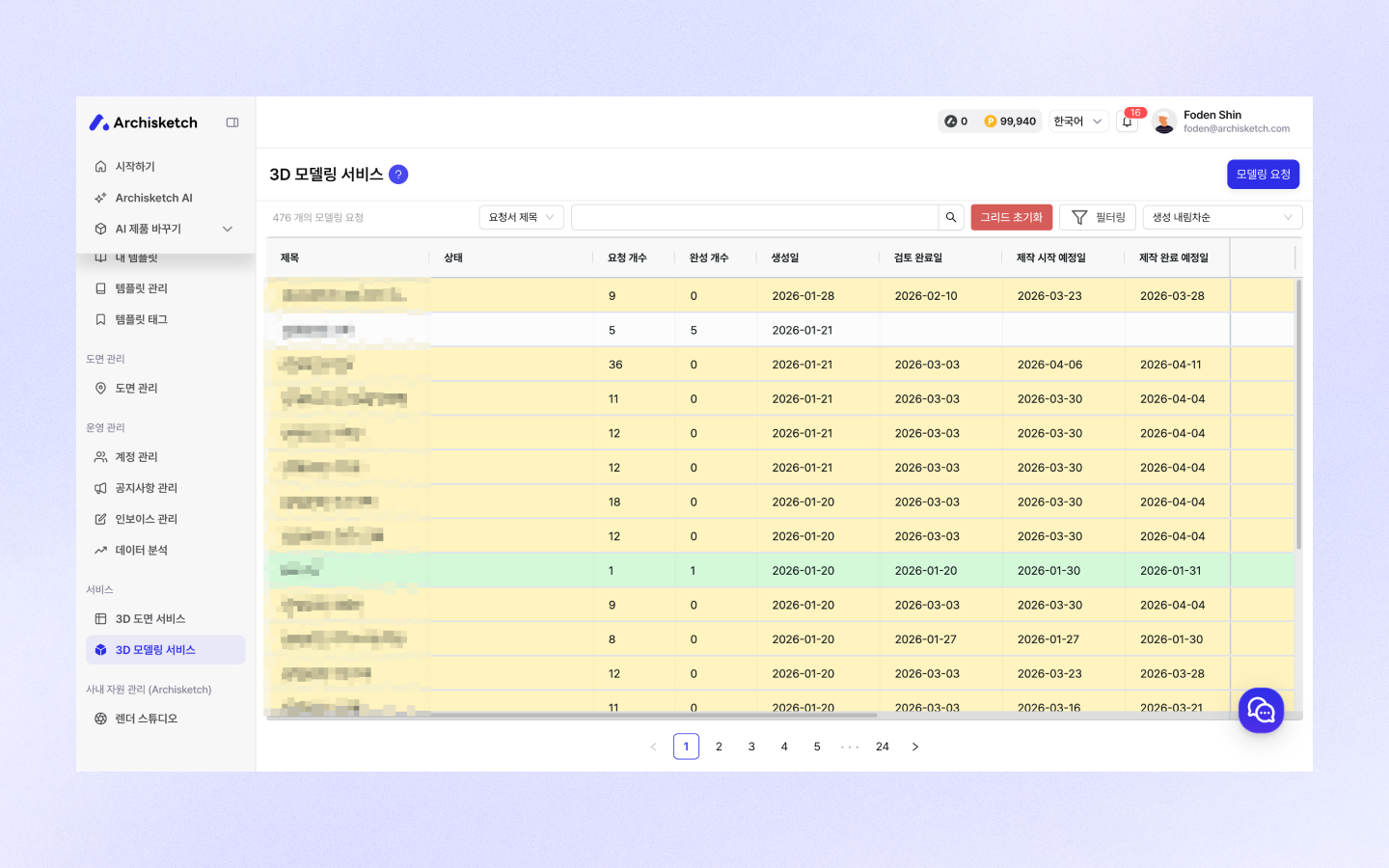
**Request path** : 3D modeling service → Click \[Modeling Request]
## Fill out the request form
### Enter request form title
When you click the \[Modeling Request] button, a screen for entering the request form title will appear.
### Add product
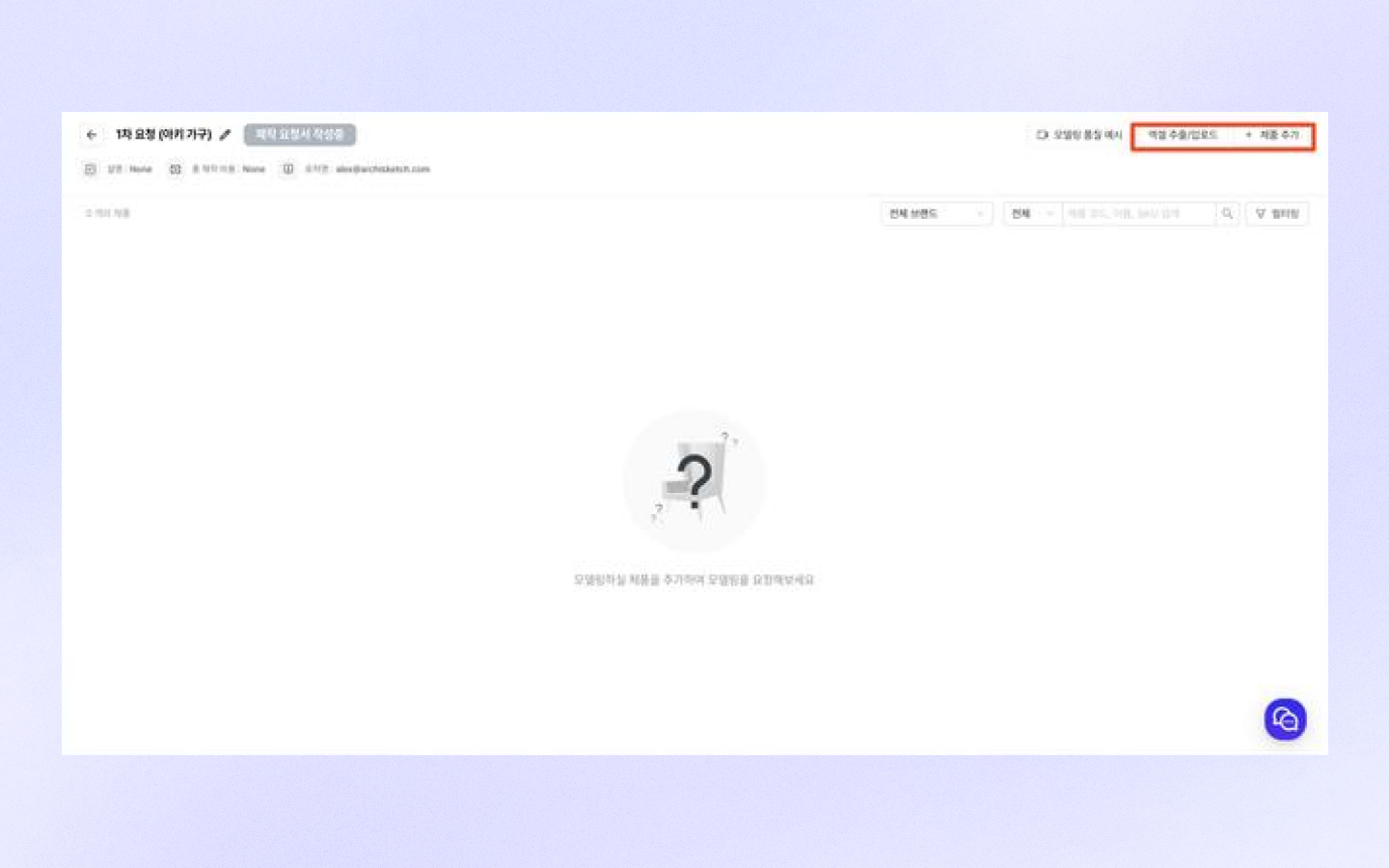
After entering the title, click the \[Request] button and an empty screen with no products will appear. You will see a button in the top right that lets you add products.
* Upload via Excel
* Enter one by one directly
#### 1. Excel upload
* **Excel upload**: You can write the request list in Excel and upload the file to add multiple products at once.
* **Download sample file**: For the Excel template, click \[Excel export/upload → Download sample file] to download and use it.
* **Export to Excel**: You can also export the list from the request form you are currently working on to Excel.
{% hint style="warning" %}
**Notes when filling out the request form**
* In the Excel table, **please do not delete the 'columns'!** It will cause errors during upload.
* Once production of all products included in the request form is complete, they will be uploaded to the dashboard as the final version. **Uploading individual products first is not possible**.
* If you group similar product categories and divide them into an appropriate amount, the review and upload process will go more smoothly.
{% endhint %}
#### 2. Add one by one
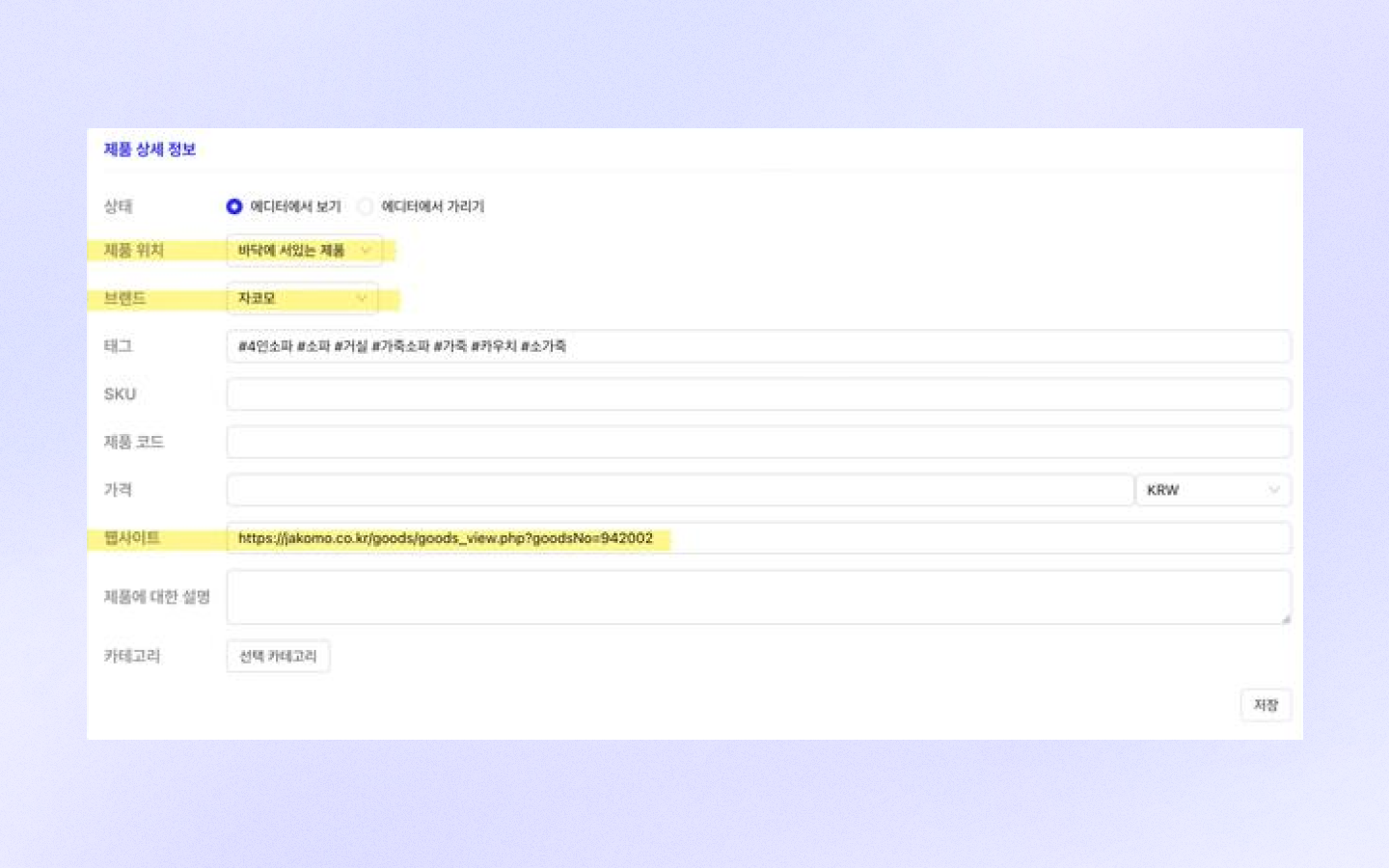
Click the \[Product] add button to fill out the request form. This is suitable when adding a small number of products.
**\*Project name (product name)**
* **Product name**please enter.
**Quality**
* Quality is currently produced to premium standards without distinction between Basic/Premium, so you do not need to select it.
**Reference image**
* If there is no website reference: **Please be sure to upload reference images.**
* For mattress or rug product requests: a top view image is required.
**\*Product size**
* Product's **width, depth, and height information**please enter accurately.
* For missing information, please add extra details in the \[Description] field.
**\*Website reference**
* For production reference **website link**please attach it. (e.g., product sales page link)
**\*Color**
* If the product has an exact color option name, **option name**please write it.
* The color you entered will later be **displayed in the editor**.
**Material information**
* If the material information is well explained in the website link, you may omit it.
**Status**
* **View in editor**: This is the default setting, and the product will be shown in the editor.
* **Hide in editor**: Sets the product so it is not visible in the editor.
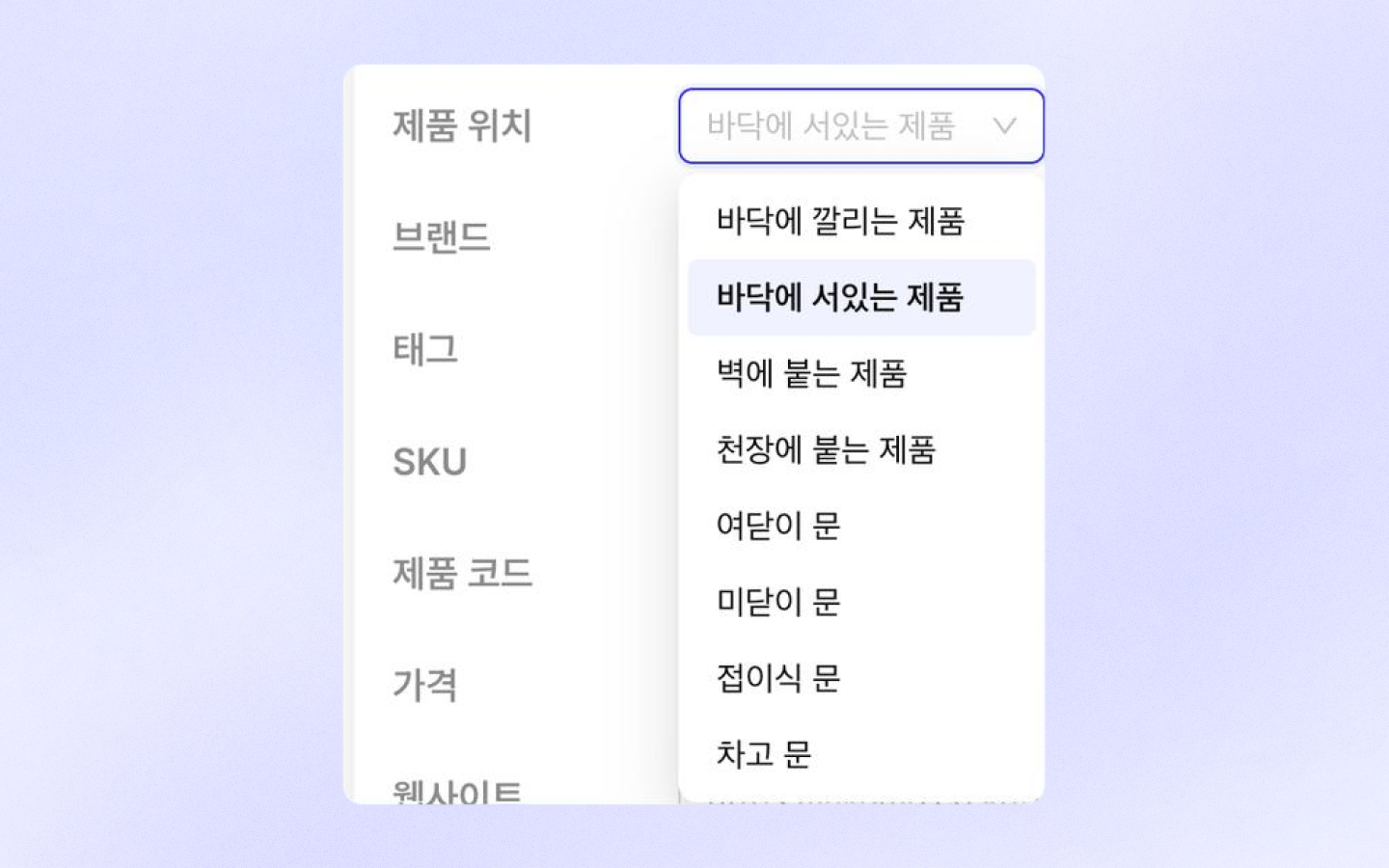
**Product placement**
* Rug: product placed on the floor
* Sofa, table: product standing on the floor
* Frame, clock, etc.: product attached to the wall
* Ceiling lights, ceiling fans, etc.: products attached to the ceiling
**Brand**
* You can search for and add a brand.
* If it isn't added, please first add the brand in \[Company Library → Brand Management].
**Tags**
* Searching for tags in the editor search bar helps you quickly find the product.
**SKU / product code**
* If you have a separate SKU or product code being managed, please enter it.
* This makes it easier to search for products in the dashboard.
**Price**
* Please enter price information.
* This information is shown to customers.
**Website**
* Please enter a link that will connect to the website when the product is clicked in the editor/dashboard, etc.
* This information is shown to customers.
**Description of product**
* You can write a description of the product, and it will be shown to customers.
**Category**
* Please specify the product category.
* If not specified, the product will be classified as \[Uncategorized products].
### Edit after saving the request form
1. **Save and move**: Clicking the \[Save] button at the bottom takes you back to the previous request list step.
2. **How to perform additional tasks**:
**❶ Edit**: Edit the existing request form.
**❷ Copy**: You can copy the same request form and then edit its contents.
**❸ Delete**: Delete the request form to remove it from the list.
**❹ Add product**: Add a new product to the request form.
## Request review
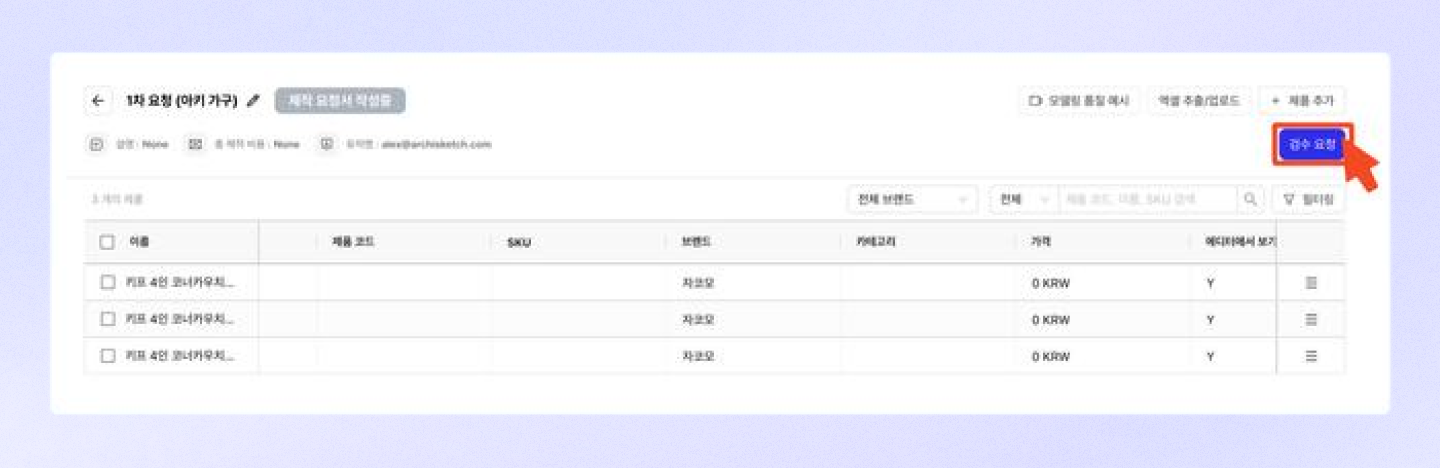
Once you have completed the product list, click the \[Request review] button to send the request form.
{% hint style="warning" %}
You can no longer add products once you request a review. If you want to add products, please create a new request form.
{% endhint %}
When you click the request review button, the status changes to \[Production request form under review].
## Once you finish filling out the request form,
to prevent anything from being left out during production, **be sure to let the Archisketch person in charge**know that you uploaded the request form through them!
---
# Agent Instructions
This documentation is published with GitBook. GitBook is the documentation platform designed so that both humans and AI agents can read, navigate, and reason over technical content effectively. Learn more at gitbook.com.
## Querying This Documentation
If you need additional information that is not directly available in this page, you can query the documentation by asking a question.
Perform an HTTP GET request on the following URL with the `ask` and `goal` query parameters:
```
GET https://docs.archisketch.com/guide/enterprise-en/manage-furniture/new-modeling-request/fill-out-request.md?ask=&goal=
```
`ask` is the immediate question: it should be specific, self-contained, and written in natural language.
`goal` is what the user is ultimately trying to achieve, the reason they need the answer. Sharing it helps GitBook give you a better, more relevant answer. A goal is most helpful when it describes the outcome the user wants rather than restating the question. For example, with `ask=how do I create an API token`, a goal like `automate deployments from our CI pipeline` lets GitBook tailor the answer to that use case.
The response will contain a direct answer to the question and relevant excerpts and sources from the documentation.
Use this mechanism when the answer is not explicitly present in the current page, you need clarification or additional context, or you want to retrieve related documentation sections.