> For the complete documentation index, see [llms.txt](https://docs.archisketch.com/llms.txt). Markdown versions of documentation pages are available by appending `.md` to page URLs; this page is available as [Markdown](https://docs.archisketch.com/guide/enterprise-en/manage-furniture/new-modeling-request/examine-modeling.md).
# Step 2. Review the modeling
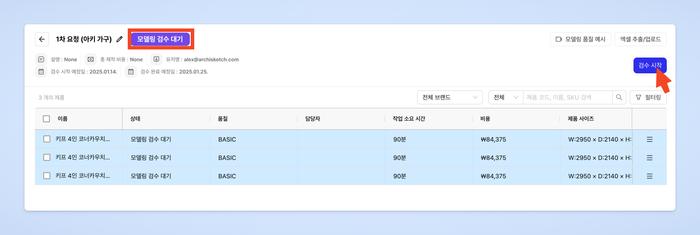
Once modeling production is complete, the request form will **\[Waiting for Modeling Review]** status.
Please review the completed product.
## Start Review
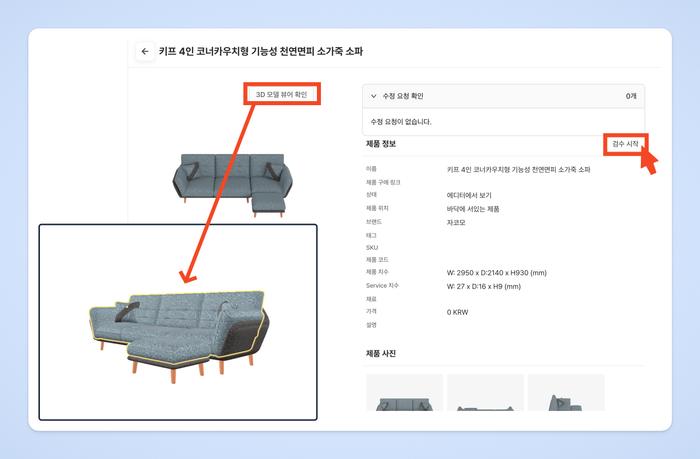
**Click the Start Review button**: Click the \[Start Review] button to begin the review.
## Check the Modeling
* After pressing \[Start Review], begin the review.
* Click the \[Check 3D Model Viewer] button to review the product in 360 degrees.
### If there are no revisions
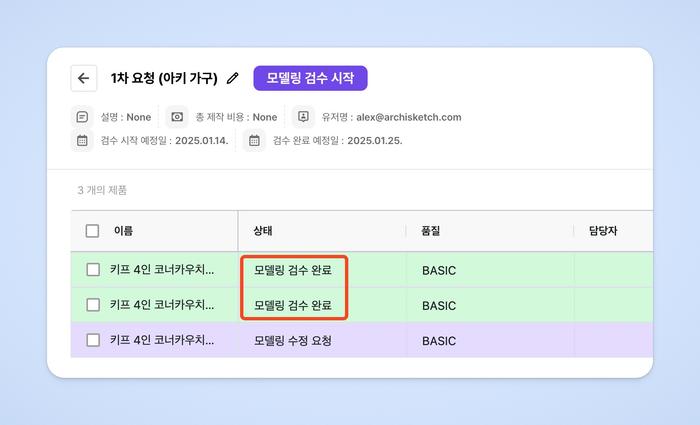
* For products that do not need revision requests, click the \[Review Complete] button.
* The product status will change to \[Modeling Review Complete].
{% hint style="info" %}
If even one product in the request form has a revision request, you must wait until the revision work is completed.
{% endhint %}
### If there are revisions
**Request Revision**
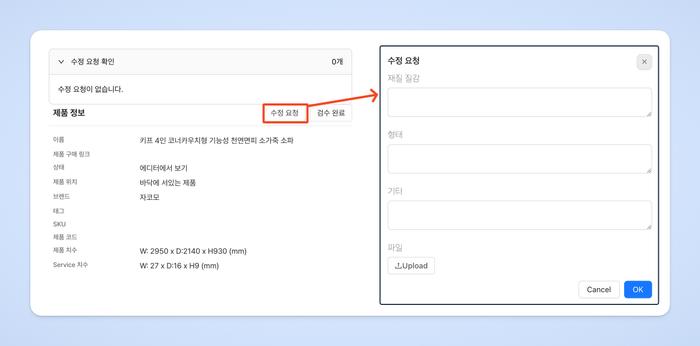
If you want to request revisions, click the \[Request Revision] button.
* Enter the revision request details for each item—material texture / shape / others—and click \[OK] to save.
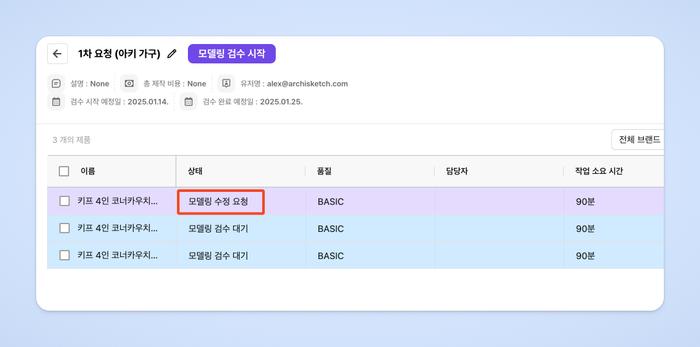
* The status will change to \[Modeling Revision Requested].
#### Recheck the Modeling
* When you submit a revision request, the Archisketch modeling team will review the request and carry out the revisions.
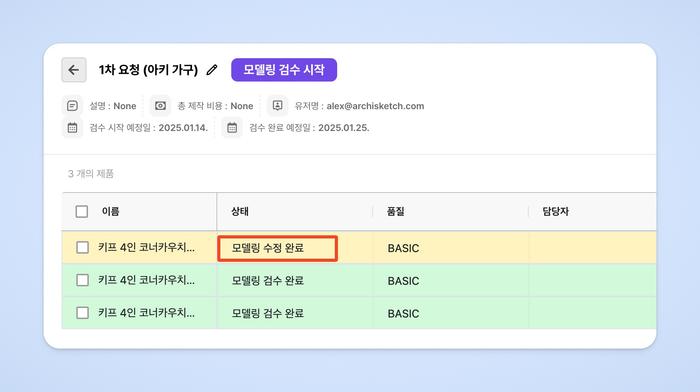
* When the revisions are complete, the status will change to \[Modeling Revision Complete].
* Once the status changes, double-click the list to proceed with the recheck.
**View History**
* You can view the history of previously requested revisions.
* Please request revisions once more, or finish by marking it as review complete.
{% hint style="warning" %}
A revision request can be made up to 2 times per product.
{% endhint %}
## Review Complete
**Review Complete for All Products**
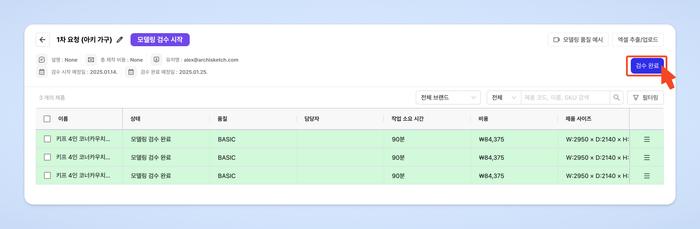
* Once all products have been reviewed, the \[Review Complete] button at the top right will be enabled.
* Press the button to finish the final review.
**Final Complete**
* Click the \[Final Complete] button to move to the next step.
**Final Upload**
* Click the \[Final Upload] button to start uploading the product.
* Upload takes a little time, and completed products can be found in the \[Uncategorized Products] category.
## Frequently asked questions
**There is an error in the Check Modeling viewer.**
If you contact the person in charge or the Archisketch ChannelTalk, we'll check it and help guide you.
**I finished the modeling review, but it won't upload.**
After completing the review, you must click the \[Final Upload] button for it to be uploaded to the dashboard. It takes about 5–10 minutes after upload completion before it can be checked in the editor.
---
# Agent Instructions
This documentation is published with GitBook. GitBook is the documentation platform designed so that both humans and AI agents can read, navigate, and reason over technical content effectively. Learn more at gitbook.com.
## Querying This Documentation
If you need additional information that is not directly available in this page, you can query the documentation by asking a question.
Perform an HTTP GET request on the following URL with the `ask` and `goal` query parameters:
```
GET https://docs.archisketch.com/guide/enterprise-en/manage-furniture/new-modeling-request/examine-modeling.md?ask=&goal=
```
`ask` is the immediate question: it should be specific, self-contained, and written in natural language.
`goal` is what the user is ultimately trying to achieve, the reason they need the answer. Sharing it helps GitBook give you a better, more relevant answer. A goal is most helpful when it describes the outcome the user wants rather than restating the question. For example, with `ask=how do I create an API token`, a goal like `automate deployments from our CI pipeline` lets GitBook tailor the answer to that use case.
The response will contain a direct answer to the question and relevant excerpts and sources from the documentation.
Use this mechanism when the answer is not explicitly present in the current page, you need clarification or additional context, or you want to retrieve related documentation sections.